
Configuration Notes and Device Behavior
This section describes prerequisites, configuration rules, and runtime behavior for Device Groups, including how devices become active, how calls are moved between devices, and how held and incoming calls are handled.
Prerequisites and Configuration Rules
- Each Device Group supports up to five devices, identified by MAC address.
- Entering “0” in any MAC address field is not allowed.
- MAC address fields may be left blank if fewer than five devices are configured.
- Devices cannot be hotdesked into a Device Group.
- All settings configured under Extensions and Extensions (XSTIM) apply uniformly to all devices in the Device Group.
- Programmable keys are configured at the Device Group level.
- Each device displays only the number of programmable keys it supports.
Active and Standby Device Model
- At any time, one device in the Device Group is designated as the Active Device.
- All other devices remain in Standby mode.
- Incoming calls ring all devices in the Device Group.
- The device that answers a call becomes the Active Device.
Making a Standby Device the Active Device
A device in Standby mode can become the Active Device using any of the following actions:
- Press the Switch softkey on the device.
- Lift the handset, if the device has one.
- Answer a ringing call, if a call is being presented.
Once any of these actions occur, the selected device becomes the Active Device and all other devices
return to Standby mode.
Moving an Active Call to a Standby Device
Moving an active call between devices in a Device Group requires a two-step operation:
- From the Active Device, place the active call on hold.
- On the target device that is currently in Standby mode, press the Switch softkey or lift the handset if available.
The selected device becomes the new Active Device, and the held call can then be resumed.
Held Calls and Subsequent Incoming Calls
If all existing calls on the Active Device are in a held state, and a new incoming call arrives for the extension:
- The new call rings all devices in the Device Group.
- Any device may answer the incoming call and become the Active Device.
- Previously held calls remain associated with the extension and are not affected.
To resume a held call:
- Press the held line key corresponding to that call on the Active Device.
Shared Call Appearance (SCA) Behavior
If the extension associated with a Device Group includes a Shared Call Appearance key, the following behavior applies.
When the SCA Key Is Visible on the Device
- All devices ring on incoming SCA calls.
- The SCA key flashes during ringing.
- When answered, the SCA key turns steady to indicate the line is in use.
- Placing the call on hold causes the SCA key to flash.
- The call remains accessible to other extensions with the same SCA appearance.
When the SCA Key Is Not Visible on the Device
- The device rings normally on incoming SCA calls.
- If answered, the call appears on one of the device’s available extension buttons.
- Placing the call on hold causes the extension button to flash.
- The call remains accessible to other extensions with the same SCA appearance.
Identifying Active and Standby Devices
Within a Device Group, the current state of each device can be identified through its user interface
and key indicators.
Visual Appearance
- The Active Device displays call state information for the extension, including active calls, held calls, and line status.

- The Active Device presents call control options such as hold, resume, and transfer for the current call.
- Standby Devices do not display active call control for the extension unless a call is ringing.
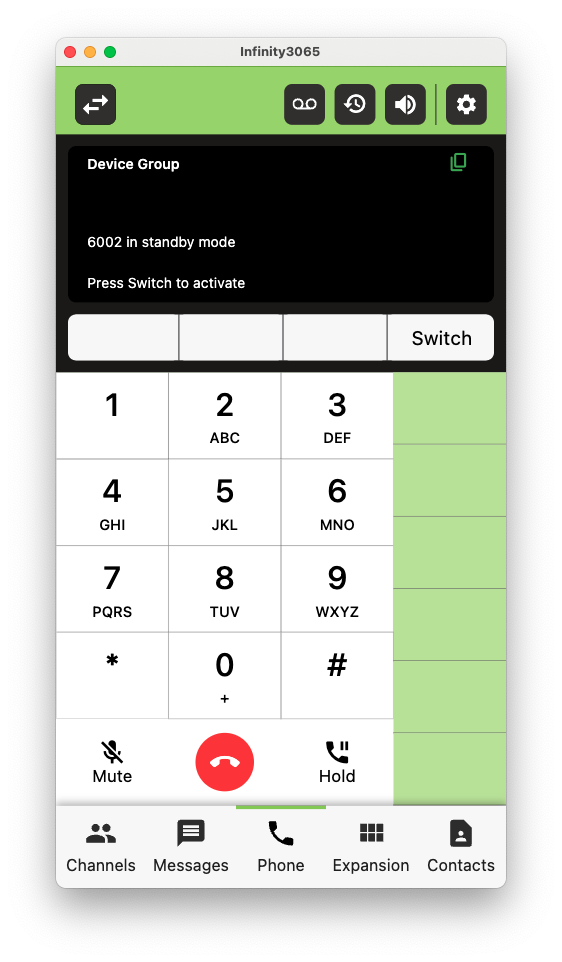
When a call is active:
- The Active Device shows the call as connected or in progress.
- Standby Devices do not show the active call. If the Switch softkey is pressed on a device in Standby mode, the standby mode device will display “Invalid State”.
When all calls are on hold:
- The Active Device displays held call indicators.
- Standby Devices remain idle until a call is resumed or a new call is presented.
When a device becomes the Active Device through answering a call, pressing the Switch softkey,
or lifting the handset, its interface updates immediately to reflect active call control.
From the PBX Tools CLI
To determine the active device in a device group via the UCX Web based Configuration Utility:
- Navigate to PBX / PBX Tools / Asterisk CLI
- In the Command field, enter “ucx show peer number” where number is the extension number of the device group.
The output will look similar to the following:
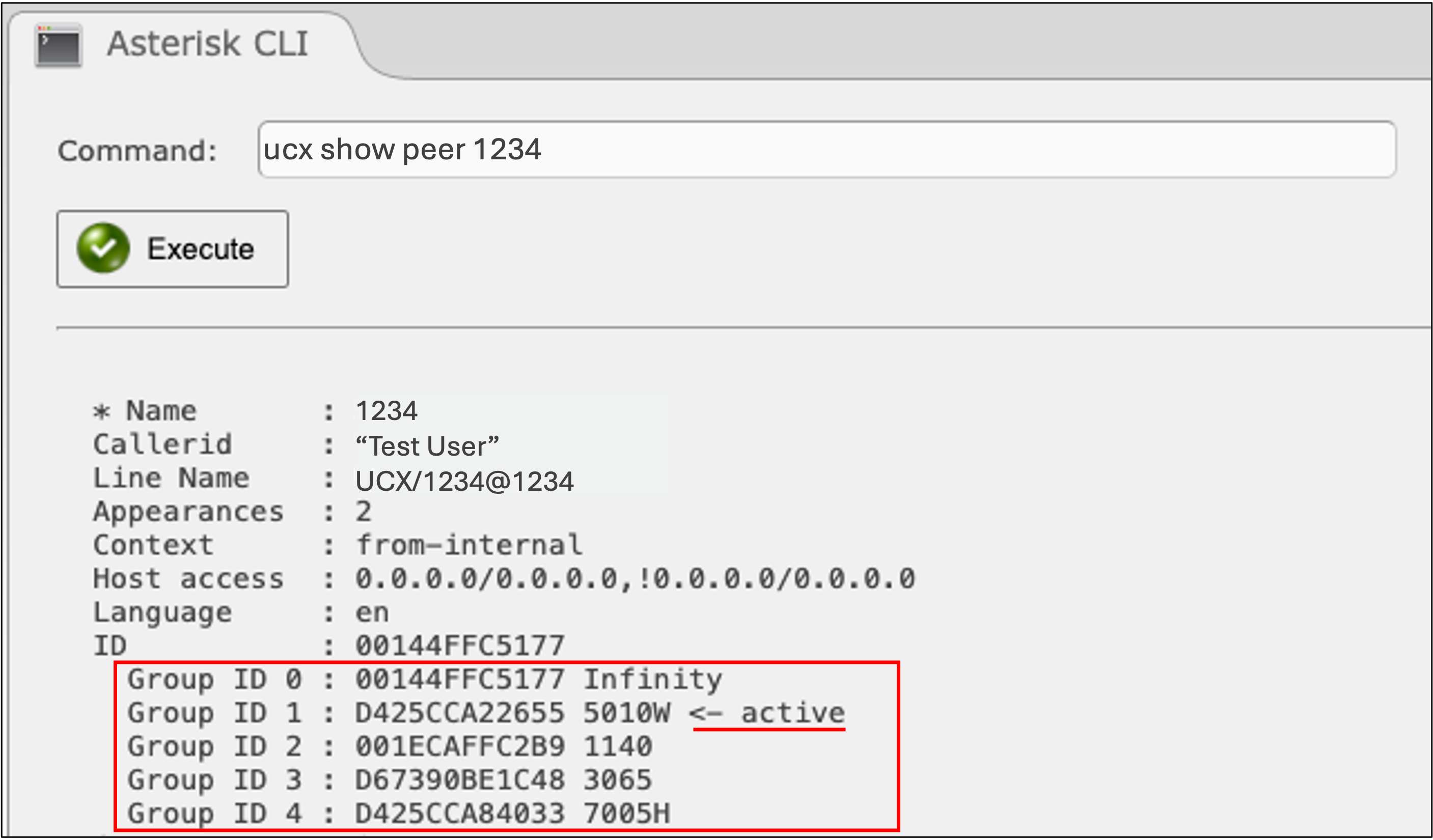
The MAC address and device type of each member of the device group will be listed. An indicator will show the currently active device.
When an active device de-registers for whatever reason (i.e. goes offline), the UCX will attempt to set the device with Group ID 0 as the Active device:
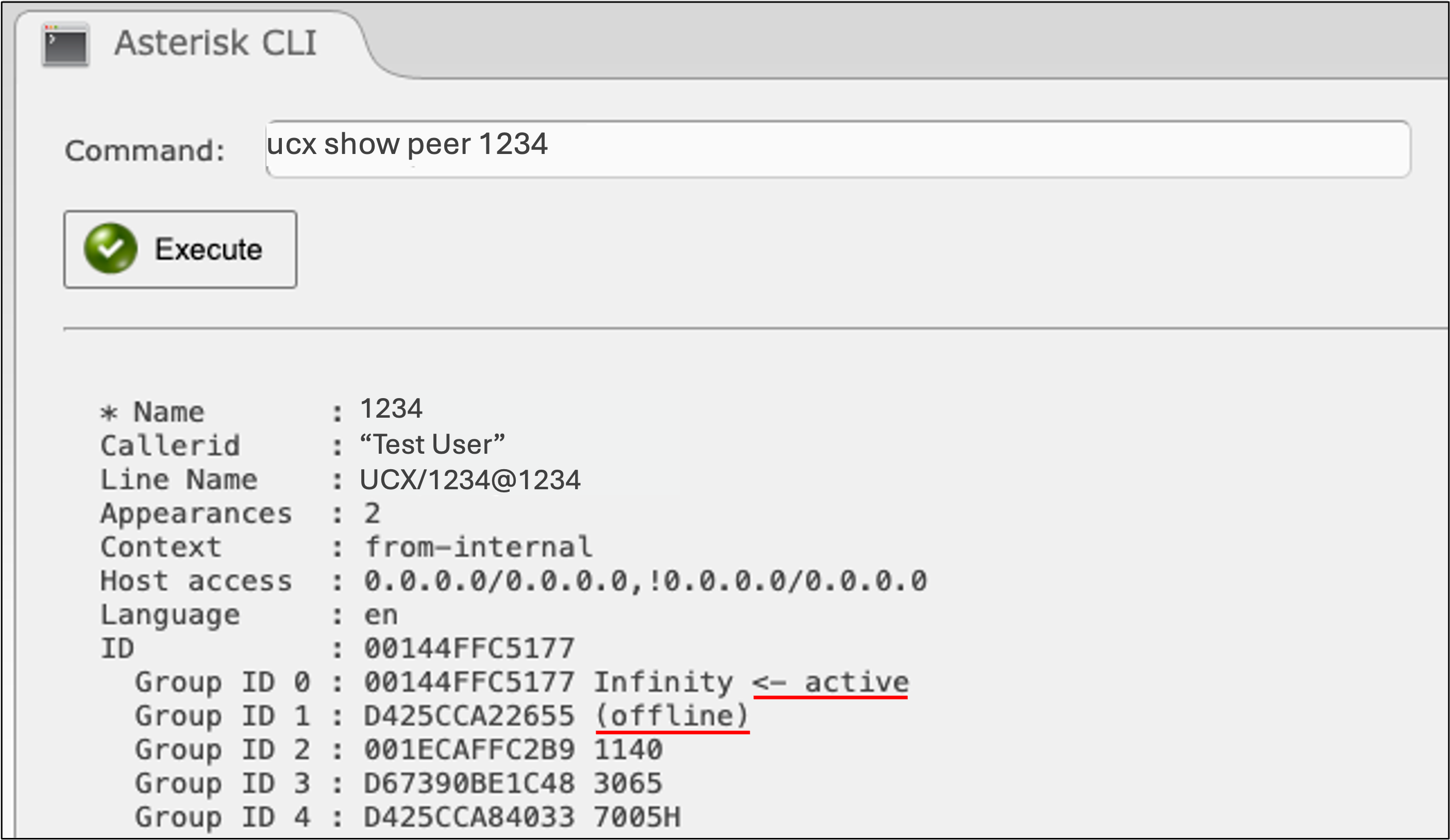
The command will now show a new active device, and indicate the previous device is currently offline.
When the previous active device re-registers, the UCX resets that device as the active device.
