
 | 1 | Earpiece Speaker | |
|---|---|---|---|
| 2 | Screen | ||
| 3 | Navigation keys | Up/Down/Right/Left | |
| 4 | Selection key | Confirm or select an option. | |
| 5 | Off-hook key | Answer a call. Use as a shortcut to the Call list. | |
| 6 | On-hook key | End a call. Return to the previous menu. Switch the handset on/off by long press. | |
| 7 | Menu Key | Enter the main menu of the handset. | |
| 8 | Speaker Key | Enable/Disable speaker mode during a call. NOTE: If enabled during a call, the speaker key will light up in red and the sound will come from the speaker on the back of the handset. | |
| 9 | Softkeys | Used for different commands in the various menus of the handset, which change according to what is displayed on the screen. | |
| 10 | LED | Indicates missed call (red flashing), messaging (green flashing), low battery (double flash). On the Infinity 277, the LED is a small dot beside the Earpiece Speaker (1). |
  | 11 | Headset connector (3.5mm) | Slot used for connecting a headset. The connector is protected against dust by the headset connector cover. Supported only with Infinity 577. |
|---|---|---|---|
| 12 | Volume Up Key (Side Key) | Increase the volume during a call. Supported only with Infinity 577. | |
| 13 | Volume Down Key (Side Key) | Decrease the volume during a call. NOTE: The volume buttons are used to control the volume when using the earpiece, a headset, and the loudspeaker. The lowest volume level will not mute the handset. Supported only with Infinity 577. | |
| 14 | Mute Key (Side Key) / Push-to-talk (PTT) key | Turn Off/On the microphone during a call. If the handset is in idle and the button is pressed, it will activate the PTT function. Supported only with Infinity 577. | |
| 15 | External Speaker | Used when speaker mode is enabled in a call. | |
| 16 | Battery | ||
| 17 | Alarm Key | Speed dial to a number configured in the base station. Hold for 3 seconds to dial. Supported only with Infinity 577. |
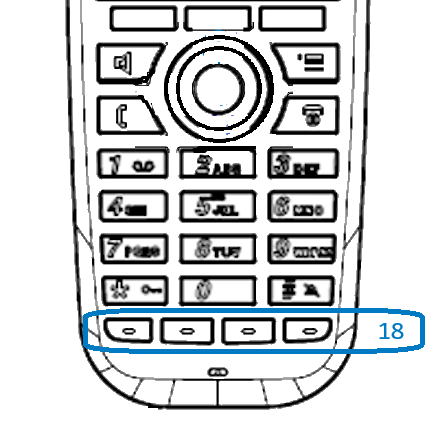 | 18 | Function keys | Supported only with Infinity 277. |
|---|
Keypad
The image below illustrates the available characters on the handset’s keypad. Depending on the selected menu language, other characters can be available. Therefore, the character order can differ from the one below.

Number input mode
When in idle, a short key press enters the digits “0” – “9” and the characters “*” and “#”.
A long key press on “0” generates a “+”.
Text input mode
When writing a text, a short press on keys “0” – “9” displays the first available character on that specific key. By pressing the “*” key it is possible to change the letter input to upper/lower case or only a numeric value (Abc, abc, ABC, or 123).
Use the “0” key to add a space in the text.
Key Features
Power On and Off
Long press the red On-hook key to power ON/OFF the handset.
Key lock
The keypad can be locked/unlocked by long pressing the asterisk “*” key in idle. This feature can prevent accidentally pressing keys and making a call.
NOTE: It is possible to answer/reject an incoming call while the keypad is locked
Silent mode
The silent mode feature can be activated/deactivated by long pressing the pound “#” key in idle. When enabled, the handset will turn to silent mode and a “Sound Off” icon will be displayed in the status bar.
NOTE: When this mode is enabled, it is possible to switch on/off the vibrator on the handset in Settings > Audio Settings > Vibrator. Please note, that all other audio settings will be greyed out while the handset is in silent mode.
Message Waiting Indicator
When there is a new message in your voicemail box, the LED indicator starts flashing green. To access your new message(s), long press the number “1” key. The handset will automatically dial your voicemail box.
Call List
There are 3 ways to access your call history:
- Press the green Off-hook button when idle.
- Press the right softkey.
- Press the Menu button and navigate to Calls.
Contacts
There are 2 ways to access your local Contacts:
- Press the left softkey when idle.
- Press the Menu button, select Contacts.
From the Contacts page, you can: Call, Edit, Edit before call, Add, Delete, Delete all contacts or assign Speed dial key.
If the contact has more than one number available (work, home, mobile, etc.) a small arrow appears to the right of the contact. Pressing the navigation key to the right will toggle between the different numbers.

To add a Contact from Call List:
- From Call List, scroll to the desired number.
- Select More

- Select Save as contact

To add a new contact manually:
- From Contacts, select More

- Select Add contact

- Edit the Name
- Select and edit the number for Work / Mobile / Home
- Select Save

Speed Dial Key
Any key from “2” – “9” can be set as a speed dial key – a shortcut to calling any contact in the contact list, or in the F-Key list. A long press on any of these keys, while the handset is in idle, will call the assigned contact.
A contact can only be assigned to one speed dial number at a time. The first defined number for the contact will be dialed when the speed dial key is pressed. This means that if all numbers (work, mobile, home, and other) are defined for the contact, then the work number will be dialed first. If the work number is not defined, then the mobile number is dialed, and etc.
To assign a contact to a speed dial key:
- Access the Contact list.
- Navigate to the desired contact.
- Select the More softkey
- Scroll down and select Speed dial

- Navigate to the desired key entry, press the Add softkey.

Making and Answering Calls
To make a call from idle simply enter the phone number from the keypad and press the green Off-hook key. To answer a call simply press the green Off-hook key.
Function Keys (Infinity 277)
The Infinity 277 has 4 extra keys (F1, F2, F3 and F4) at the bottom of the keypad. These function keys can be configured as a speed dial key or as a shortcut to a menu function.
To program a function key:
- Press the Menu key, select Settings, scroll down and select Function keys.
- Scroll to the desired Function key and Select.

- There are 3 options. The first option is to Ignore key press, turn this ON to disable the key. The second option is Speed dial and the third option is Shortcuts.

- If Speed dial is selected, in the next screen you can select the desired Contact to assign to this function key.

- When done, press the red On-hook button to exit all the screens.
Alarm Button (Infinity 577)
The Infinity 577 has a red Alarm button located on the top of the handset. Press and hold the Alarm button for 3 seconds and a call will be made to the alarm number configured by the administrator.
Bluetooth (Infinity 577)
The Bluetooth feature enables the Infinity 577 handset to be connected to a Bluetooth headset.
The handset can be paired with up to four different Bluetooth headsets.
To enable and pair a Bluetooth headset:
- Press the Menu key, select Settings, scroll down and select Bluetooth
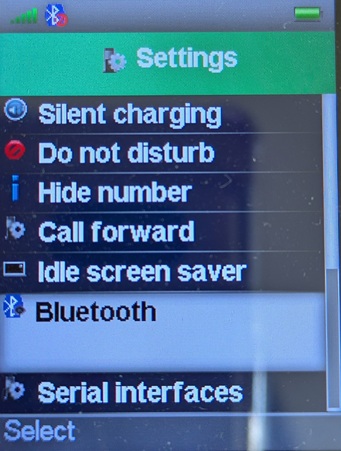
- Select Enable/disable to toggle Bluetooth On/Off. When Bluetooth is enabled, the bluetooth icon is shown in the status bar.
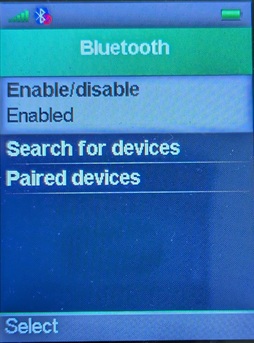
- Place the bluetooth headset in pairing mode and select Search for devices.
- From the list of available devices shown, highlight the desired device and select Pair.
When the handset is connected to a Bluetooth headset the audio on all calls is routed through the Bluetooth headset. When receiving an incoming call alerting is heard both from the handset and the paired Bluetooth headset.
Use Case Scenario
Call Park and Retrieve
Setup:
- Create entries in Contacts for the Parking Lot extensions. (e.g. 71, 72, 73)
- Assign the Parking lot entries in Contacts as speed dial keys. (e.g. 2, 3, 4)
To Park a call:
- Press the Transfer button

- Press the Contacts button

- Select the desired parking lot entry (e.g. 71) and press Transfer

- The call is now parked at 71.
To Retrieve a parked call:
- Press and hold the Speed Dial key (e.g. 2) for the Parking Lot extension (e.g. 71)
- The call is now retrieved.
