Accessing the System
To access the Web Configuration Interface of the DECT system, there are two methods:
Method 1 – IP address
- Start with the handset in IDLE mode
- Press the Menu key
- Type *47*
- The handset will now enter scanning mode to find the nearest base stations. As soon as a base is found, the handset will display the MAC address of the base, together with its IP address.
- From a browser, type in the IP address of the base station.
http://<IP address of base station>
Method 2 – MAC address
- This method requires an available DNS server.
From a browser, type ipdect followed by the MAC address of the base station.
http://ipdect<mac address of base station>
Logging in
The default login username is admin and password is emetr0tel.
Only one admin session is allowed at a time. If one admin is successfully logged in, the other admin session is automatically logged out.
After 10 failed logins within 5 min, all requests for authentication for the next 5 minutes are rejected.
Home / Status
This page provides an overall view of the DECT system.
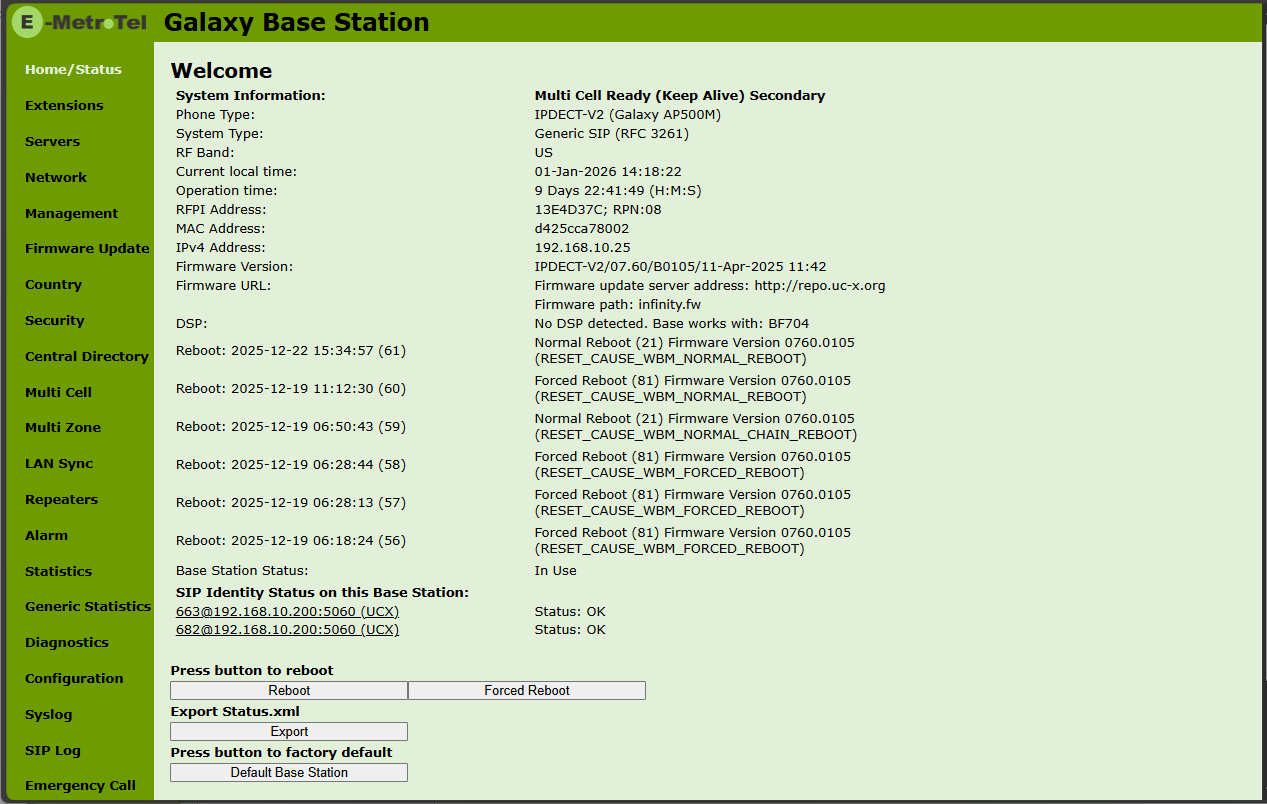
| Field | Description |
|---|---|
| System Information | Displays the configuration and current state of the base. Configuration
State
|
| Phone Type | DECT system type
|
| RF band | RF band setting
|
| Current Local Time | Local time of the specific base |
| Operation Time | Operational up time of the specific base since the last reboot |
| RFPI Address | RFPI address of the specific base and the RPN number. |
| MAC Address | MAC address of the specific base |
| IP Address | IP address of the specific base |
| Firmware Version | Firmware version of the specific base |
| Firmware URL | Firmware update server address and path |
| Reboot | Displays information on the last reboots |
| Base Station Status | Displays current status of the base
|
| SIP Identify Status | List of extensions present on this base
|
Extensions
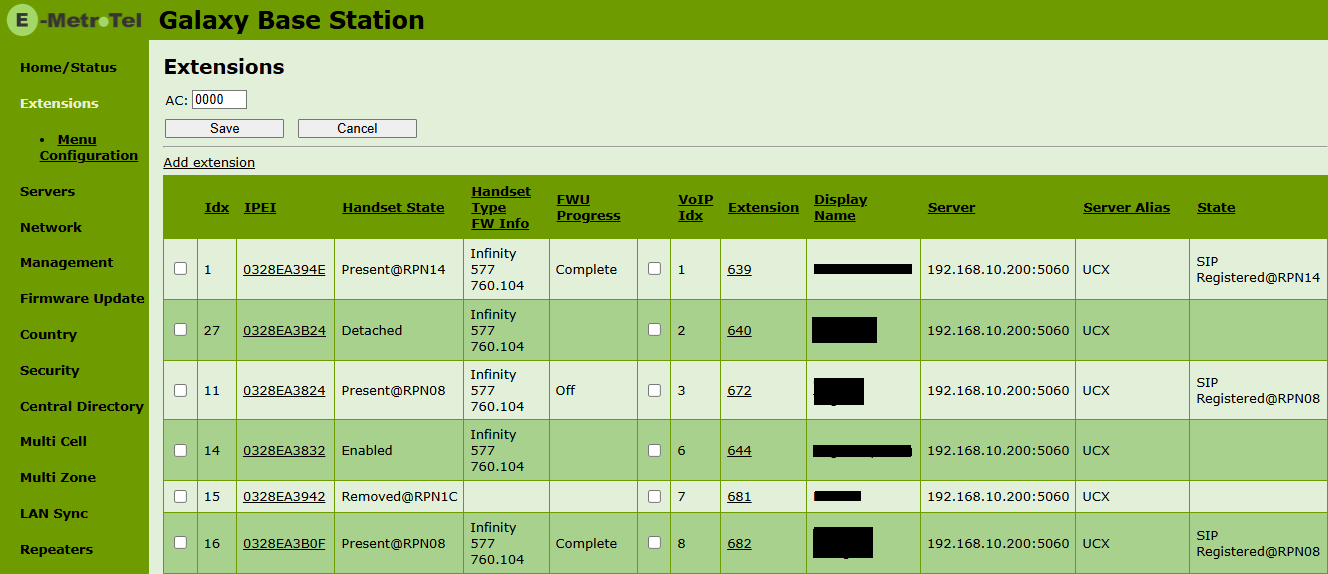
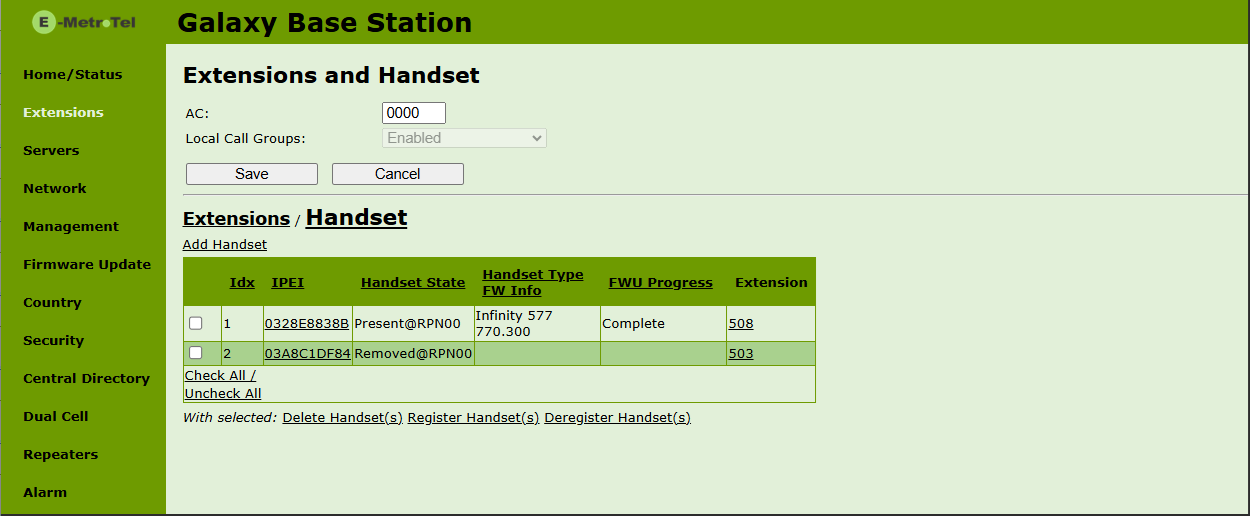
The AP500M shows both handsets and extensions on one page while the AP500D provides 2 different tabs: Extensions and Handset.
This page provides information about the existing devices and controls the pairing of handsets to extensions, registration/de-registration of devices and extensions.
The action links at the bottom is always operating on the selected handsets/extensions.
AP500M
AP500D

| Field | Description |
|---|---|
| Idx | Index of handsets |
| IPEI | The IPEI of the handset. In general, this must not be changed manually. If IPEI is set to FFFFFFFFFF, any handset can register at this index. Else, only the handset with the specified IPEI number can register to the system |
| Handset State | Shows the state of the handset:
|
| Handset Type FW Info | Name of the handset type Firmware version of the handset |
| FWU Process | Displays Firmware Update progress:
|
| VoIP Idx | Index of SIP extensions |
| Extensions | SIP extension number |
| Display Name | Display name for the extension |
| Server | Server IP or URL |
| Server Alias | Given Server name |
| State | SIP registration state – if empty the handset is not SIP registered.
|
Servers
A maximum of 10 servers can be configured. Extensions must always be unique, even across multiple servers. Meaning the same extension number on server 1 cannot be re-used on server 2.
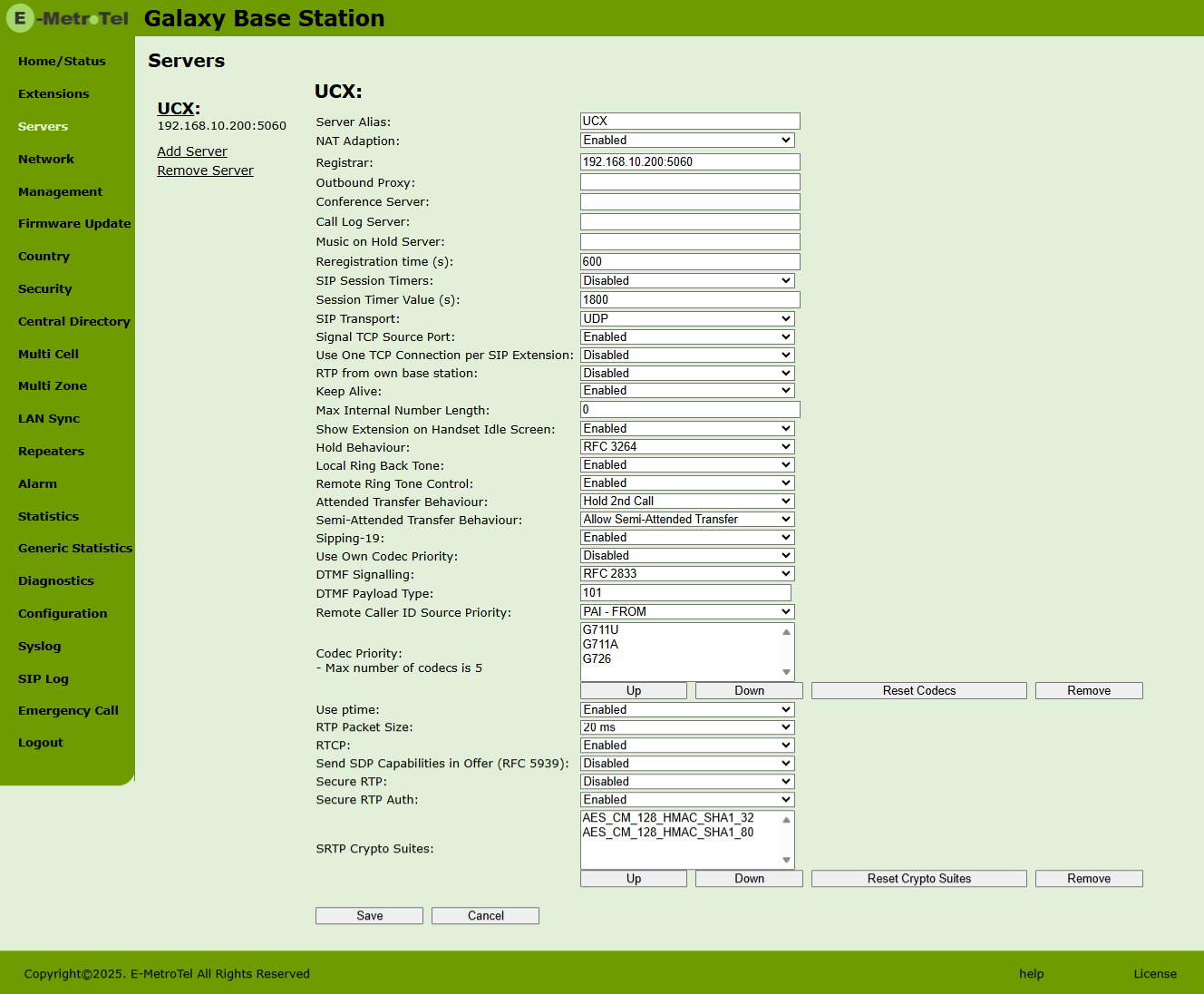
| Field | Default Value | Description |
|---|---|---|
| Server Alias | Empty | Server name |
| NAT Adaption | Enabled | If enabled and the system receives a SIP response to a REGISTER request with a “Via” header that includes the “received” parameter (ex: “Via: SIP/2.0/UDP 10.1.1.1:4540;received=68.44.20.1”), the base will adapt its contact information to the IP address from the “received” parameter. Thus, the base will issue another REGISTER request with the updated contact information. If disabled, the “received” parameter is ignored. |
| Registrar * | Empty | SIP Server DNS or IP address Permitted value(s): AAA.BBB.CCC.DDD:<Port-Number> or <URL>:<Port-Number> |
| Outbound Proxy | Empty | Set to the address and port of the private NAT gateway, so that the SIP messages will be sent via the NAT gateway. Permitted value(s): AAA.BBB.CCC.DDD or <URL> or <URL>:<Port-Number>If the value is empty, then a call is made via Registrar. |
| Re-Registration Time (s) | 600 | The “expires” value in SIP REGISTER requests. This value indicates how long the current SIP registration is valid, and hence it specifies the maximum time between SIP registrations for the given SIP account. Permitted value(s): A value below 60 sec is not recommended, Max value 65636 |
| SIP Transport | UDP | Protocol used for SIP calls: UDP, TCP, TLS 1.2 |
| Keep Alive | Enabled | |
| Show Extension on Handset IDLE Screen | Enabled | If enabled, the extension will be visible on handset idle screen. |
| Codec Priority: – Max number of codecs is 5 | G.711U G.711A G.726 G.729 | Defines the codec priority that base used for audio compression and transmission. Possible Option(s): G.711U, G.711A, G.726, G.729 |
* Required field.
Network
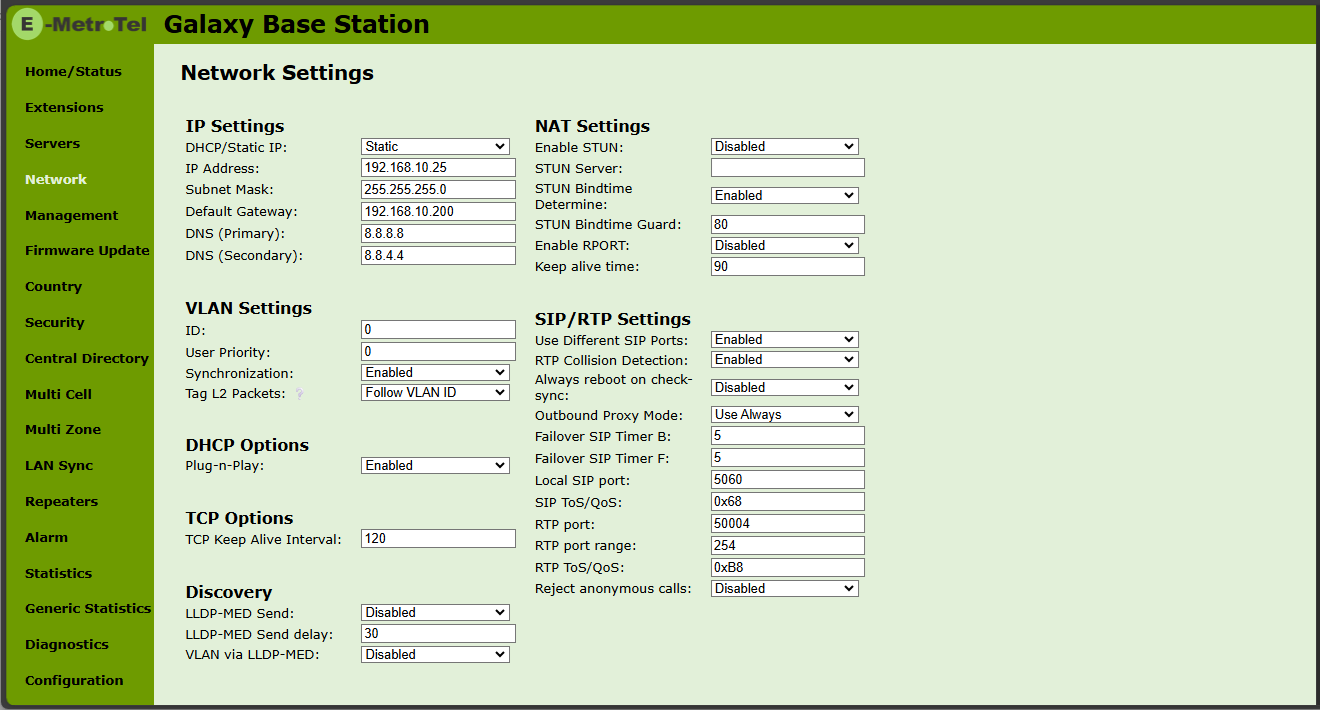
| Field | Default Value | Description |
|---|---|---|
| Use Different SIP Ports | Disabled | If disabled, the Local SIP port parameter specifies the source port used for SIP signaling in the system. If enabled, the Local SIP Port parameter specifies the source port used for first user agent (UA) instance. Succeeding UA’s will get succeeding ports. When connecting to Cloud UCX, this value must be set to Enabled. |
| RTP port | 50004 | The first RTP port to be used for RTP audio streaming. Permitted values: Positive integer |
| RTP port range | 254 | The number of ports that can be used for RTP audio streaming. Permitted values: Positive integer |
Management
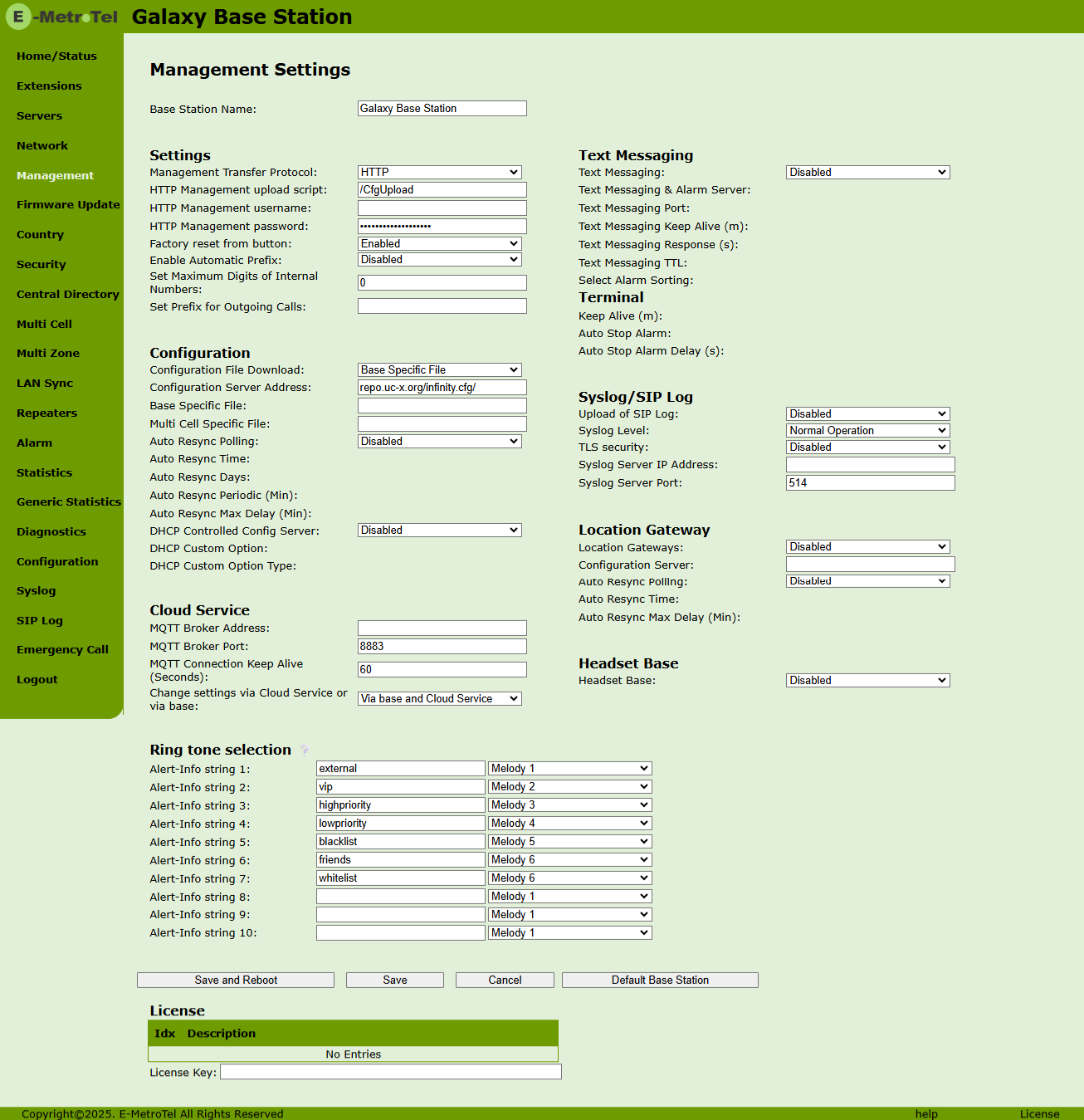
| Field | Default Value | Description |
|---|---|---|
| Management Transfer Protocol | HTTP | The protocol assigned for configuration file and central directory. Valid Input(s): TFTP, HTTP, HTTPs |
| Configuration Server Address | repo.uc-x.org/infinity.cfg/ | Server that stores the configuration file of the base station. Type: DNS or IP address Permitted value(s): AAA.BBB.CCC.DDD or <URL> |
| Upload of SIP Log | Disabled | Enable this option to save low level SIP debug messages on the server. The SIP logs are saved in the file format: <MAC_Address><Time_Stamp>SIP.log |
| Syslog Level | Normal Operation |
|
| Syslog Server IP Address | Empty | Enter the IP address of the syslog server. Permitted value(s): AAA.BBB.CCC.DDD or <URL> |
| Syslog Server Port | 514 | Port number of the syslog server. |
Firmware Update
See DECT – Firmware Update for details.
Country
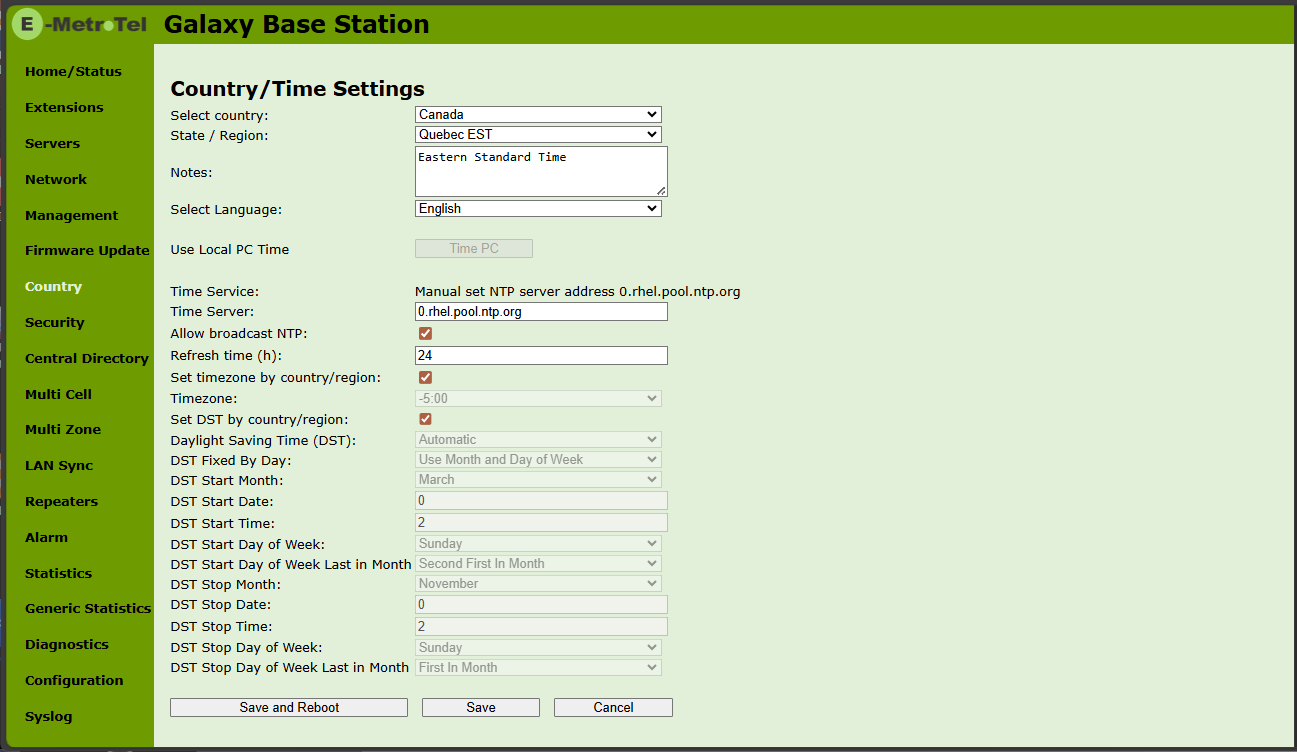
The page configures the country, language and time server for the base station.
The country setting controls the in-band tones used by the system.
The time server supplies the time used for data synchronisation in a multi/dual cell configuration. As such, it is mandatory to have the time server set for a multi/dual cell configuration, else the system will not work properly.
The time server is also used in the debug logs and SIP traces, along with determining the time to check for new configuration and firmware files.