Phone
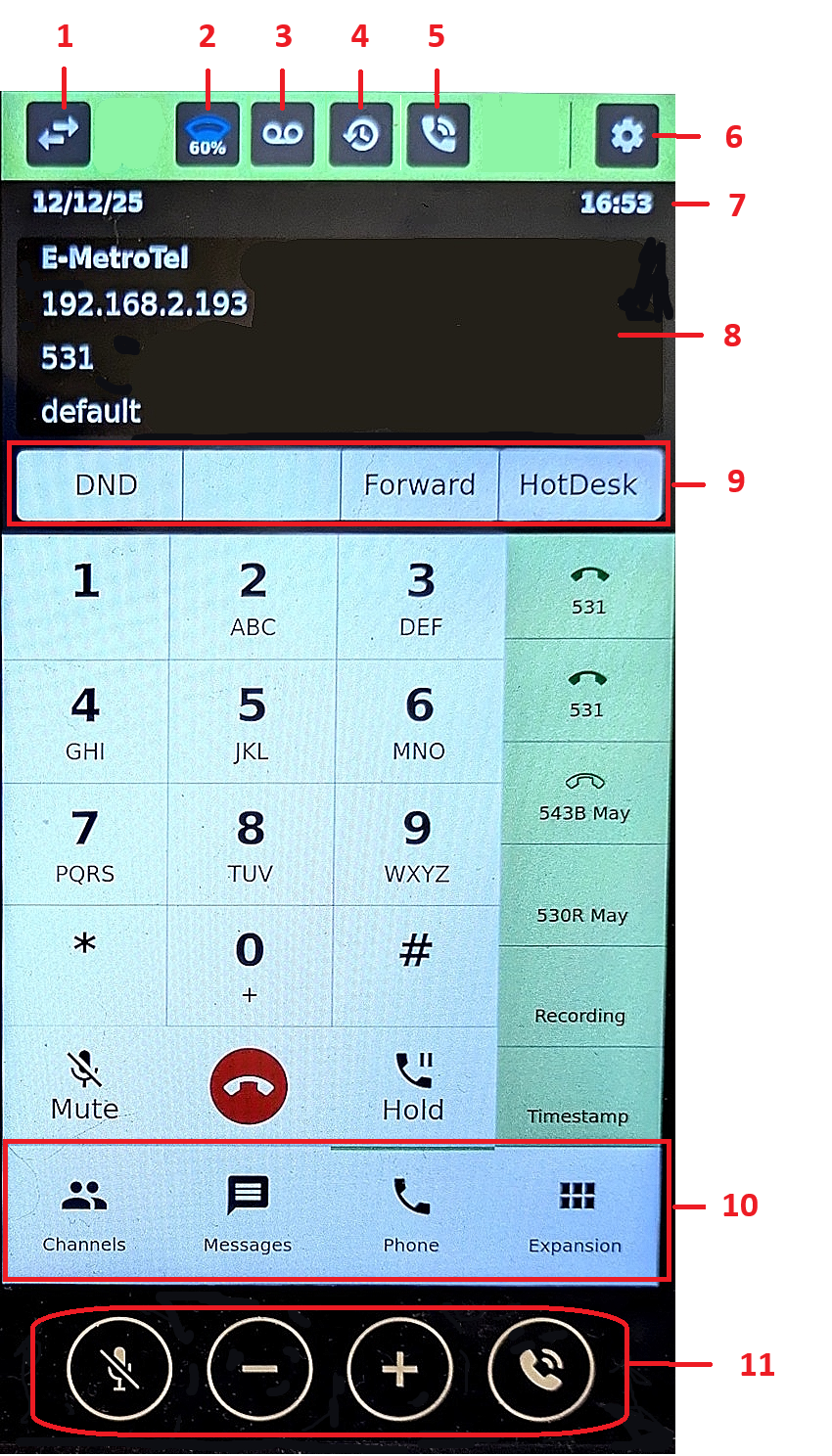 | 1 | Keypad Interface | Toggles through 4 different keypad interfaces |
|---|---|---|---|
| 2 | Wi-Fi | Shows Wi-Fi strength and to access Wi-Fi configuration | |
| 3 | Voicemail | To access voice mailbox | |
| 4 | Recents | To view call history | |
| 5 | Audio Devices | To switch audio devices and adjust volume | |
| 6 | Settings | To access phone configuration settings | |
| 7 | Date and Time | Displays current date and time | |
| 8 | Phone display area | Displays phone and call related information | |
| 9 | Soft keys | Context sensitive soft keys | |
| 10 | Application Tabs | To access the different applications: – Channels (if InfinityOne is enabled) – Chats (if InfinityOne or SMS is enabled) – Phone – Expansion | |
| 11 | Quick access buttons | Quick access to Mute, Volume Up, Volume Down, Speaker |
Expansion
Infinity 7000 Series phones can supported up to a total of 120 keys. Swipe up to scroll down the page to view all the keys.

The buttons on the Expansion page correspond to the Line Appearances and Programmable Keys configured for that extension in the UCX. The buttons are ordered the way you would naturally read them – left to right across a row, then down to the next row.
In the case of the 7005H (pictured above), there are two columns; the top-left button is 1, top-right is 2, the next row is 3 and 4, and it continues down until 119 and 120 on the bottom row.
In the case of the 7008H, there are three columns of buttons; he top-left button is 1, top-middle is 2, top-right is 3, the next row is 4, 5, and 6, and it continues down until 118, 119 and 120 on the bottom row.
Channels and Messages
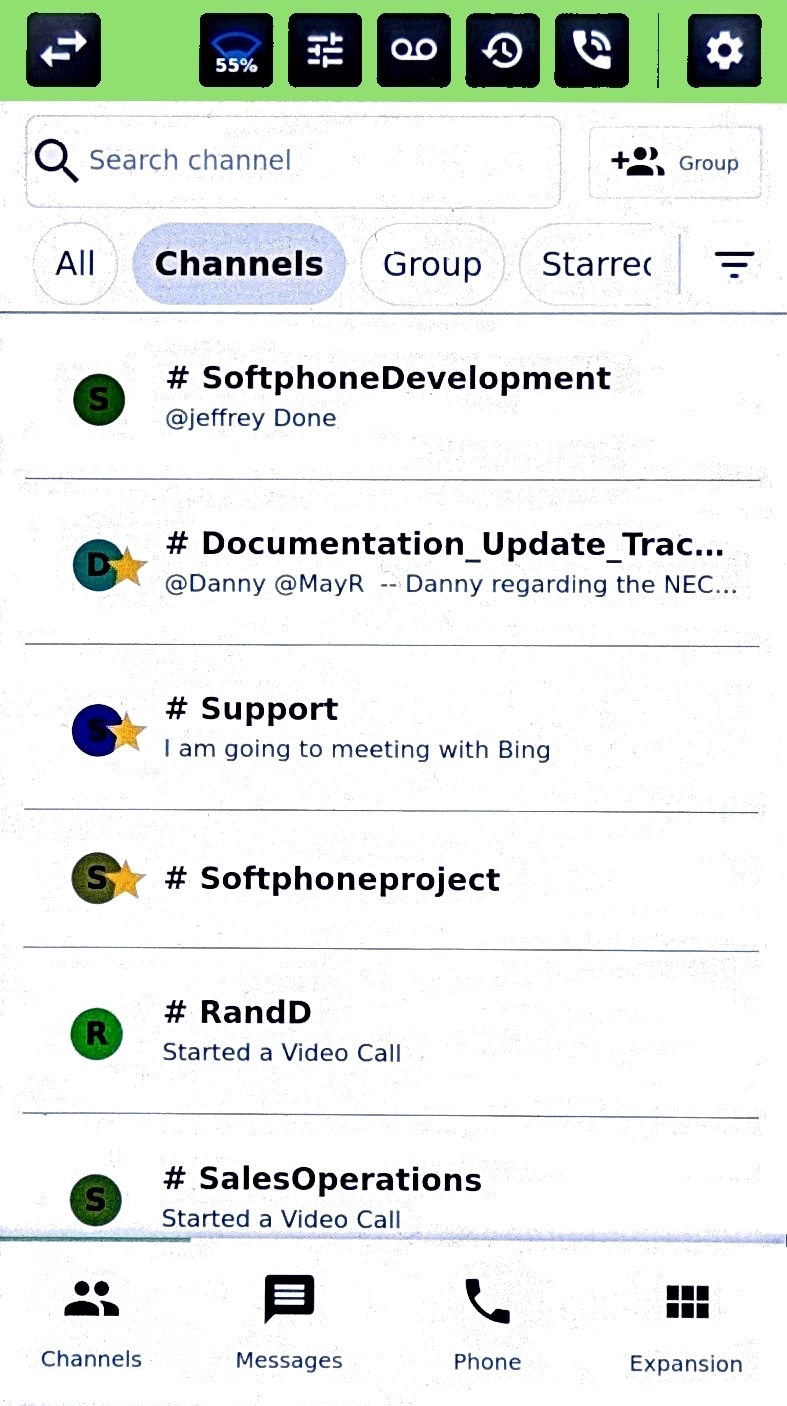
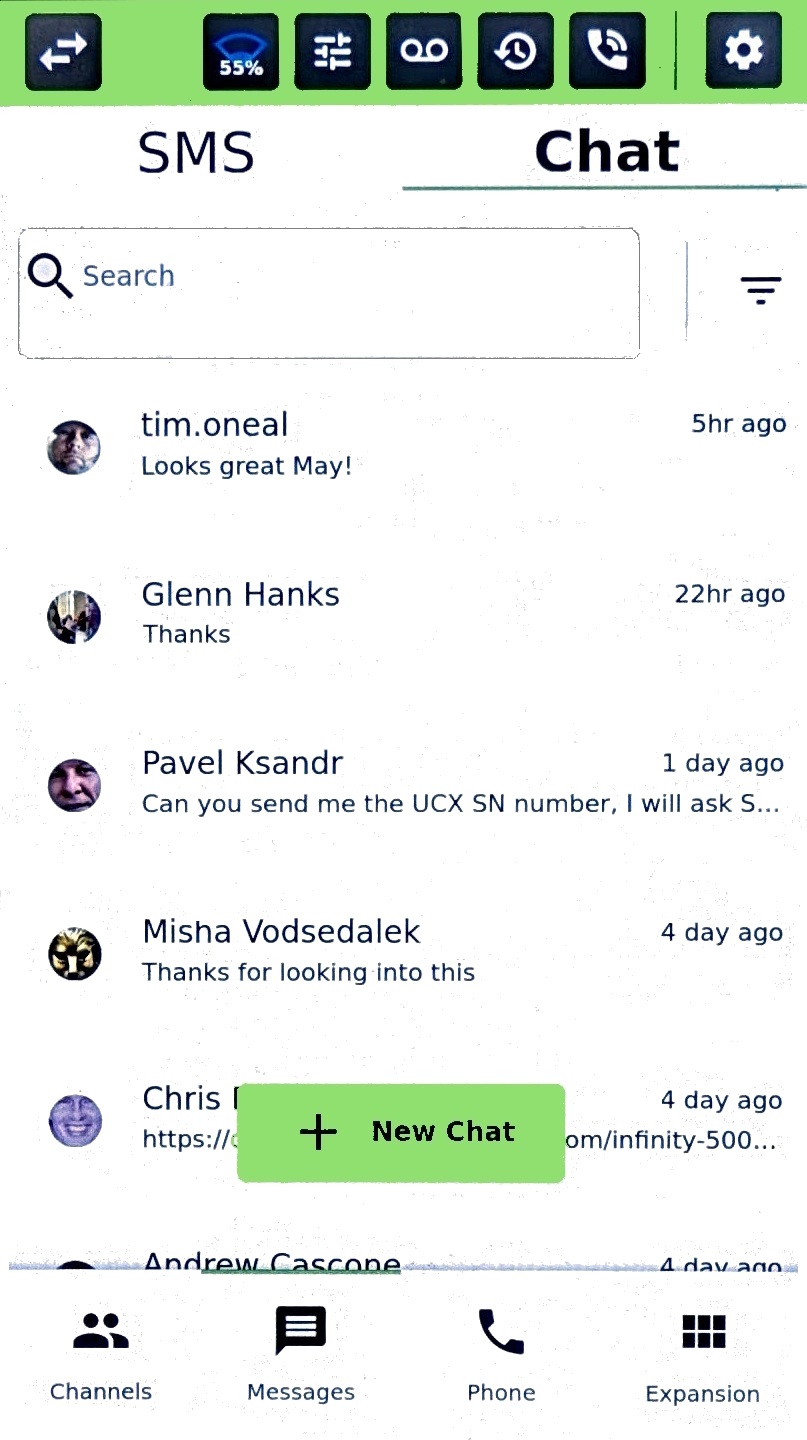
If you have InfnityOne enabled, when selecting Channels or Messages the first time, you will be prompted to login to your InfinityOne account.
After logging in, you now have access to your InfinityOne conversations in Channels and Messages.
| Channels | Messages |
|---|---|
 |  |
SMS
If you have SMS enabled, select Messages, under the SMS tab, you can send and receive SMS messages.
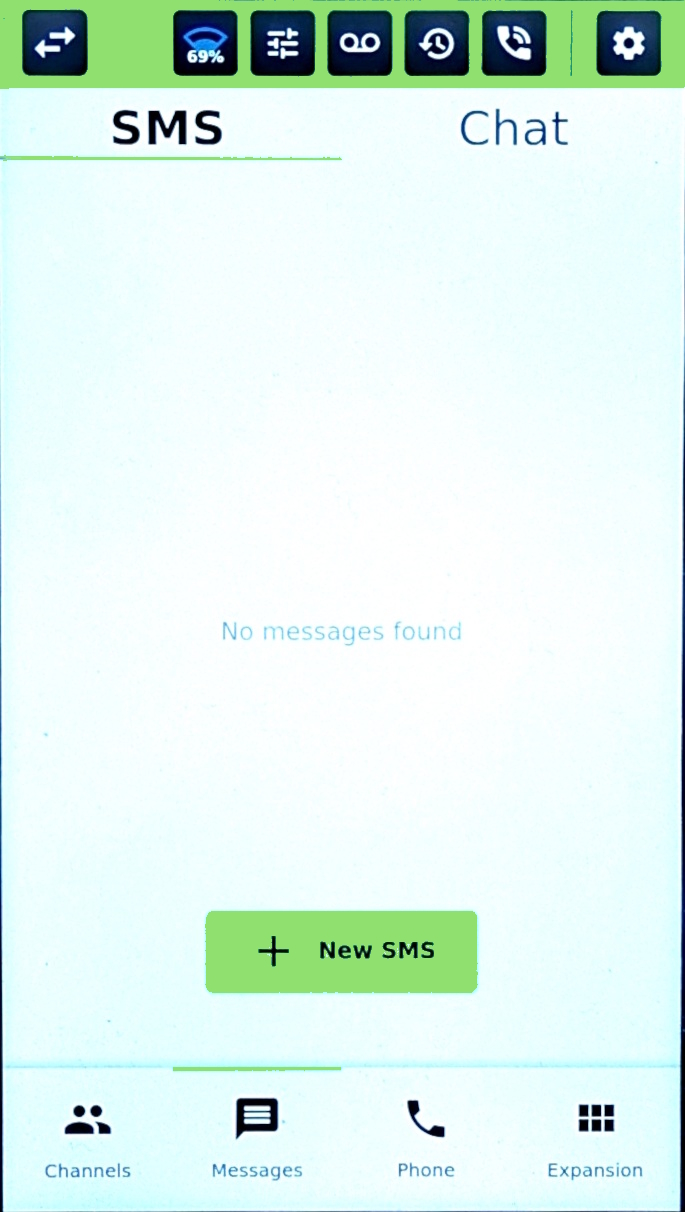
See SMS – Extension based for details.
Settings
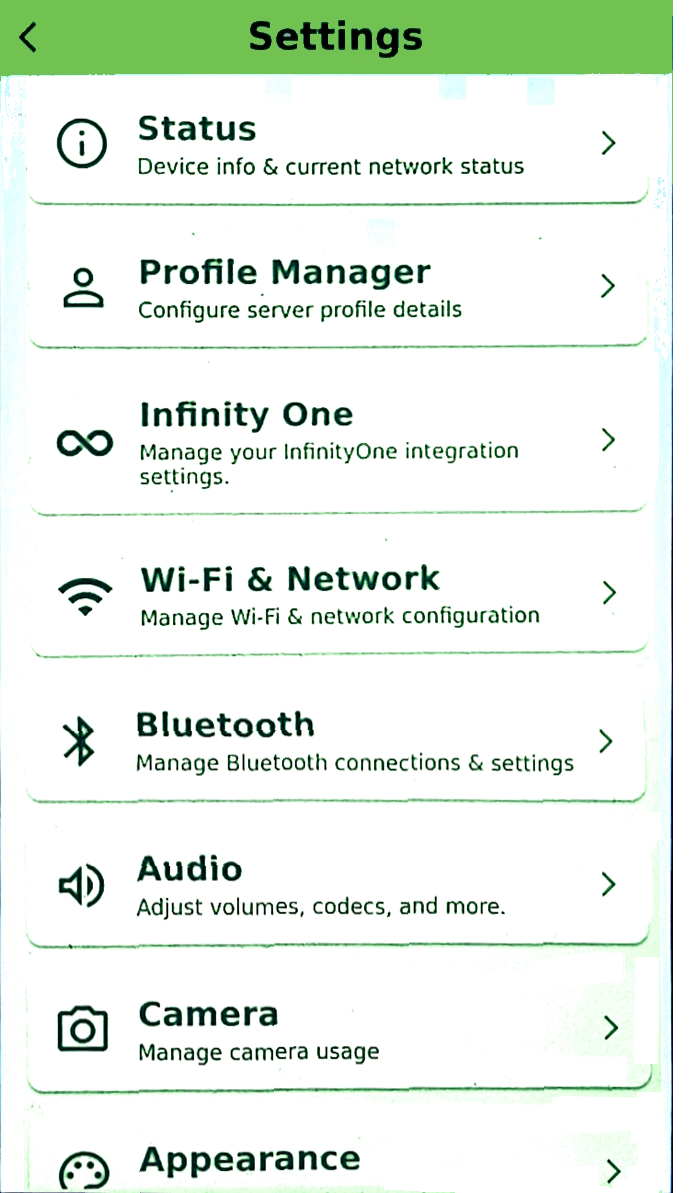 | Configuration settings for the 7xxx phone include:
|
Profile Manager
The UCX Server address and port is configured under Profile Settings. If permitted by the administrator, the user can create multiple profiles.
 |  |
Infinity One
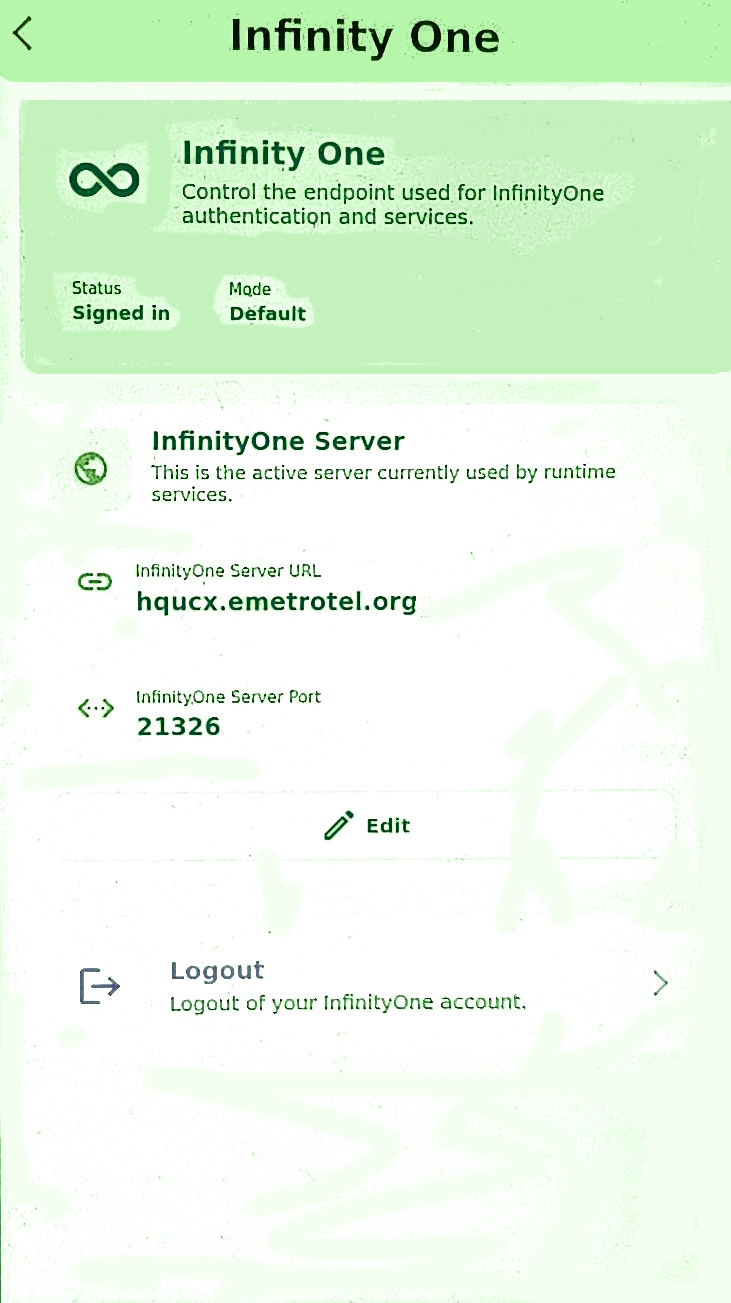
This page displays information related to the InfinityOne Server.
The user can also logout from InfinityOne here.
Wi-Fi & Network
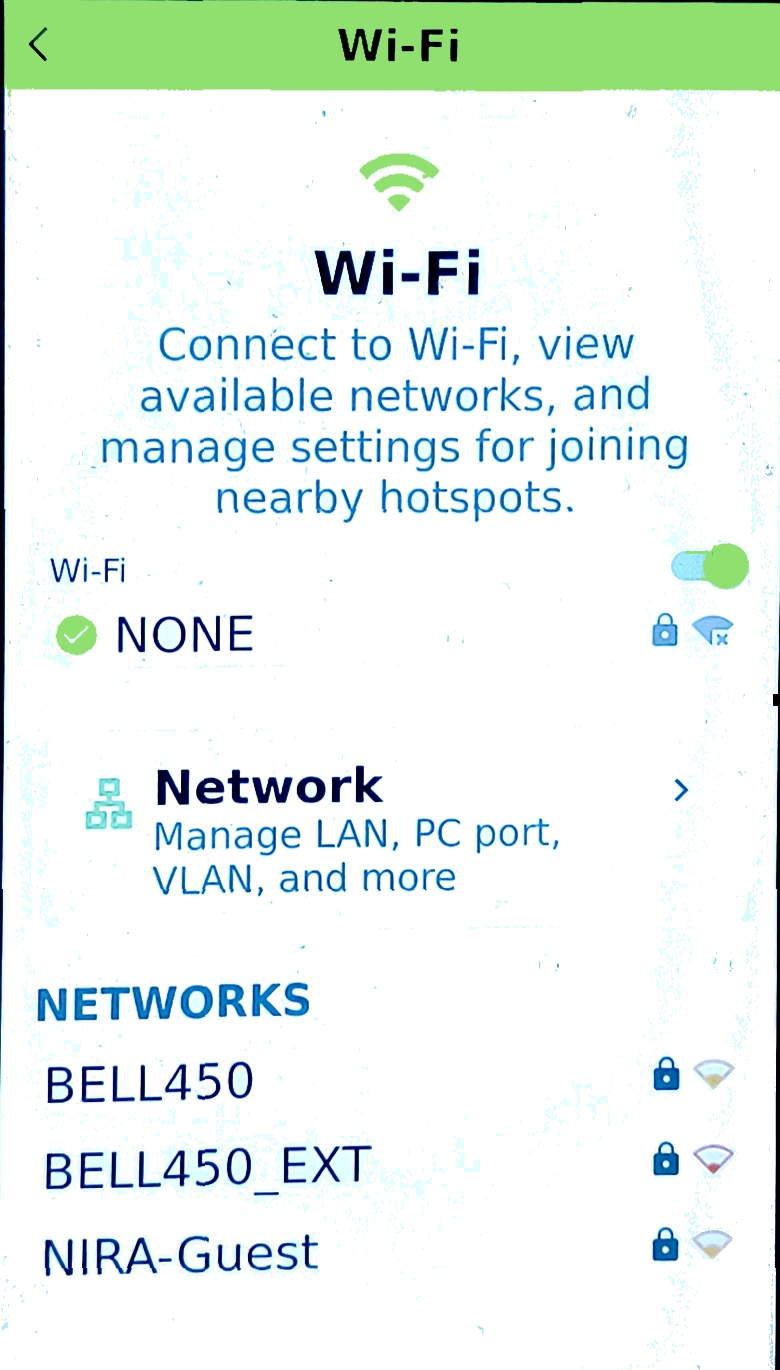
Connect to Wi-Fi, view available networks and manage network settings.
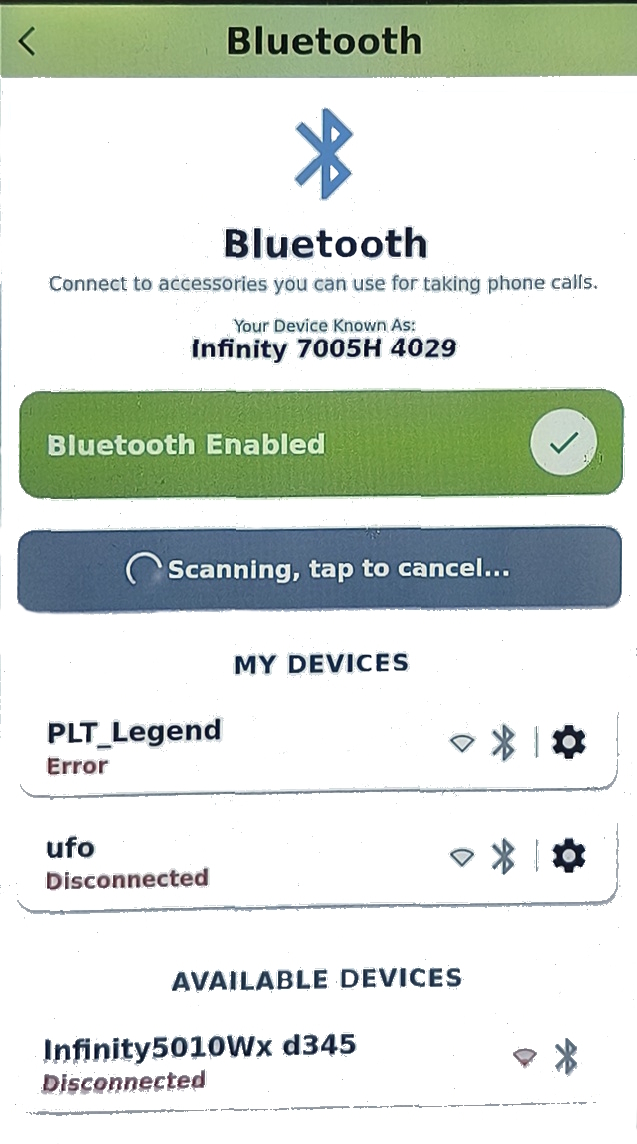
Bluetooth
Connect to Bluetooth accessories that can be used for making phone calls.
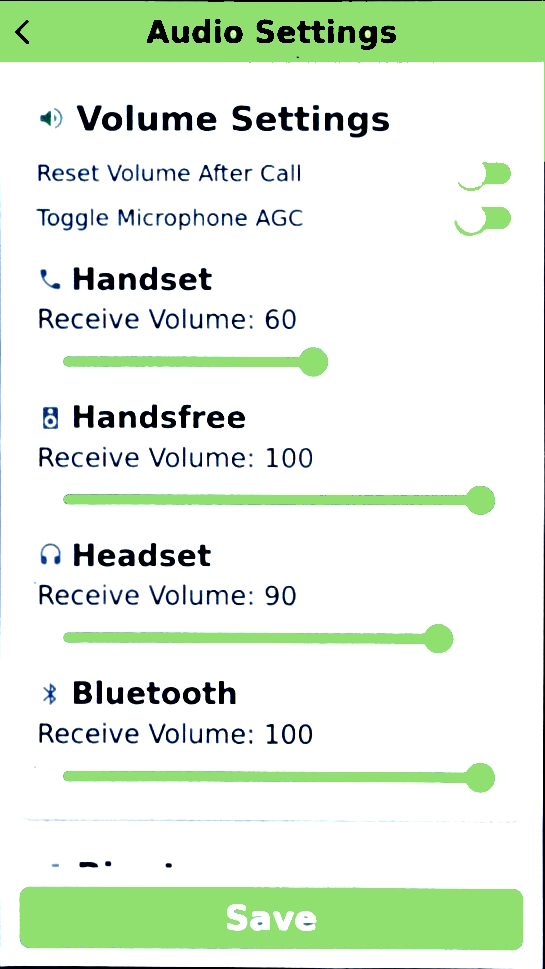
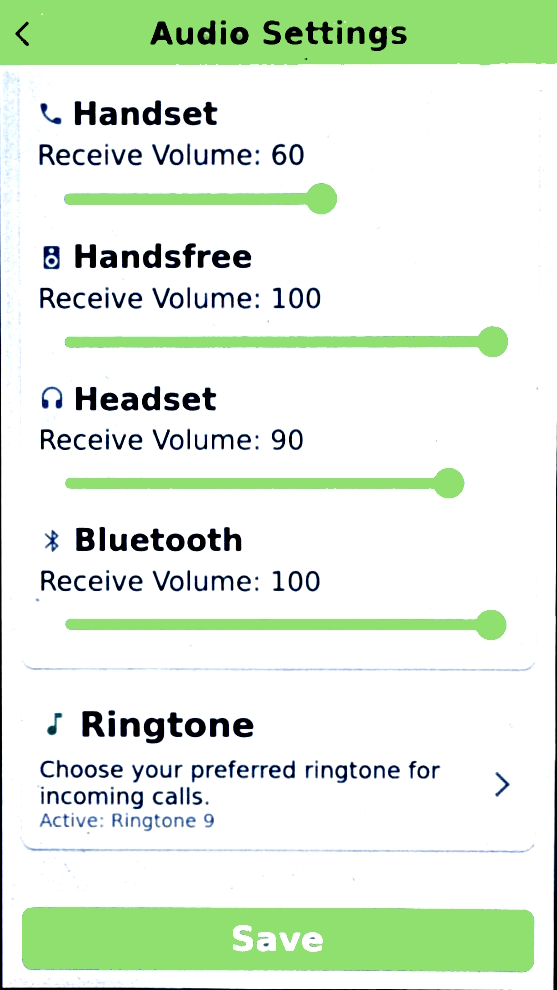
Audio
The Ringtone and Volume levels can be adjusted.
 |  |
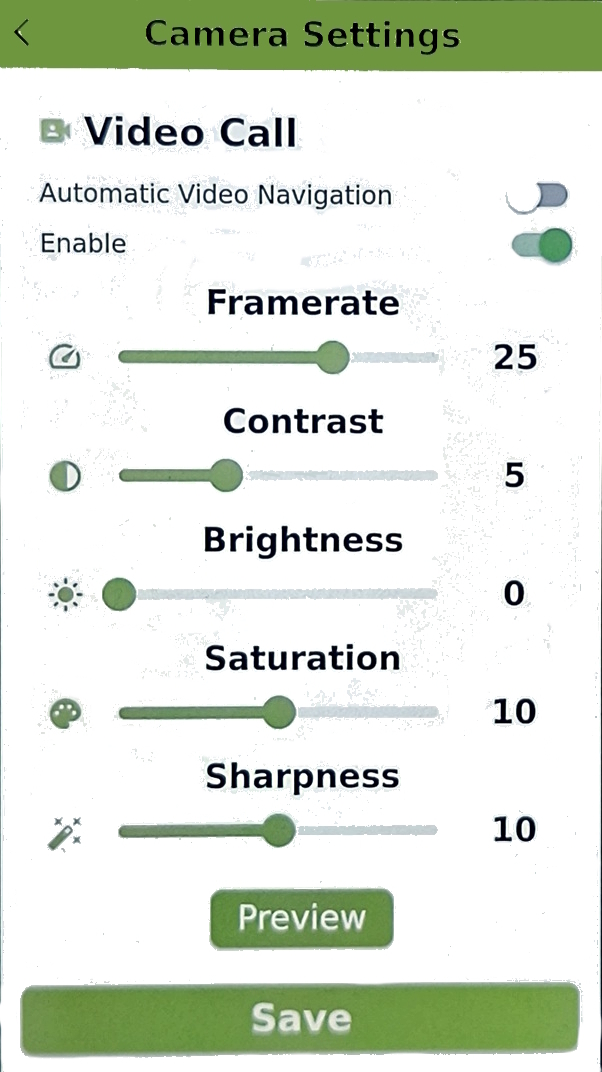
Camera
Appearance
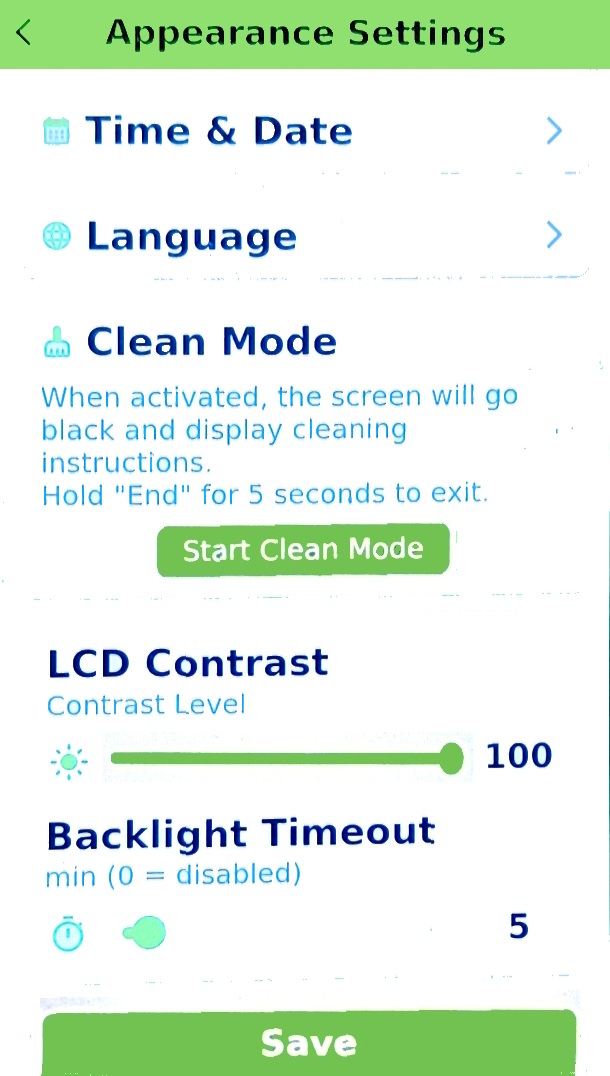
Select your desired Language, adjust LCD Contrast, change Backlight Timeout and use the Clean Mode when cleaning the display screen.
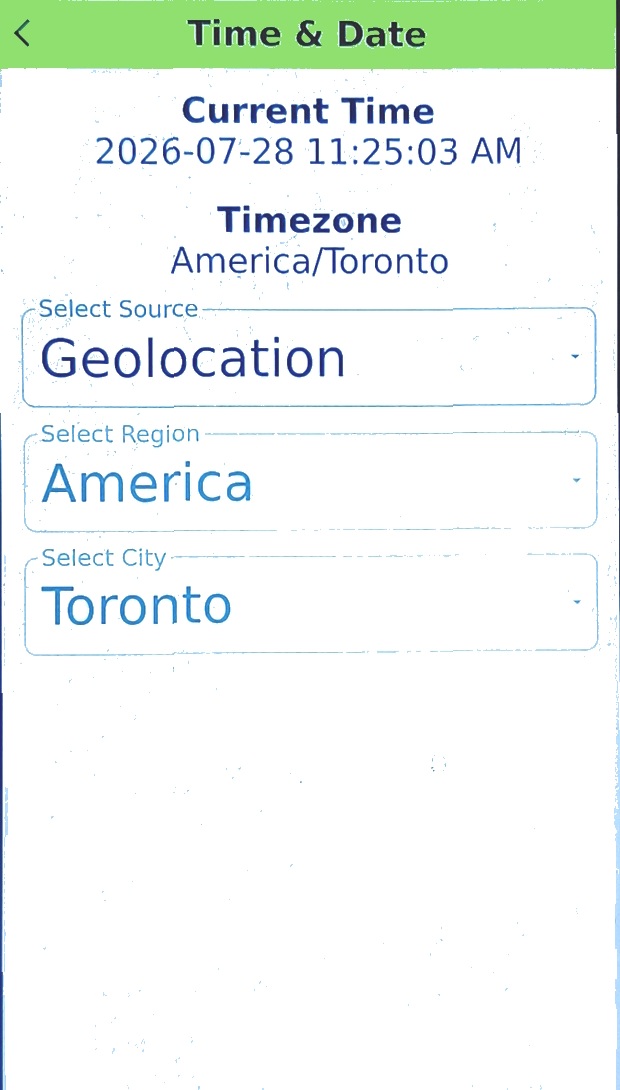
From the Date and Time page, you can choose how the date and time is determined for this device.
 |  |
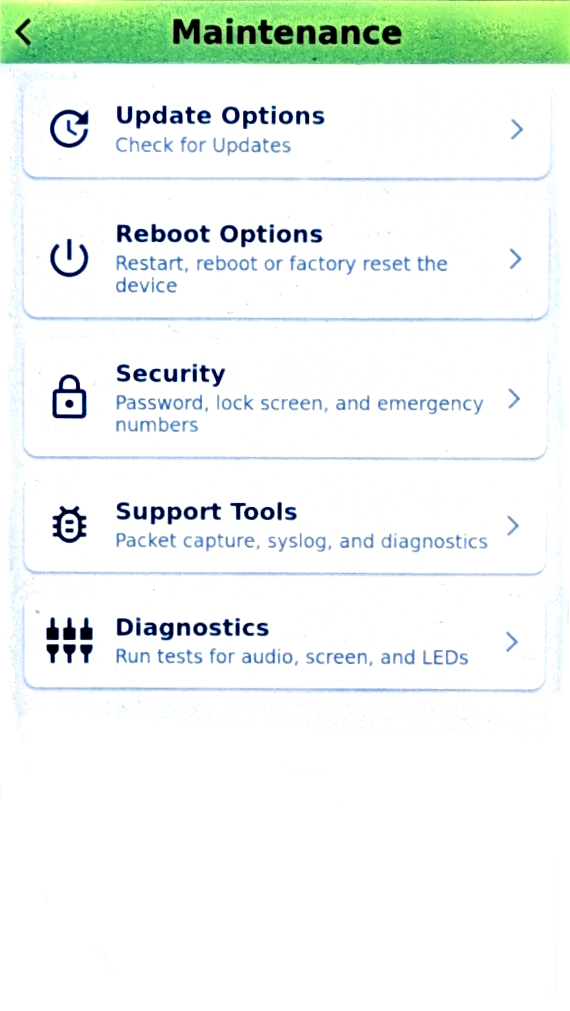
Maintenance
Perform the actions here only when instructed by the administrator or support engineer.
- Update Options – Initiate manual software update or confgure auto update parameters.
- Reboot Options – Different reboot and factory reset options.
- Security – Configure screen lock for the phone.
- Support Tools – Configure Syslog and Local parameters.
- Diagnostics – Perform diagnostics on the phone