Each installation of the Infinity 3065 requires a unique Device ID. This unique Device ID aids in avoiding potential network related conflicts when connecting to UCX software.
Additional applications or SMS subscriptions can also be assigned here to each device ID.
Infinity 3065 Provisioning
- Log in to the E-MetroTel Partner Portal using your portal credentials
- Select Provisioning
- Select Infinity 3065
Add New Device ID
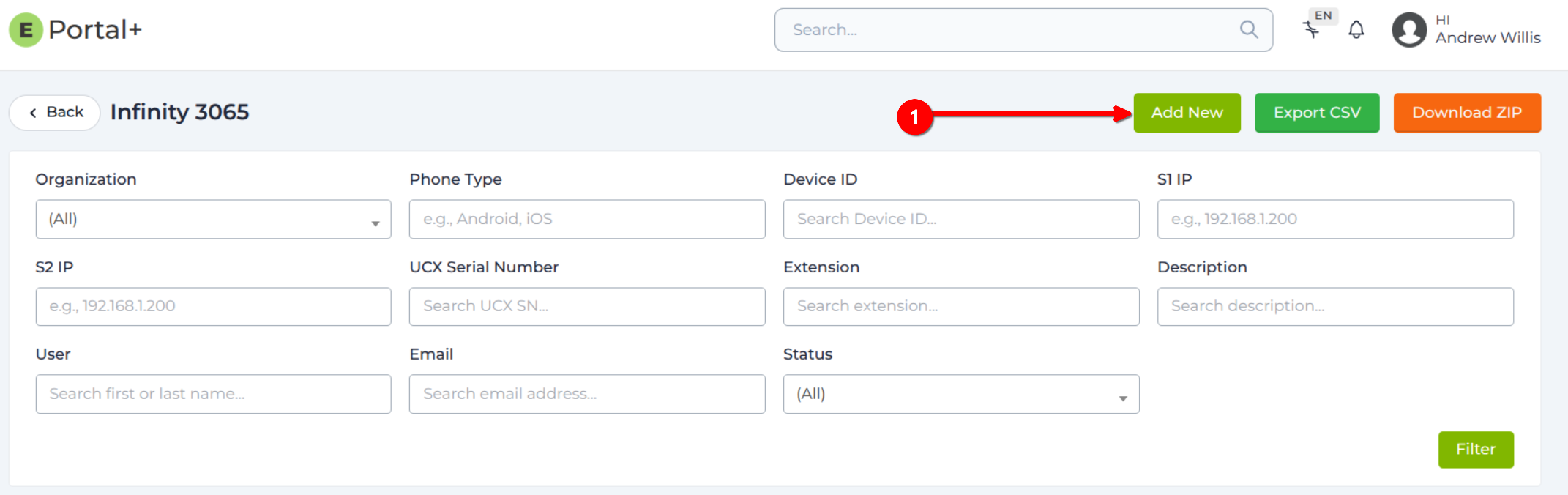
- Click on Add New
STEP 1 – Profile
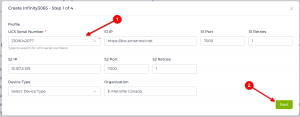
- Enter the UCX Serial Number (fields on this page will auto-fill based on the serial number entered).
- Verify the information and click Next.
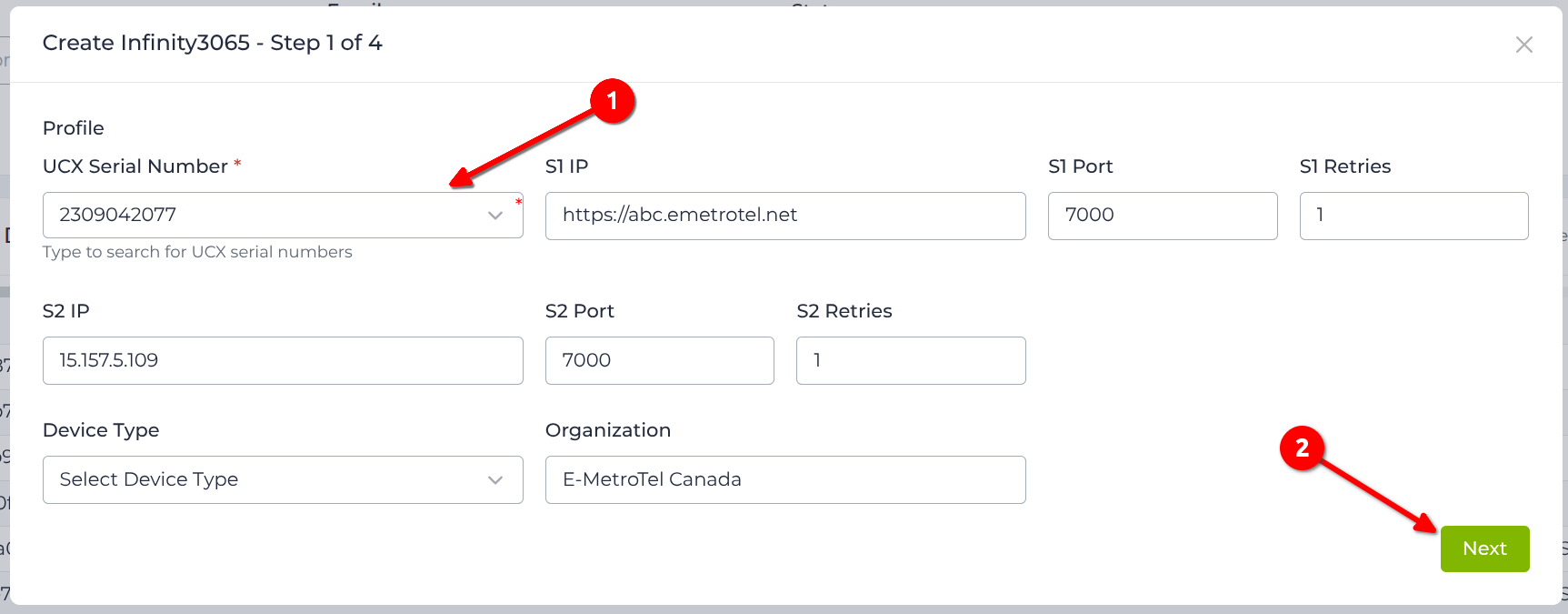
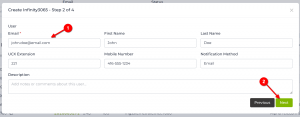
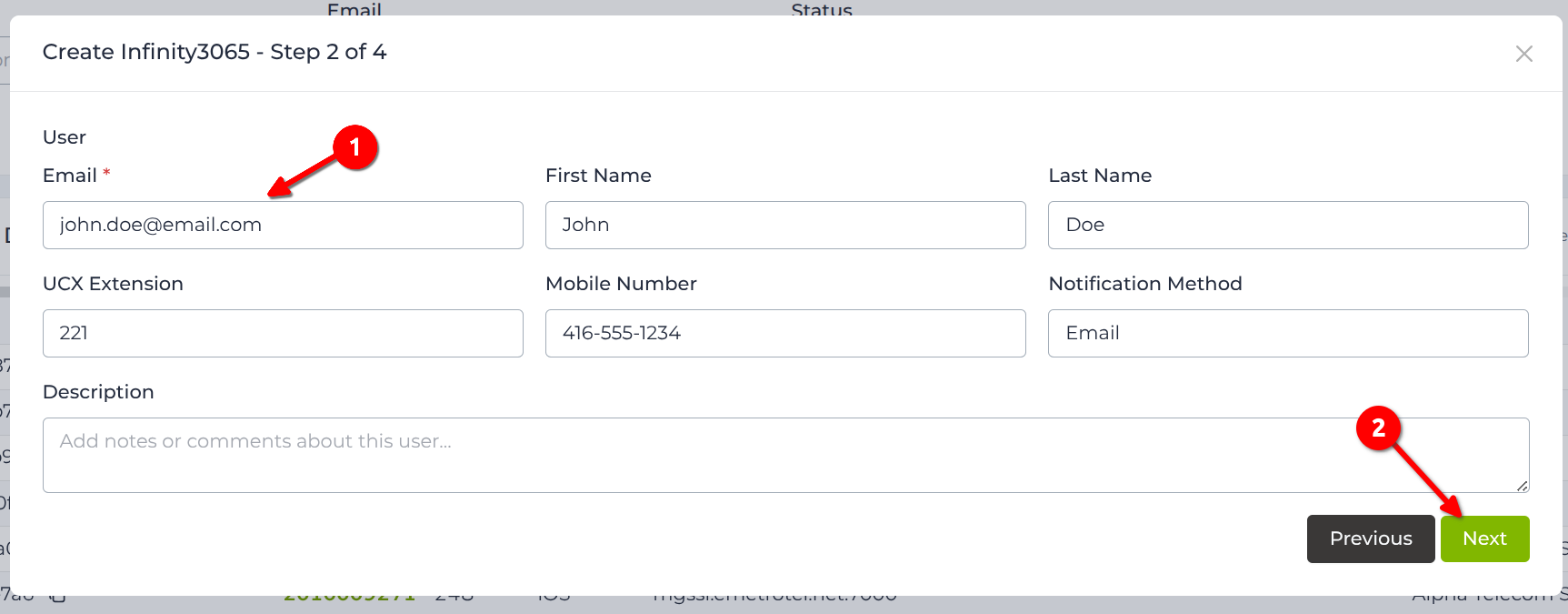
Step 2 – User
- Enter the Email address of the user, the rest of the fields are optional.
- UCX Extension – Optionally enter the user’s extension number.
NOTE: Extension number is required for SMS Subscription. - Notification Method – Currently restricted to Email. The user will be notified of their Device ID via email.
- Click Next.
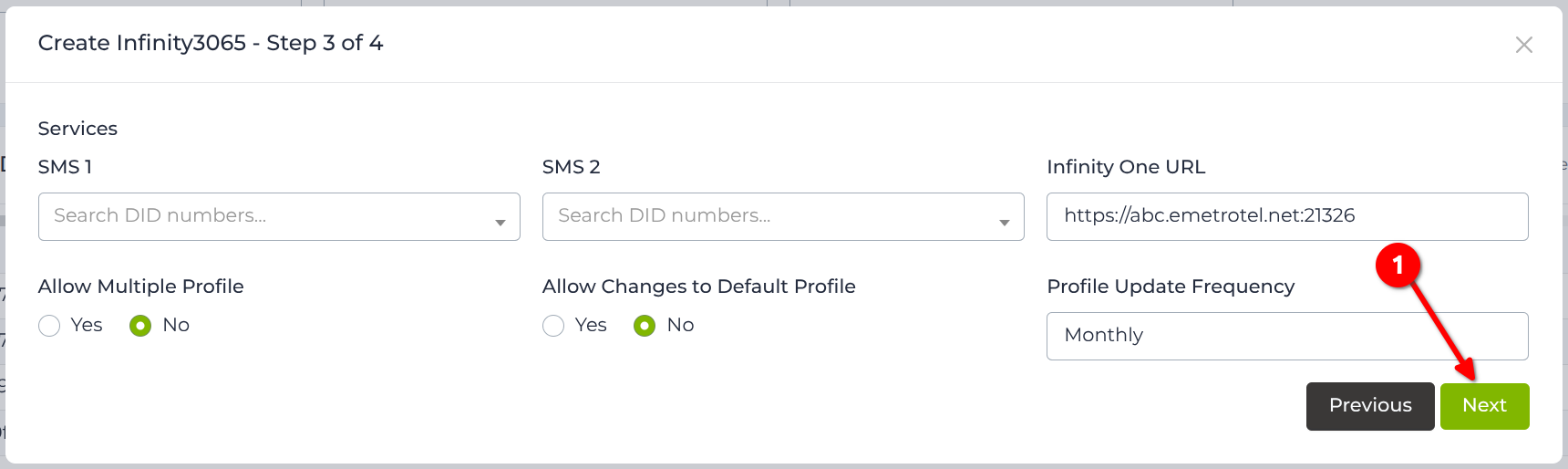
Step 3 – Services
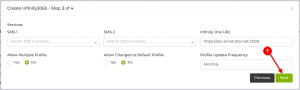
- Enter SMS DID‘s that will be attached to this extension.
- Allow Multiple Profiles – Keep this value at default No, if you wish to restrict users to a single profile or a specific UCX system. Otherwise set the value to Yes (this will typically only used for resellers who manage multiple systems).
Note that a separate Device ID is NOT required for each system! - Allow Changes to Default Profile – Keep this value at default No if you wish to minimize the risk of users mis-configuring the softphone.
- Click Next.
Step 4 – Review & Submit
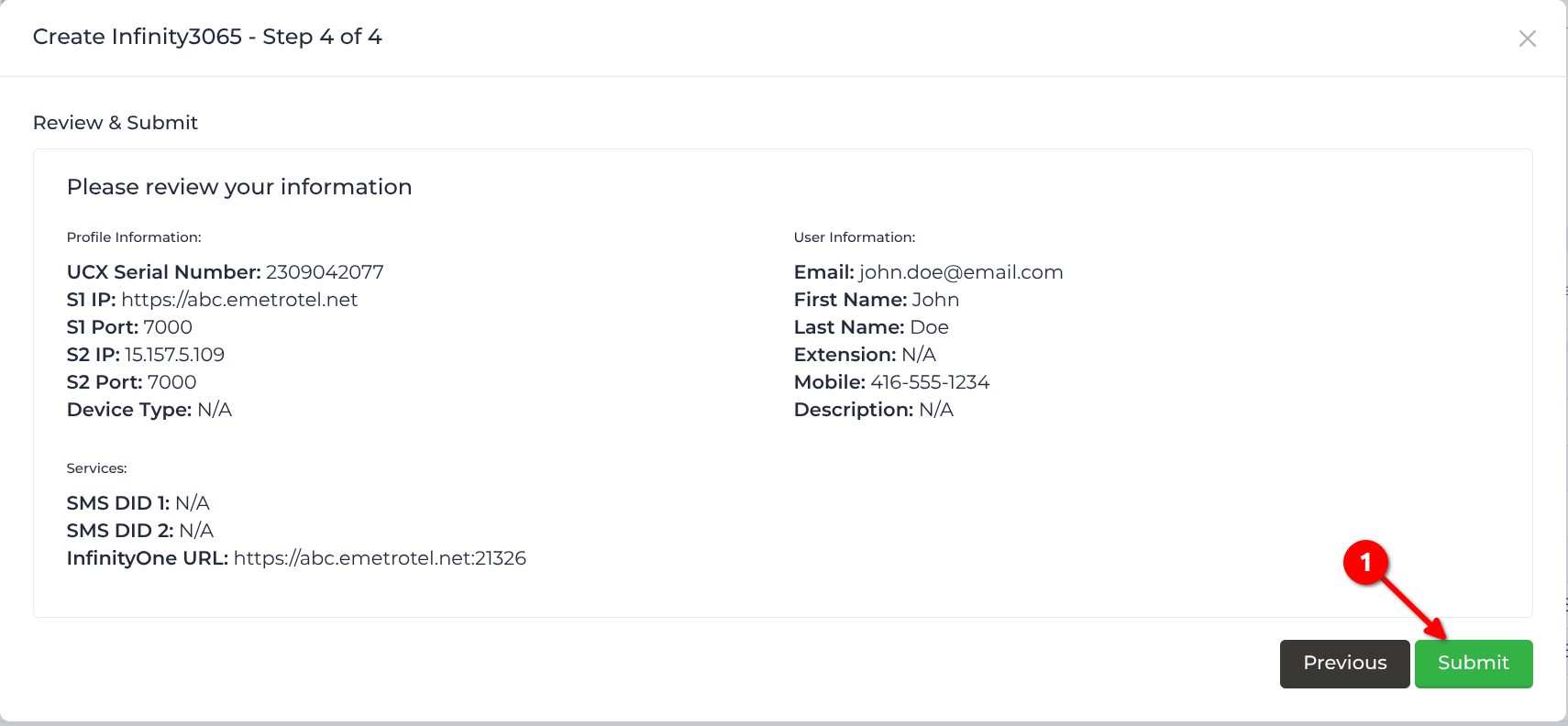
- Confirm the information is correct and click Submit.
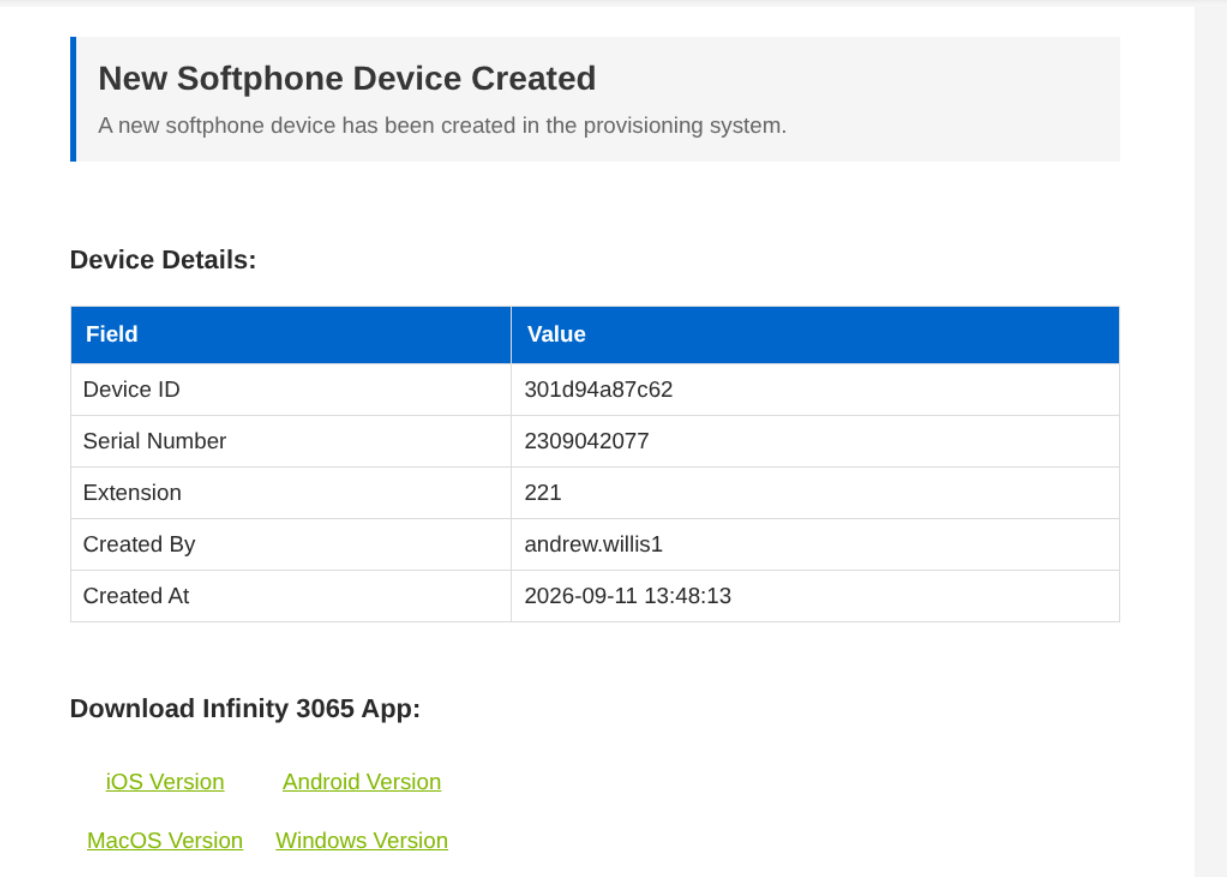
- An email will be sent to the user’s email address defined in STEP 2 with the device ID.
Example of the email sent to the user.
Troubleshooting
Device ID in use
User receives the following error message when attempting to uninstall and reinstall the Infinity 3065 software using the same Device ID.

Steps to resolve:
- Login to the Partner Portal, navigate to Provisioning – Infinity 3065
- Search for the user in the list using the Device ID.
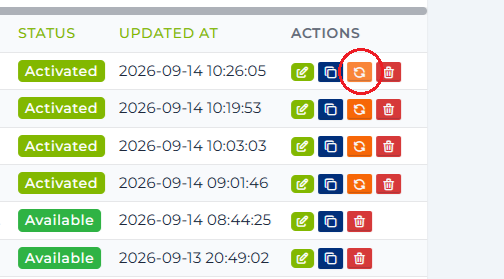
- Under the Action column for the user, click on the Reset Device ID icon.
- Click Confirm when prompted.
- The Device ID for the user will now be reset from Activated to Available.
- The user can attempt to register their 3065 software again.