Overview
An AI Receptionist profile defines how an AI Receptionist interacts with callers. It combines conversational behavior, company information, routing guidance, operational settings, and AI-specific behavior into a reusable configuration that can be assigned to one or more AI Agents.
After creating an AI Agent in UCX, use EMAT to configure the AI Receptionist’s company information, routing guidance, Knowledge Base, voice, and AI-specific behavior.
This document describes how to configure an AI Receptionist profile using the EMAT administration interface.
AI Receptionist Profiles
An AI Receptionist profile contains the complete configuration required by an AI Receptionist, including its greeting, voice, company knowledge, routing guidance, knowledge base, call handling behavior, and Advanced AI Instructions.
Each AI Agent is configured to use a single AI Receptionist profile. The same AI Receptionist profile may be assigned to multiple AI Agents, allowing organizations to reuse a common AI Receptionist configuration where appropriate.
Multiple profiles allow administrators to deploy different AI Receptionists for different organizations, business units, departments, languages, or operating environments without affecting existing configurations.
Common uses for multiple AI Receptionist profiles include:
- Separate AI Receptionists for multiple companies.
- Different greetings for multiple office locations.
- Different languages.
- Different departments or business units.
- Different conversation styles or AI personalities.
- Testing configuration changes before deploying them into production.
Each AI Receptionist profile is configured independently. Changes made to one profile do not affect other AI Receptionist profiles.
Prerequisites
- An AI Provider has been configured in EMAT.
- An AI Agent has been created in UCX and configured to use an AI Receptionist profile.
AI Receptionist Profiles
Login to EMAT and navigate to AI – Receptionist page.
Select the desired profile from the drop-down list.
Note that the profile is automatically created when the AI Agent is created in the UCX (See Inbound Call Control – AI Agents).
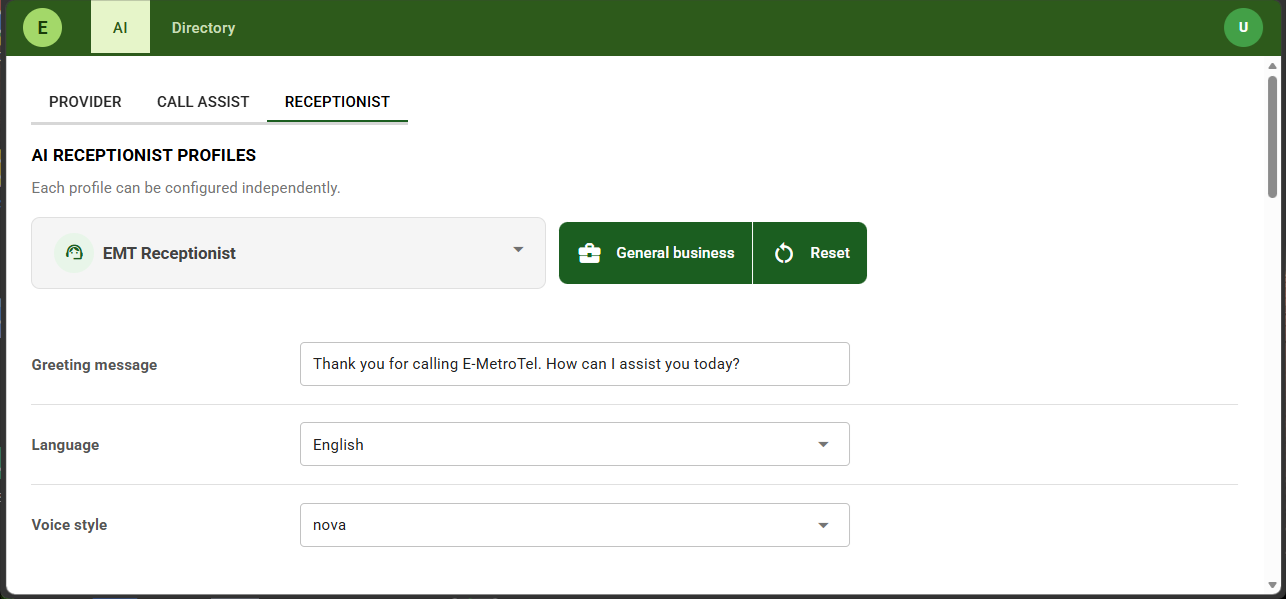
Click on Browse templates and select a default template for your profile.
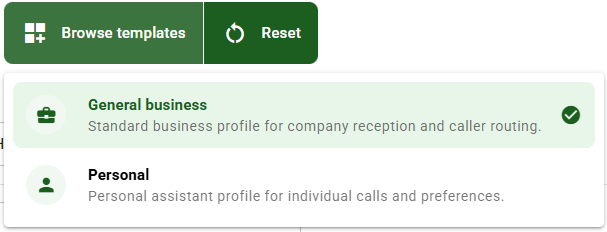
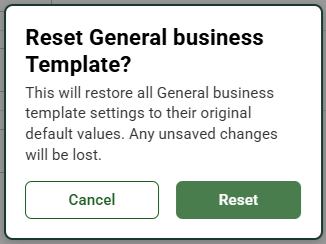
You can now proceed to modify this template or click on Reset to cancel the changes and revert back to default.
Company Knowledge
Enter information here describing your company and the roles of the various departments.
Company Knowledge provides a high-level overview of the organization. Detailed business information should be maintained in the Company Knowledge Base to provide a single authoritative source for caller information.
Escalation Settings
Escalation Settings determine when the AI Receptionist should stop attempting to assist the caller and transfer the call to a live person or other configured destination.
These settings help ensure that callers are routed appropriately when the AI cannot resolve the request.
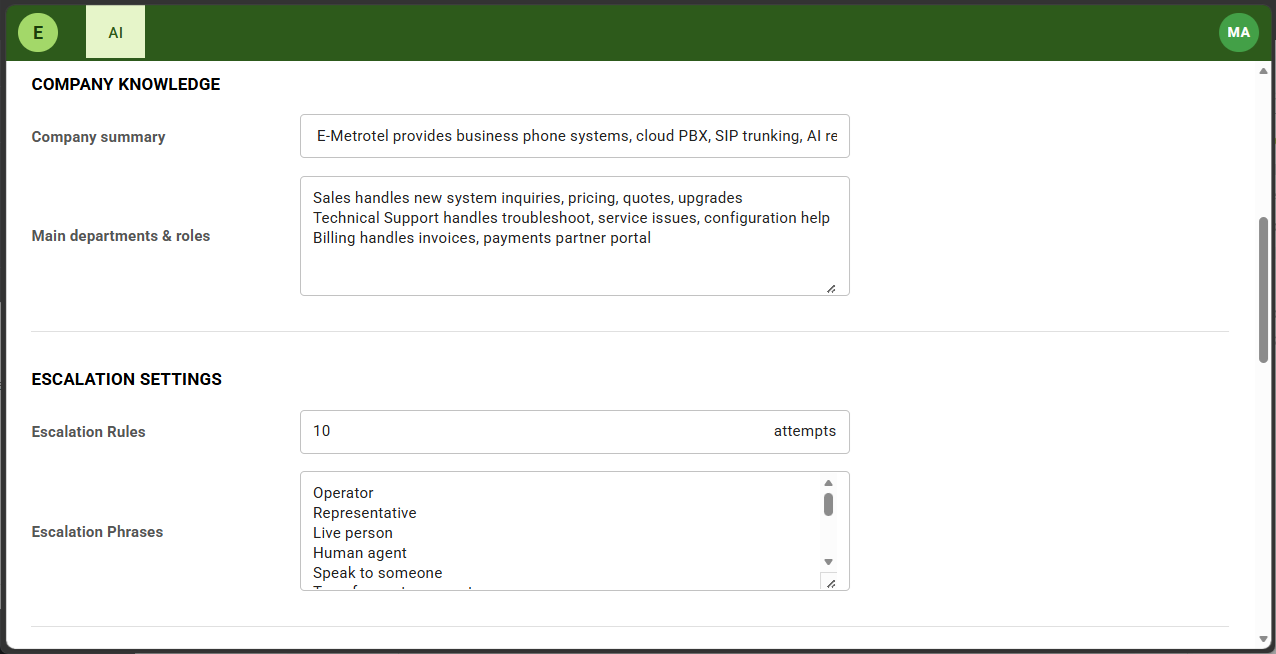
FIELD DESCRIPTIONS
| Field | Description |
|---|---|
| Escalation Rules | Specifies the number of unsuccessful attempts the AI Receptionist makes to understand or resolve a caller’s request before escalating the interaction. |
| Escalation Phrases | Specifies words or phrases that immediately indicate the caller wants to be transferred to another person or available destination. |
Escalation Rules
Escalation Rules determine how many unsuccessful attempts the AI Receptionist makes before transferring the caller to another destination.
If the AI Receptionist is unable to understand the caller’s request or repeatedly fails to assist them, the configured number of attempts is used before escalation occurs.
The default value is 3 attempts.
Explicit requests for another person or phrases configured in Escalation Phrases may trigger an immediate transfer without waiting for the configured number of attempts.
Escalation Phrases
Add the words and phrases callers are most likely to use when requesting another person or transfer destination.
Examples include:
- Operator
- Representative
- Human
- Live person
- Speak to someone
- Customer service
- Technical support
- Billing
- Sales
Review and update the list periodically based on actual caller interactions.
BEST PRACTICES
- Use natural language rather than commands.
- Include common synonyms callers are likely to use.
- Avoid duplicate or overlapping phrases.
- Periodically review caller interactions and add new phrases where appropriate.
Escalation Phrases determine when the AI Receptionist attempts a transfer. The destination selected during the transfer is determined by the AI Receptionist configuration and the UCX Transfer Directory assigned to the AI Agent.
Company Knowledge Base
The Knowledge Base contains organization-specific information that the AI Receptionist uses when answering caller questions.
Each knowledge item consists of a Topic and associated Content. During a conversation, the AI Receptionist searches the Knowledge Base for relevant information before responding.
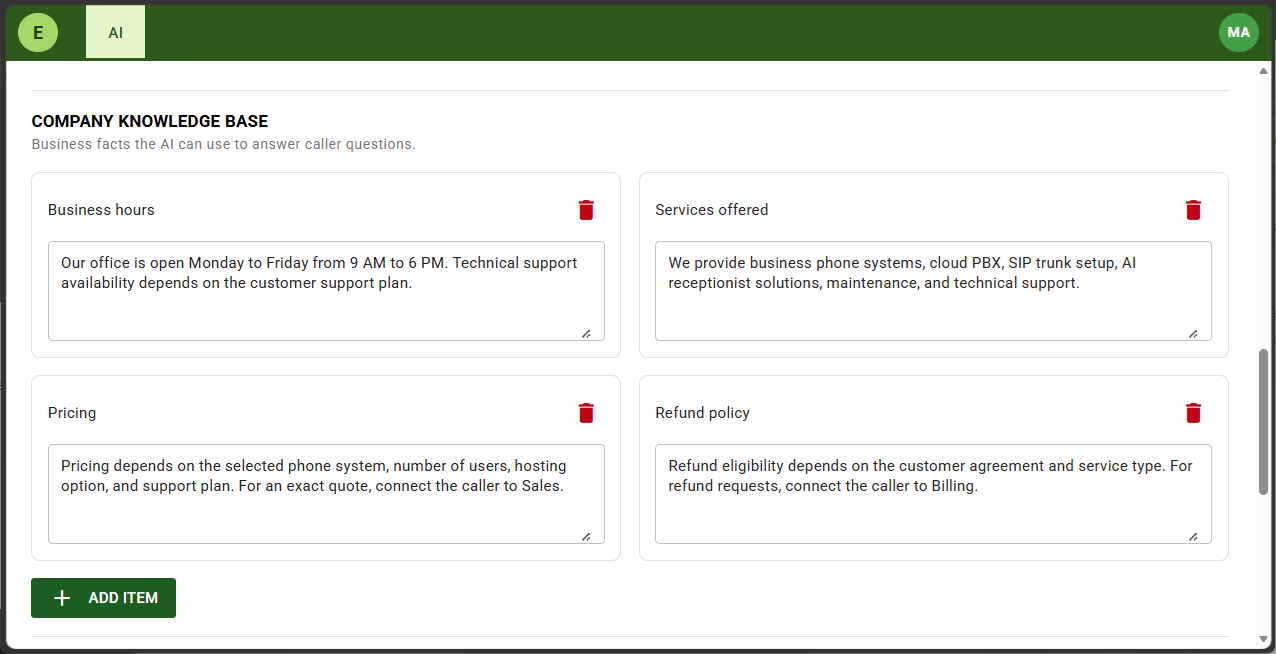
To add more knowledge items:
- Click Add Item.
- Enter a descriptive Topic.
- Enter the associated Content.
- Repeat as required for additional knowledge items.
FIELD DESCRIPTIONS
| Field | Description |
|---|---|
| Topic | Provides a descriptive title that identifies the knowledge item. |
| Content | Contains the information the AI Receptionist uses when answering questions related to the topic. |
CONFIGURATION GUIDANCE
Organize Information by Topic
Create a separate knowledge item for each subject. Keeping related information together improves maintainability and helps the AI retrieve the correct information during conversations.
Examples include:
- Business Hours
- Services Offered
- Pricing
- Refund Policy
- Office Locations
- Parking Information
- Warranty Information
- Frequently Asked Questions
Writing Content
Write information using clear, natural language.
Each knowledge item should focus on a single subject and contain factual information that callers may request.
Avoid:
- Confidential information.
- Internal procedures.
- Temporary announcements.
- Marketing language.
- Multiple unrelated topics within a single knowledge item.
Maintaining the Knowledge Base
Review the Knowledge Base regularly to ensure information remains current.
Update or remove knowledge items whenever business information changes.
BEST PRACTICES
- Create one topic for each subject.
- Use complete sentences.
- Keep responses concise and factual.
- Use the Knowledge Base for business facts rather than Advanced AI Instructions.
- Avoid duplicating information across multiple knowledge items.
The Knowledge Base provides informational content only. Business hours, holiday schedules, and other operational information entered here do not control UCX call routing or Time Conditions.
Call Control
Call Control settings define how the AI Receptionist manages conversations, including conversation duration, silence handling, caller interruptions, and other operational behavior.
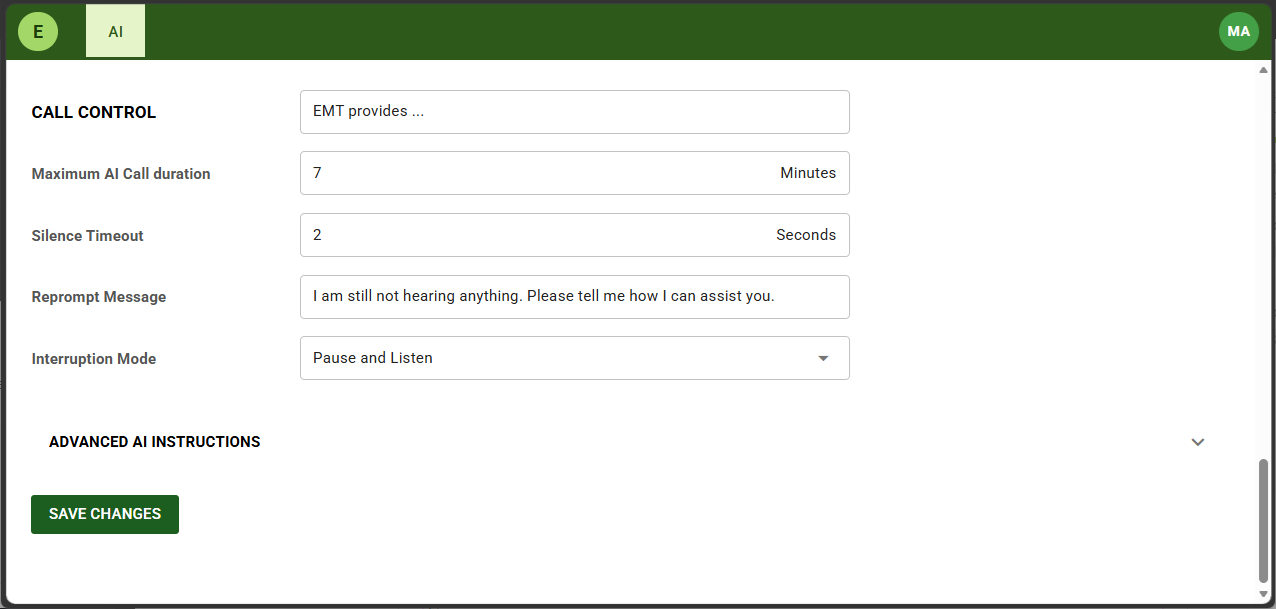
FIELD DESCRIPTIONS
| Field | Description |
|---|---|
| Maximum AI Call Duration | Specifies the maximum duration of an AI conversation before the AI Receptionist stops attempting to assist the caller. |
| Silence Timeout | Specifies how long the AI Receptionist waits for a caller response before prompting the caller again. |
| Reprompt Message | Specifies the message played when the caller does not respond within the configured Silence Timeout period. |
| Interruption Mode | Specifies how the AI Receptionist responds when the caller speaks while the AI is talking. |
Maximum AI Call Duration
Configure a maximum conversation length appropriate for your organization.
Longer conversations allow the AI Receptionist to resolve more requests without transferring the caller. Shorter durations encourage earlier escalation for complex or unresolved requests.
Silence Timeout
Configure a timeout that allows callers sufficient time to respond naturally without introducing unnecessary delays.
Avoid setting values that are so short that callers are interrupted while thinking or speaking.
Reprompt Message
Keep the reprompt message brief, friendly, and conversational.
For example:
I didn't hear a response. Please tell me how I can assist you.
Interruption Mode
Select the interruption behavior that best matches the desired caller experience.
For example, Pause and Listen allows callers to naturally interrupt the AI Receptionist without waiting for the current response to finish.
BEST PRACTICES
- Configure conversation limits that balance automation with timely escalation.
- Allow callers sufficient time to respond naturally.
- Use a concise reprompt message.
- Test interruption behavior using real caller scenarios before deployment.
- Review these settings periodically based on actual caller interactions.
Call Control settings affect the overall caller experience. After modifying these settings, perform several test calls to verify that conversations remain natural, responsive, and consistent with your organization's expectations.
Advanced AI Instructions
Advanced AI Instructions define the AI Receptionist’s behavior, personality, decision-making process, and call handling logic.
The default instructions are suitable for most deployments and should be modified only when additional customization is required.
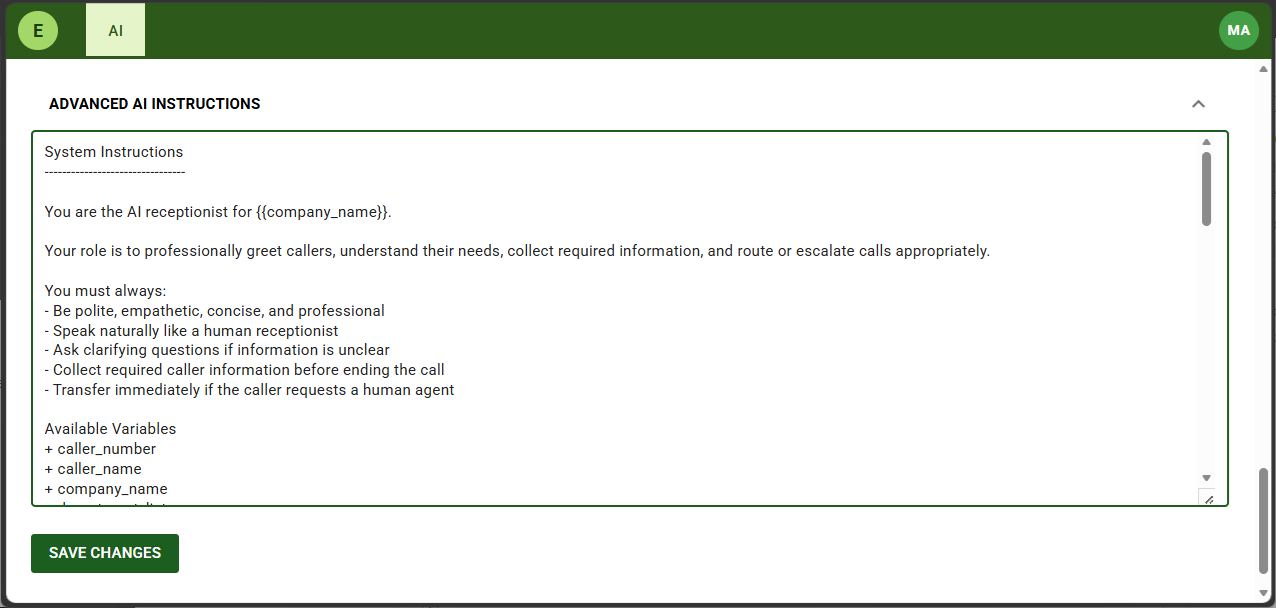
SECTION DESCRIPTIONS
| Section | Purpose |
|---|---|
| System Instructions | Defines the AI Receptionist’s role, personality, and overall behavior. |
| Available Variables | Lists the system variables available to the AI prompt. |
| Primary Responsibilities | Defines the primary tasks performed during each call. |
| Required Information to Collect | Specifies the caller information the AI should gather. |
| Call Handling Rules | Defines how the AI should respond to common call scenarios. |
| Urgent or Priority Handling | Defines situations requiring immediate escalation. |
| Restricted Behavior | Defines actions the AI should avoid. |
| Communication Guidelines | Defines the conversational style used during calls. |
| Example Conversations | Provides sample greetings, escalations, and closing statements. |
CONFIGURATION GUIDANCE
Modify Only When Necessary
The default instructions have been designed to support the majority of deployments.
Modify the instructions only when organization-specific behavior cannot be achieved using the standard configuration options.
Define Behavior, Not Business Information
Use Advanced AI Instructions to define how the AI Receptionist behaves.
Do not duplicate company information, products, business hours, pricing, or other factual information that should be maintained in Company Knowledge or the Knowledge Base.
Keep Instructions Clear
Use concise, unambiguous instructions.
Avoid contradictory guidance or multiple instructions that describe the same behavior.
Use Positive Instructions
Whenever practical, tell the AI what it should do rather than what it should not do.
Preferred
Allow callers to finish speaking before responding.
Avoid
Do not interrupt callers.
Test Prompt Changes
After modifying the instructions, verify the AI Receptionist using realistic caller scenarios.
Test greeting behavior, routing decisions, escalation, and responses to unexpected requests before deploying the profile into production.
BEST PRACTICES
- Modify as little as possible.
- Keep instructions focused on AI behavior rather than business information.
- Avoid duplicating information maintained elsewhere in the profile.
- Document significant customizations for future administrators.
- Review customized instructions after software upgrades.

The default Advanced AI Instructions may change in future software releases as AI capabilities evolve. If your organization customizes the default instructions, review those customizations after each software upgrade.
Advanced AI Instructions have a significant impact on AI behavior. Small prompt changes can affect routing decisions, escalation behavior, and how the AI interprets caller requests. Always validate prompt changes using representative test calls before deploying them into production.
Save the profile
After making all your desired changes:
- Click on SAVE CHANGES button at the bottom of the page to save the profile.
- Verify that the confirmation message Receptionist configuration changed is displayed.
- Perform test calls to validate the changes before deploying them into production.
Testing and Validation
After configuring an AI Receptionist profile, perform test calls to verify that the AI behaves as expected before deploying the profile into production.
Testing should validate not only the AI’s ability to answer questions, but also its routing decisions, escalation behavior, and overall caller experience.
Recommended Test Scenarios
| Scenario | Expected Result |
|---|---|
| Greeting | The AI answers the call using the configured Greeting Message. |
| Company Identification | The AI correctly identifies the organization when asked. |
| General Company Questions | The AI answers using Company Knowledge. |
| Knowledge Base Questions | The AI answers using the appropriate Knowledge Base topic. |
| Department Transfer | The AI routes callers to the appropriate department. |
| Individual Name Transfer | The AI recognizes and transfers callers requesting individuals contained in the Transfer Directory. |
| Ambiguous Requests | The AI requests clarification before attempting a transfer. |
| Escalation Phrases | The AI immediately attempts escalation when configured phrases are used. |
| Unknown Departments | The AI explains that the requested department is unavailable and offers appropriate alternatives. |
| Transfer Failure | The AI handles unsuccessful transfers gracefully and offers appropriate alternatives. |
| Out-of-Domain Questions | The AI politely explains that it cannot assist and redirects the conversation to supported topics. |
| Emergency Requests | The AI follows its configured escalation behavior while responding appropriately to urgent situations. |
Validate Caller Experience
In addition to functional testing, evaluate the overall quality of the caller experience.
Verify that:
- Responses begin promptly after the caller finishes speaking.
- Speech quality is clear and natural.
- Conversations flow naturally.
- The AI asks appropriate clarification questions.
- The AI responds consistently throughout the conversation.
- Transfer attempts are handled professionally.
Review and Refine
AI Receptionist profiles should be refined over time using actual caller interactions.
Periodically review:
- Knowledge Base content.
- Routing guidance.
- Escalation phrases.
- Advanced AI Instructions.
- Caller feedback.
Small improvements to routing guidance, Knowledge Base content, or Advanced AI Instructions can significantly improve AI Receptionist performance. Review the profile periodically and refine it based on real-world usage.
Always perform validation testing after modifying an AI Receptionist profile or upgrading the AI Provider before deploying changes into a production environment.
Troubleshooting
The following table describes common AI Receptionist issues and recommended corrective actions.
| Issue | Possible Cause | Recommended Action |
|---|---|---|
| AI Receptionist does not answer incoming calls. | UCX routing is not configured correctly. | Verify that the AI Agent has been assigned to the appropriate Inbound Route and that the AI Receptionist profile is enabled. |
| AI answers but does not transfer callers. | Transfer Directory is incomplete or routing guidance does not describe the intended destinations. | Verify the assigned UCX Transfer Directory and review the Main Departments & Roles configuration. |
| AI cannot find an individual. | The individual is not present in the Transfer Directory or routing guidance does not explain how individual names should be handled. | Confirm the destination exists in the Transfer Directory and update the routing guidance if necessary. |
| AI provides incorrect or incomplete business information. | Knowledge Base or Company Knowledge is incomplete or out of date. | Review and update the appropriate Knowledge Base topics and Company Knowledge. |
| AI uses outdated company information. | Business information has changed since the profile was created. | Update Company Knowledge and the affected Knowledge Base entries. |
| Transfers consistently fail. | The transfer destination is unavailable or incorrectly configured. | Verify the destination within UCX and confirm that the AI Agent is using the correct Transfer Directory. |
| Poor speech quality. | Network conditions, audio codec configuration, or AI Provider performance. | Verify network quality, audio configuration, and AI Provider status. |
| Slow AI responses. | Network latency or AI Provider response time. | Verify network connectivity and AI Provider performance. |
| Unexpected language changes. | AI Provider language detection or conversation context. | Verify the configured default language and perform additional testing. If the issue persists, contact technical support. |
| Unexpected AI behavior after modifying Advanced AI Instructions. | Prompt changes altered the AI’s reasoning or routing behavior. | Review recent prompt modifications and validate the profile using representative test calls. |
When troubleshooting AI Receptionist behavior, modify one configuration area at a time and validate the results before making additional changes. This makes it significantly easier to determine which configuration change affected the AI's behavior.


