Introduction
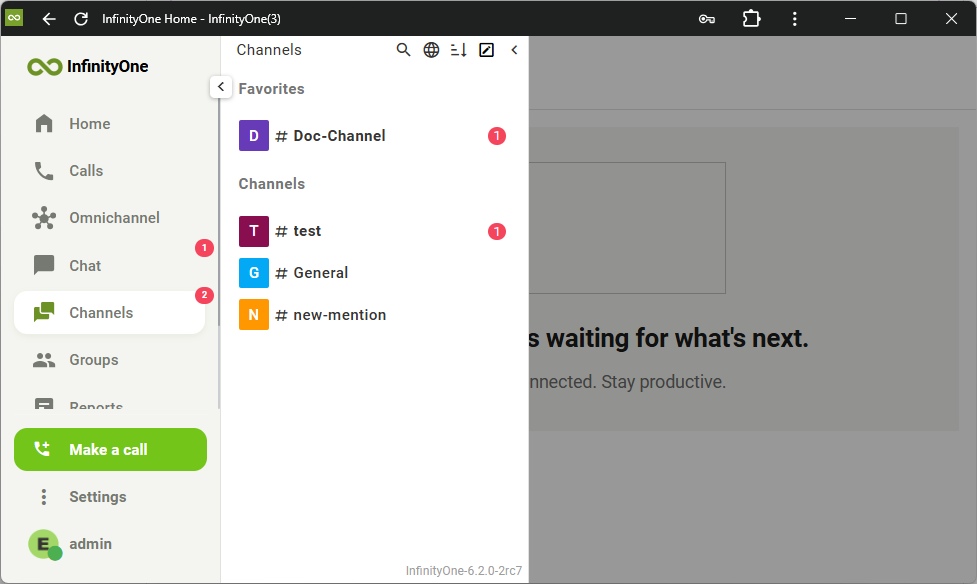
Applications in the Infinity Web Client are organized into different tabs located on the left side panel.
Some of the applications are subscription-based where you have to subscribe to the specific room for it to appear in the navigation menu.
The following applications are subscription-based:
- Chat
- Channels
- Groups
- Reports
- Queues
- Pages
Subscribe or Join
To subscribe or join a room, the first step is to find the specific room. At the top of the navigation menu, click the Directory icon  .
.
On the Directory page, select one of the tabs: CHANNELS, USERS, QUEUE REPORTS, WALLBOARD QUEUES and WIKI PAGES.
A list of all the rooms will be displayed below. You can start typing the name in the Search box  to filter the list.
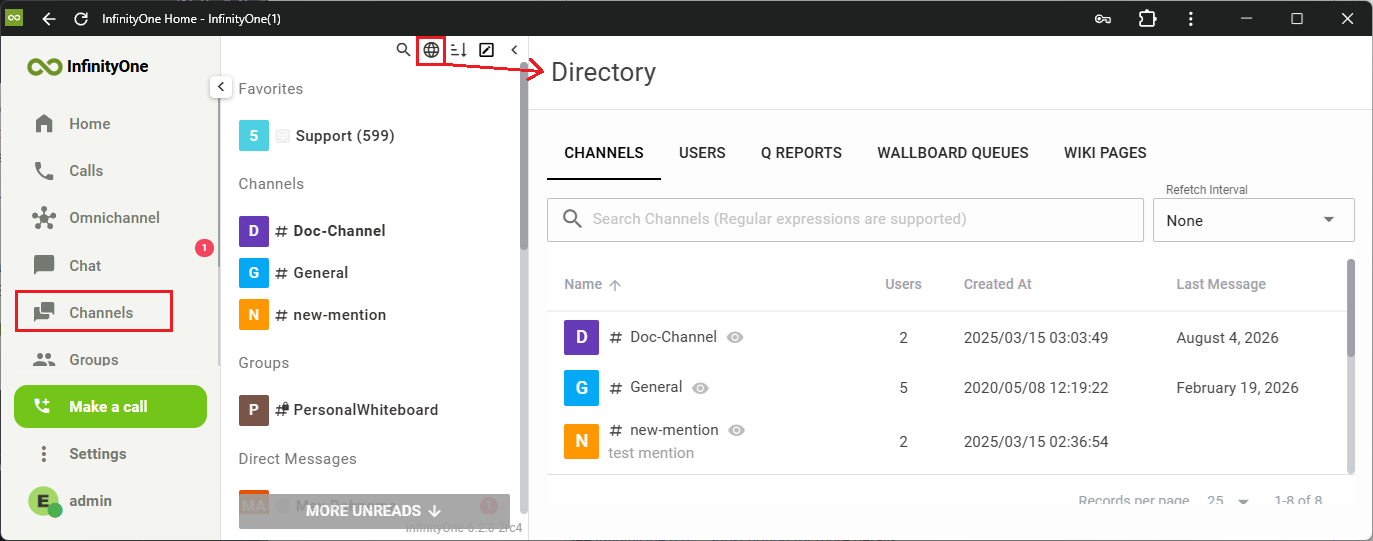
 This icon means you are already subscribed to the room. Clicking on the room will simply open the page for the room.
 This icon means you are subscribed to the room but it is hidden. Clicking on the room will unhide the room and open the page.
If there is no icon, then you have not subscribed to the room. Clicking on the room will open the page with the option to Join the room.
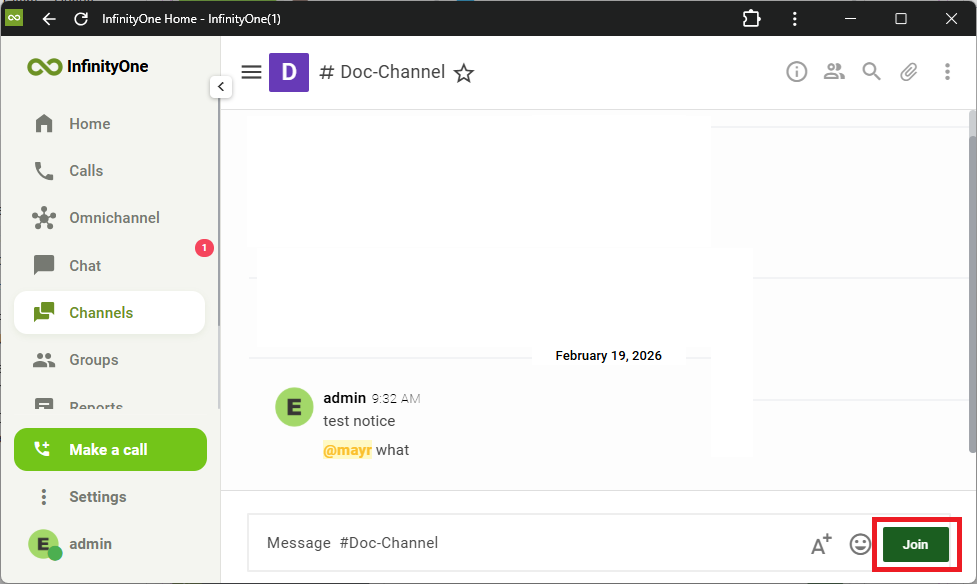
Click on the JOIN button to join the room.
Once you have subscribed to the room, it will show up in the navigation menu on the left.
Users
Users are special, selecting a user in the Directory will simply start a direct messaging page with the user, no need to take any additional step to subscribe.
The user will now appear in the left navigation menu. You can choose to hide the user from the menu, but you cannot unsubscribe.
Channels and Groups
Groups are essentially the same as Channels, except they are private. Therefore Groups will not appear in the Directory, only public Channels are listed.
You can join a private Group by invitation only.
Create New
To create a new public Channel or a private Group:
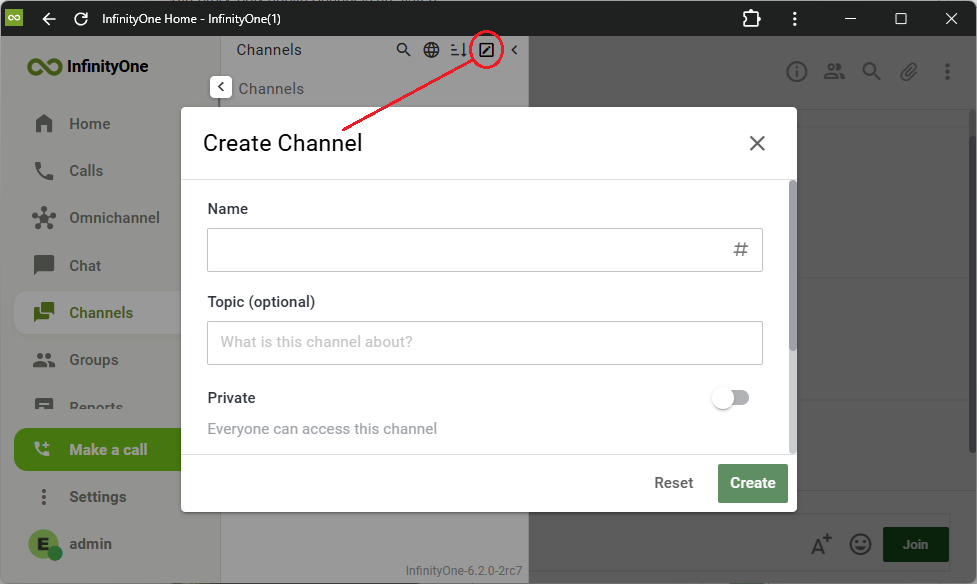
- Go to the top of the navigation panel, click the Create New icon
 and select Channel from the drop-list.
 Enter a Name for the channel with no spaces.
If the Private toggle is OFF, then this is a public Channel. If the Private toggle is ON, then this is a private Group.
- If the Read Only toggle is OFF, then all users can write to the channel.
If the Read Only toggle is ON, only the owner can write, all other users are read only. Add members to the group now or add them later.
Click the Create button when done.
To create a new Report, see InfinityOne 6.0 – Queue Reports
To create a new Page, see InfinityOne 6.0 – Wiki Pages
Unsubscribe and Hide
To unsubscribe from a room, hover your mouse over the room in the left navigation panel, click on the 3 dots and select Leave room.
You can also select to Hide room instead, the room will not be listed in the navigation panel but you are still subscribed to the room.
Favorite
To mark a room as favorite, hover your mouse over the room in the left navigation menu, click on the 3 dots and select Favorite.
There is also an icon beside the room name that will turn from a black outlined star  to a yellow star
  . You can click on this icon to toggle Favorite ON and OFF.
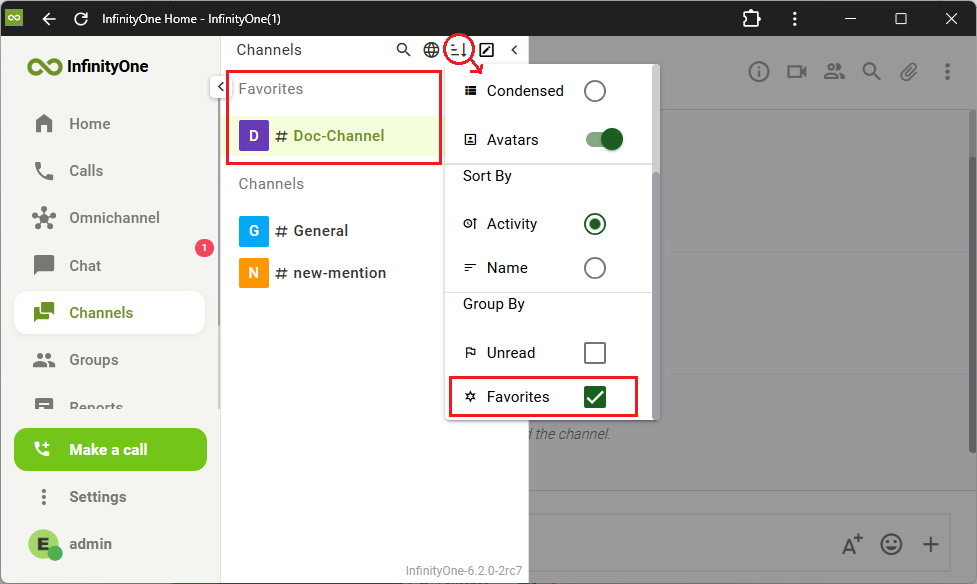
If Group By Favourites is selected in your display preference. all your favorite rooms will be grouped at the top of the navigation menu.
Unread and Mentions
A room with unread messages will be highlighted in bold in the left navigation menu.
If someone @mentions your username, the room will be highlighted in bold with a badge count beside it indicating the number of mentions in that room.
In the application tabs panel, the badge count will be shown in red giving the total number of mentions in the application.