
If your administrator has configured a softphone extension for you or you want to use the InfinityOne softphone hotdesked to your current extension on a desktop device, here are the steps to enable and access the InfinityOne Softphone.
Enable Softphone
Infinity Web Client
The Infinity Web Client softphone allows you to stay connected from anywhere as long as you have a web browser open.
- Click on the account box (where your avatar is shown)
- Select My Account
- Select Phone
- Toggle on the Enable Softphone switch and click Save Changes.

Access Softphone
Register Phone
- From the application tabs on the left, click on the Calls tab.
- If the softphone is not already registered to the UCX, you can register in 2 ways:
- Use Set Based Configuration to assign the softphone to an extension.
- Use Hotdesking to temporarily take over an extension.
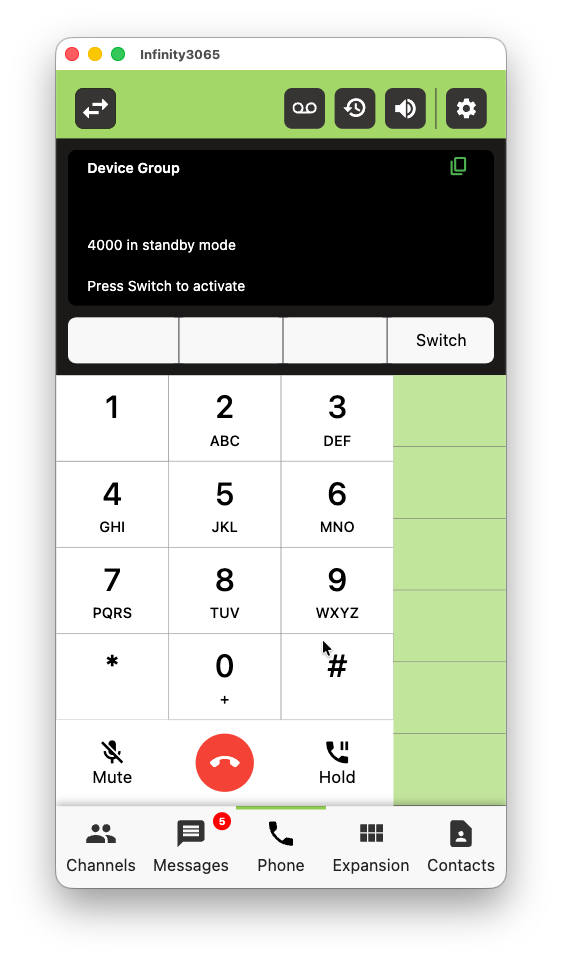
Device Group Users
If your extension is configured as a Device Group, you must be the active member before using some of the features described on this page (e.g. Predial, History and AI, Call Keypad).
If the phone screen indicates your extension is in standby mode, press the Switch softkey to activate your device.
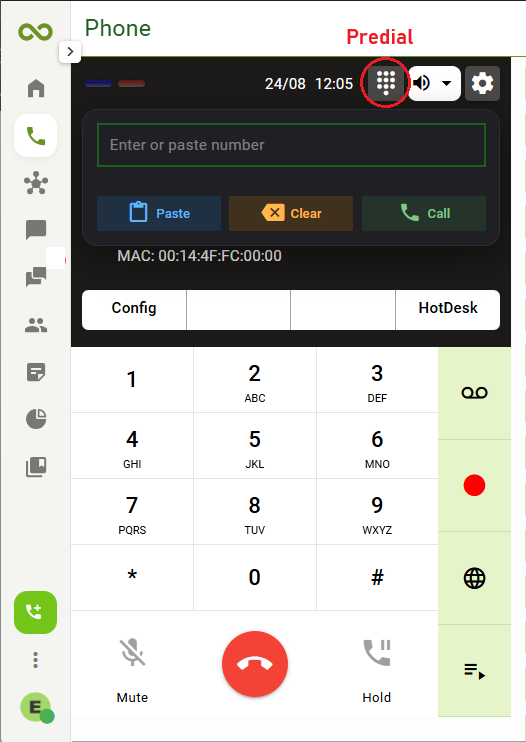
Predial
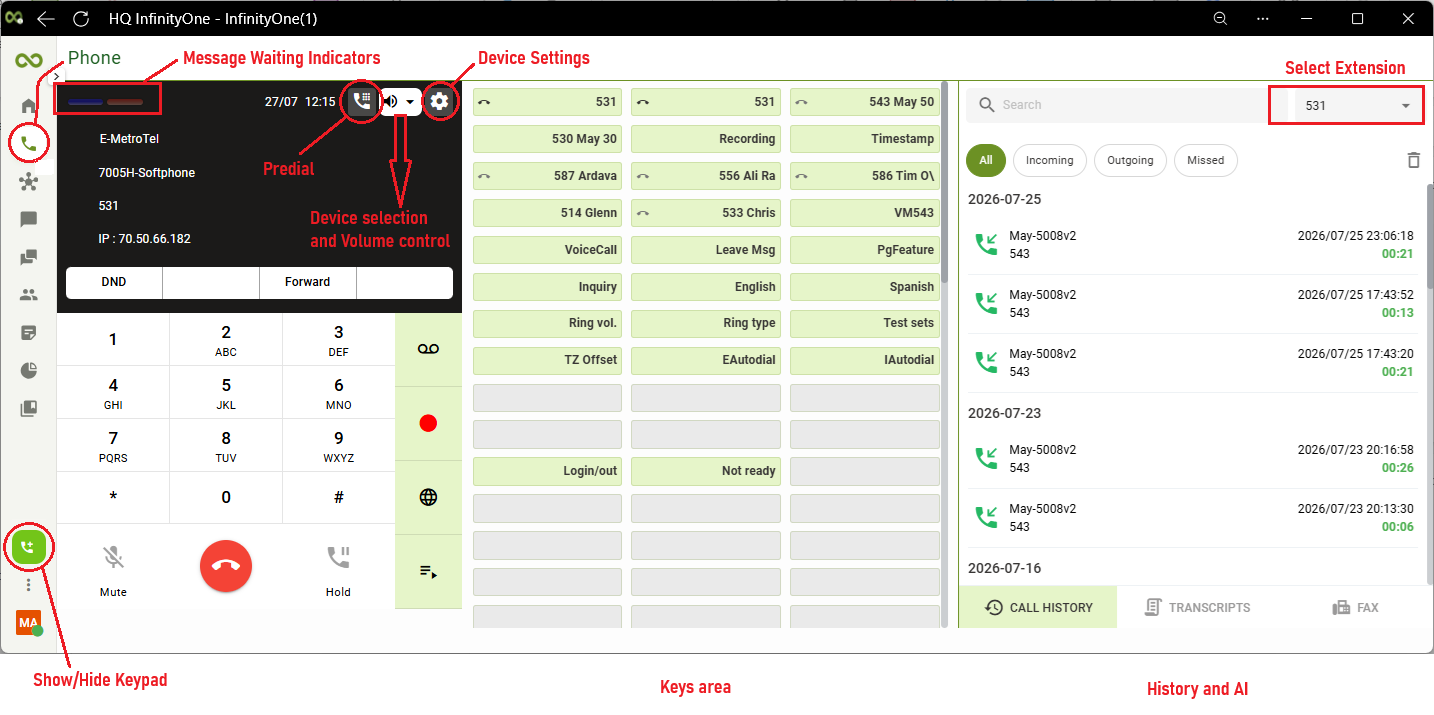
At the top of the Phone’s display screen, click on the Predial icon to show the Predial user interface.
You can copy and paste phone numbers here to dial.
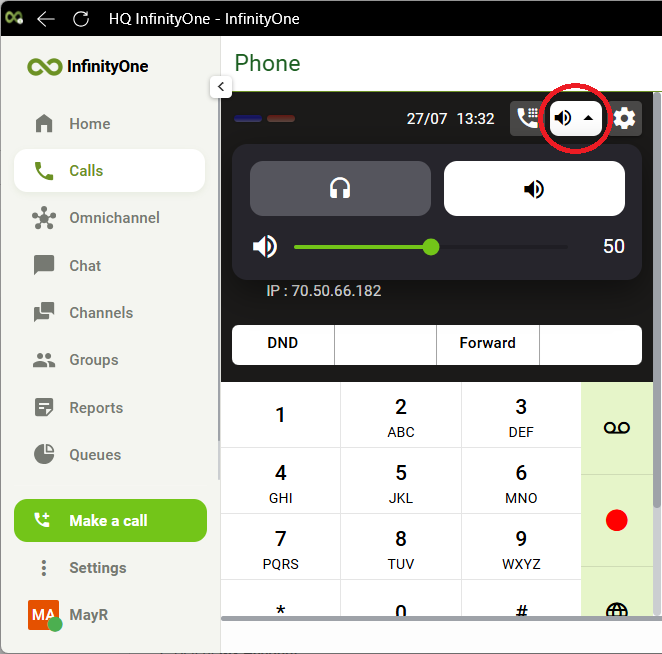
Device and Volume
At the top of the Phone’s display screen, click on the device icon to show the device selection and volume control interface.
Device Settings
From the phone’s display screen, click on the Device Settings icon on the top right corner of the screen. Here you can configure audio device preferences for your softphone.

History and AI
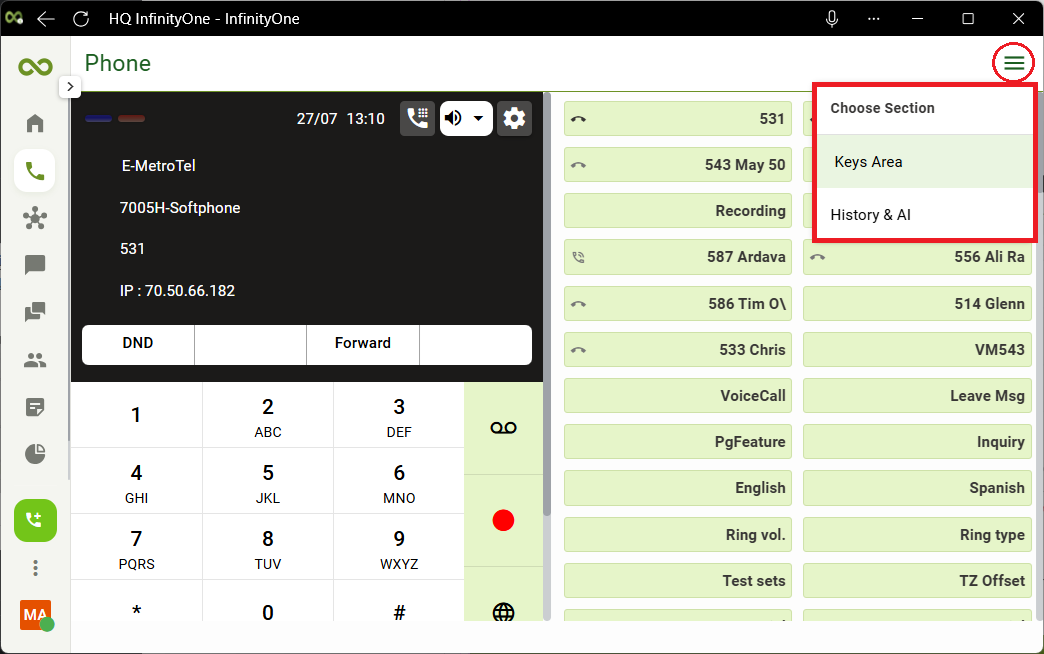
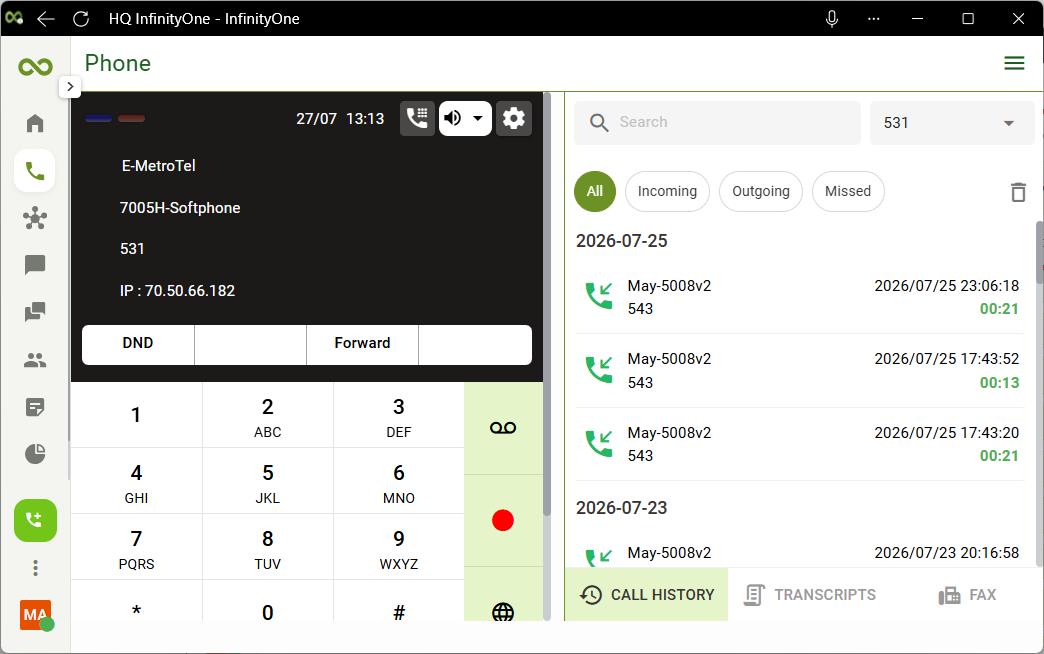
Call History, AI transcripts and Fax are automatically displayed on the right panel if the display size is big enough.
Or you can access the menu in the top right corner and select the History & AI section.
Transcripts
See Infinity Web Client – AI Assist (beta) for details.
Fax
See Infinity Web Client – Send Fax for details.
Call Keypad
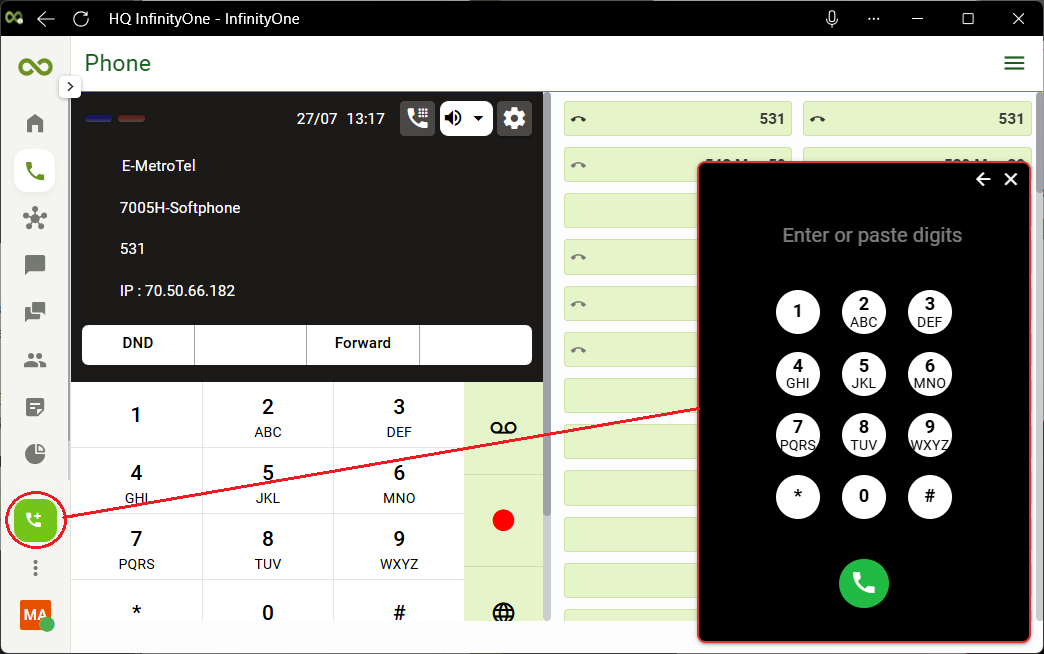
You can also make a call from any application tab by using the Call Keypad.
To access the Call Keypad, click on the add call icon  located in the bottom left of the page.
On an active call, the display changes to show the available functions.

| Icon | Function |
|---|---|
 | Mute / Unmute toggle |
 | Keypad |
 | Headset/ Speaker toggle |
 | Hold / Unhold toggle |
 | Swap between 2 calls |
 | Switch to Infinity Web Client Softphone |
 | Off hook – Dial |
 | On hook – Disconnect |
