Infinity Web Client
Install Infinity Web Client as an App
- Login to Infinity Web Client using the Chrome browser
- Click on the Chrome menu icon (3 dots on the top right of the browser)
- Move the mouse down to Cast, save and share, then select Install page as app…


- You will be prompted to add the app to Taskbar. Select Yes and a shortcut to the Infinity Web Client will be created. You can now use this shortcut on the taskbar or desktop to launch the client as an independent browser app.
Application Tabs
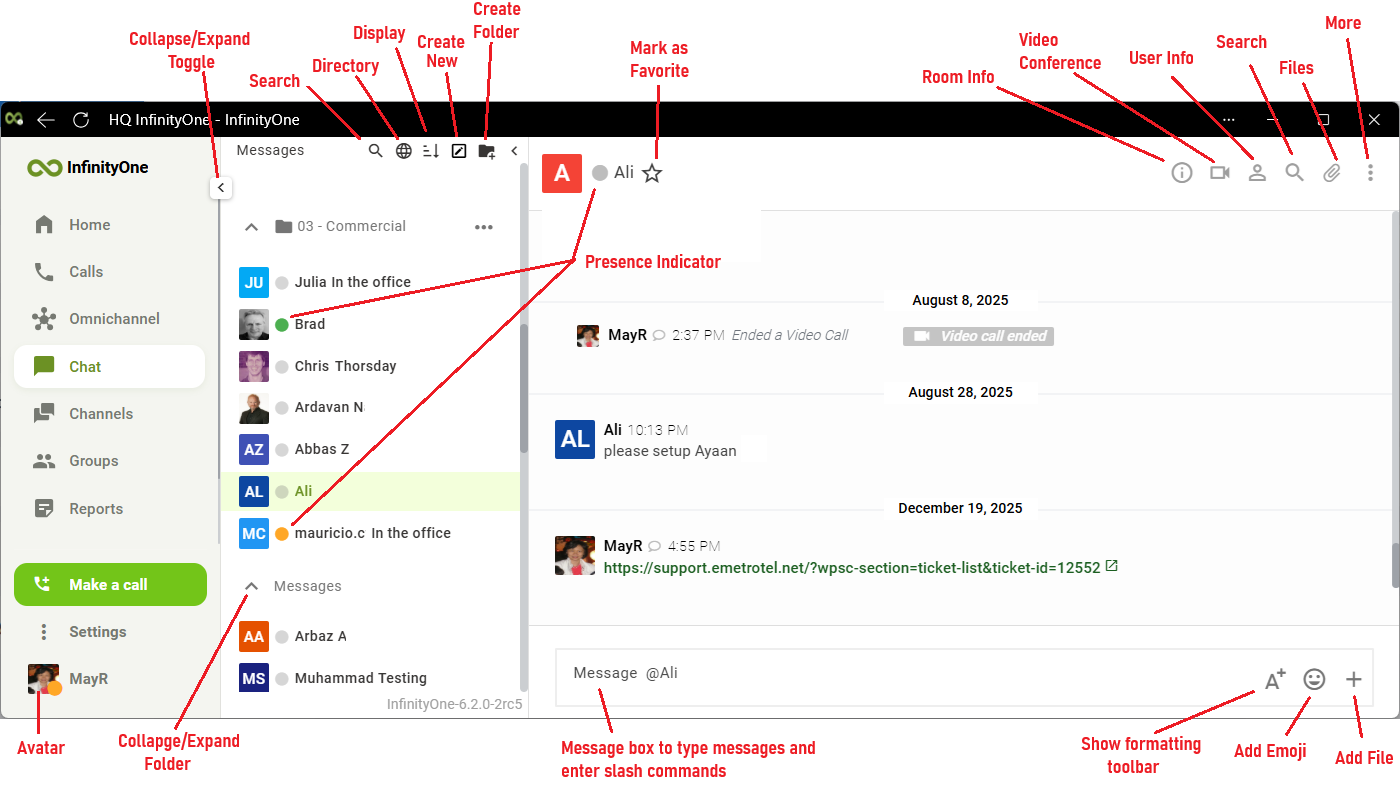
The application tabs are located on the left-hand side and provides access to the different applications available within InfinityOne.
- Home
- Calls
- Omnichannel
- Chat
- Channels
- Groups
- Reports
- Queues
- Pages
Navigation Menu
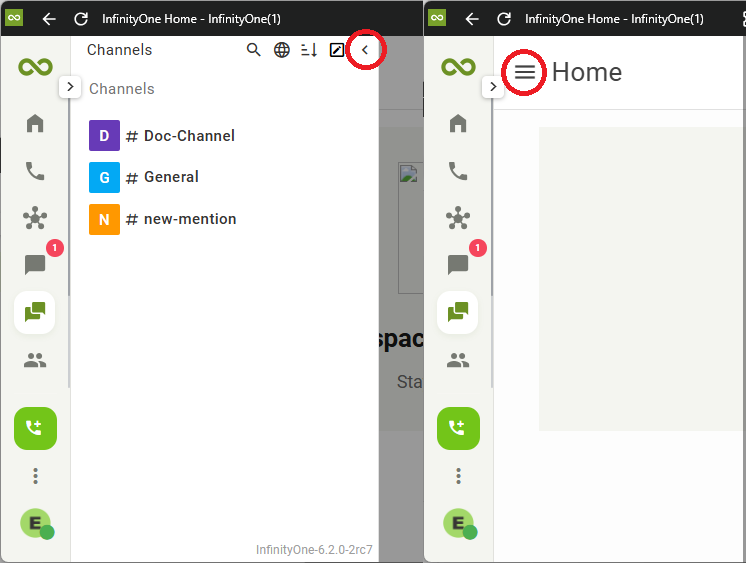
The navigation menu is located on the left-hand side beside the application tabs. You can expand  or collapse
  the navigation menu by clicking the corresponding icons.
Search
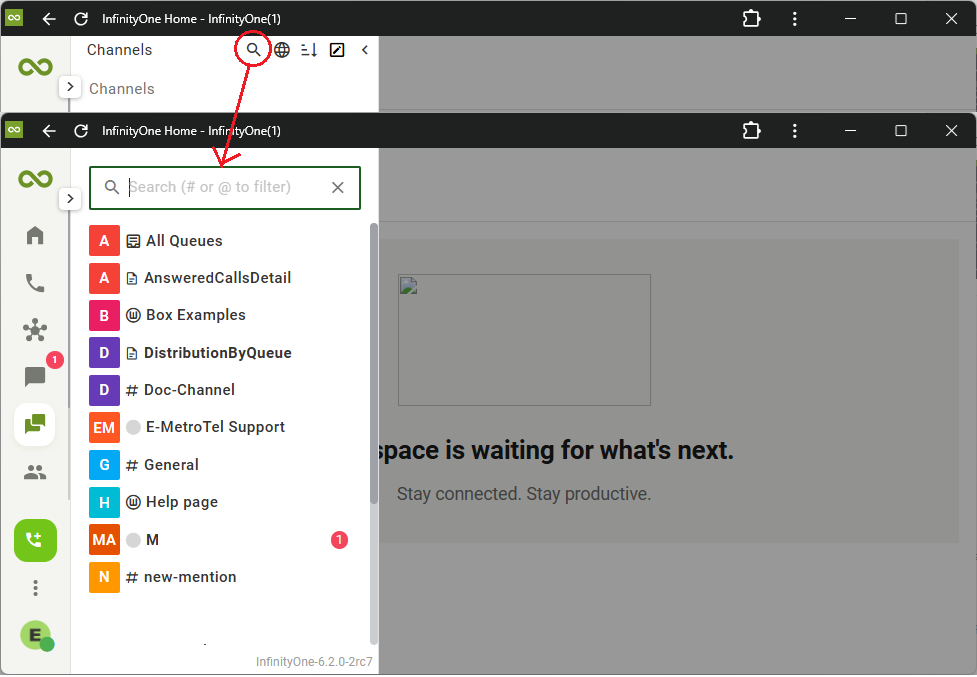
At the top of the navigation panel, click the Search icon  and the search box will be presented. You can start typing the name to narrow down the list.
Directory
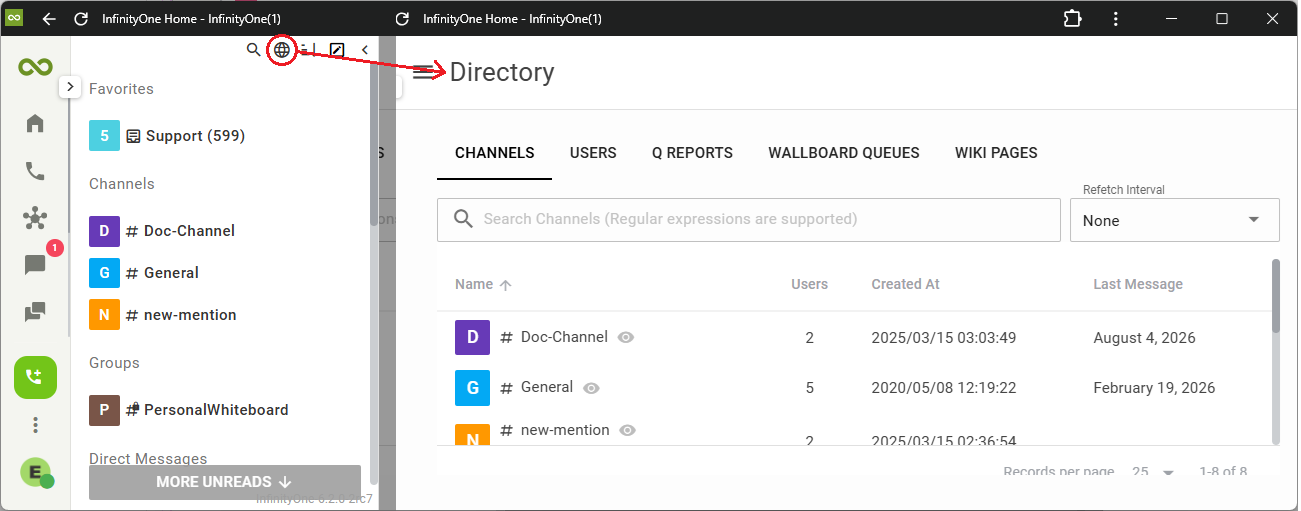
At the top of the navigation menu, click the Directory icon  and the page will present a complete listing of the items for each of the applications. Select the tabs at the top of the page to view the directory listing for that application:
- Channels
- Users
- Q Reports
- Wallboard Queues
- Wiki Pages
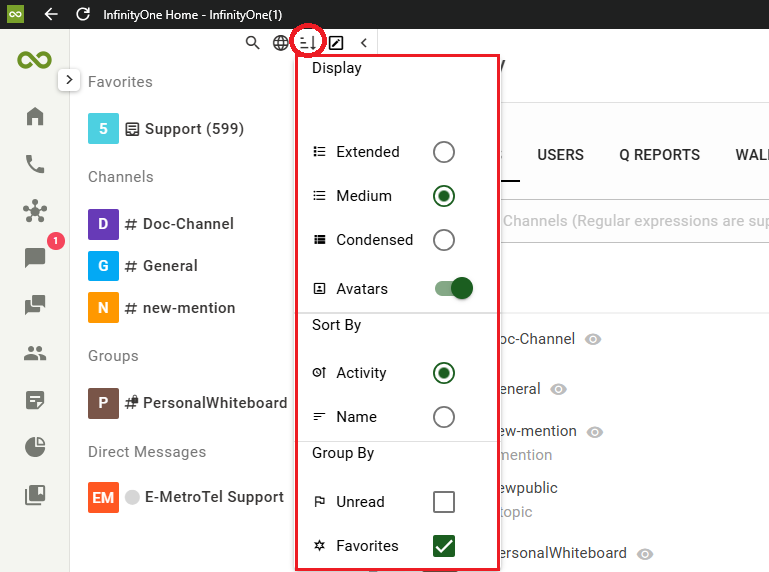
Display Preferences
At the top of the navigation panel, click the Display icon  and the drop-down list will show the display preferences that you can configure.
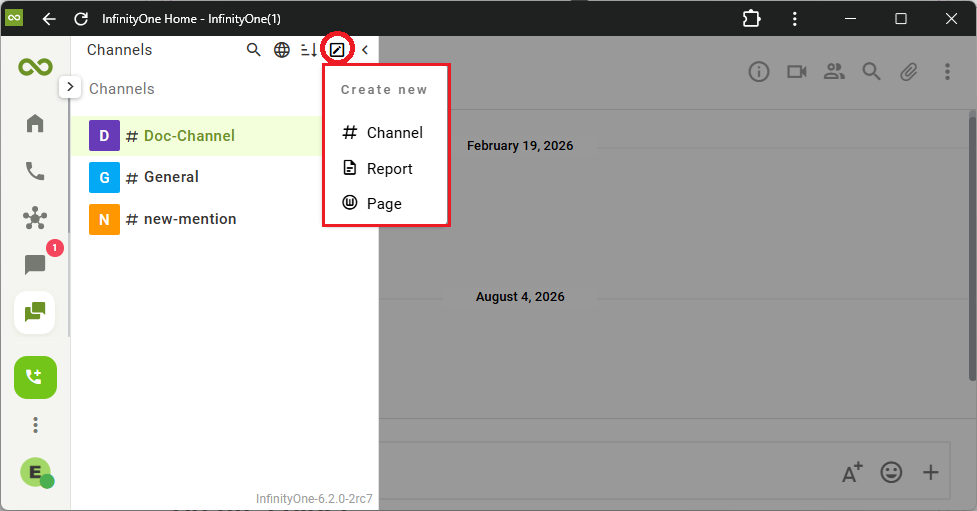
Create New
At the top of the navigation panel, click the Create New icon  and you can select from the drop-list:
- Channel
- Report
- Page
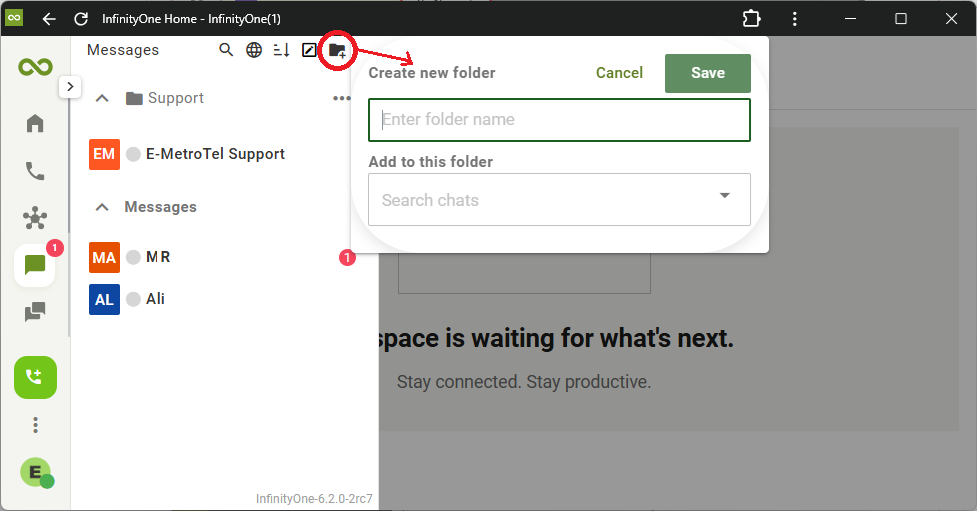
Create Folder
At the top of the navigation panel, click the Create Folder icon  and enter the new folder name. You can then organize your Chat contacts into folders. This feature is available only under the Chat tab.
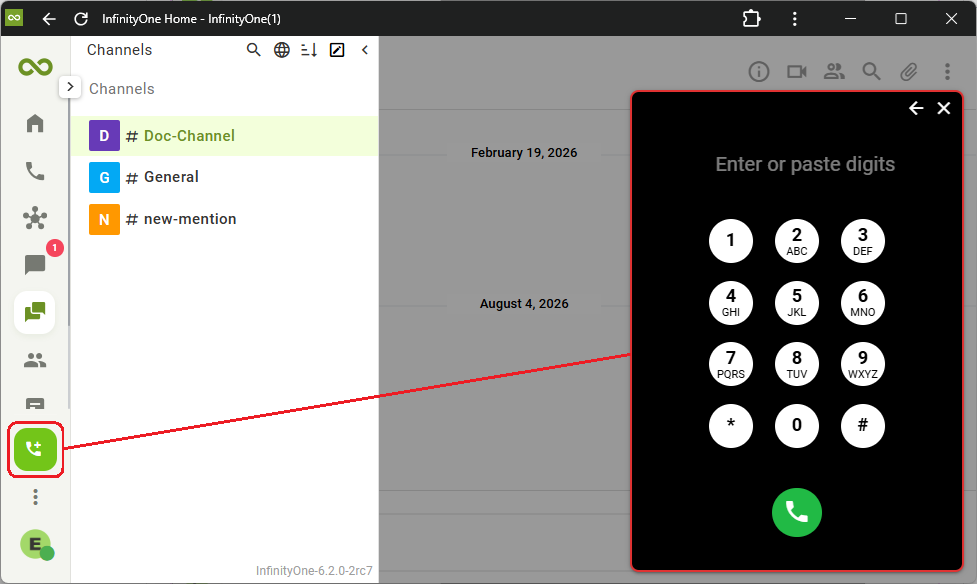
Keypad
Click on the Keypad icon  and it will show/hide the Calls Keypad.
Settings
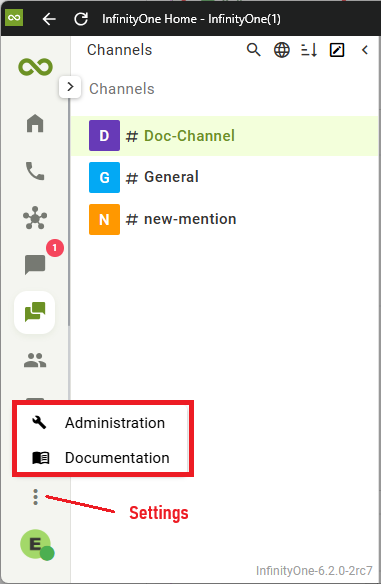
Click on the Settings icon  and it will show a drop-down box where you can access the following functions:
- Administration
- Documentation
My Account
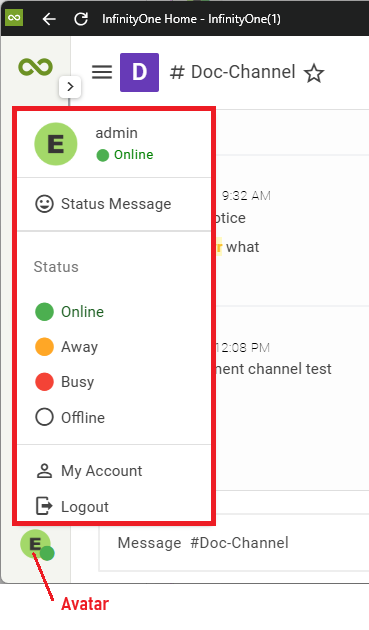
Click on the box where your Avatar is displayed and it will show a drop-down box where you can update your status, access My Account and Logout.