
Introduction
InfinityOne is E-MetroTel’s client communications portal, providing team based messaging, softphone, file sharing, team collaboration, and call center features. It is provided as a licensed component of the UCX Server that is ideal for companies wanting to privately host their own chat service or provide fully featured softphones that can be accessed on multiple computing platforms.
InfinityOne supports:
- A Chrome browser based user interface that is operating system agnostic.
- A mobility app that can be used on mobile devices.
Each of these user interfaces offer various advantages and have specific deployment scenarios where they are best suited. From the actual user interface perspective both the browser and mobile version are similar, although the mobile interface has native methodology for accessing functionality, providing essentially the same set of capabilities.
To get started with InfinityOne, please complete the following steps.
Step 1 – Login
If you received a welcome email from InfinityOne, click on the link provided in the email and login with the username and password provided by the administrator.
See Infinity Web Client – Navigation to familiarize yourself with the InfinityOne layout.
Step 2 – Add Your Extension
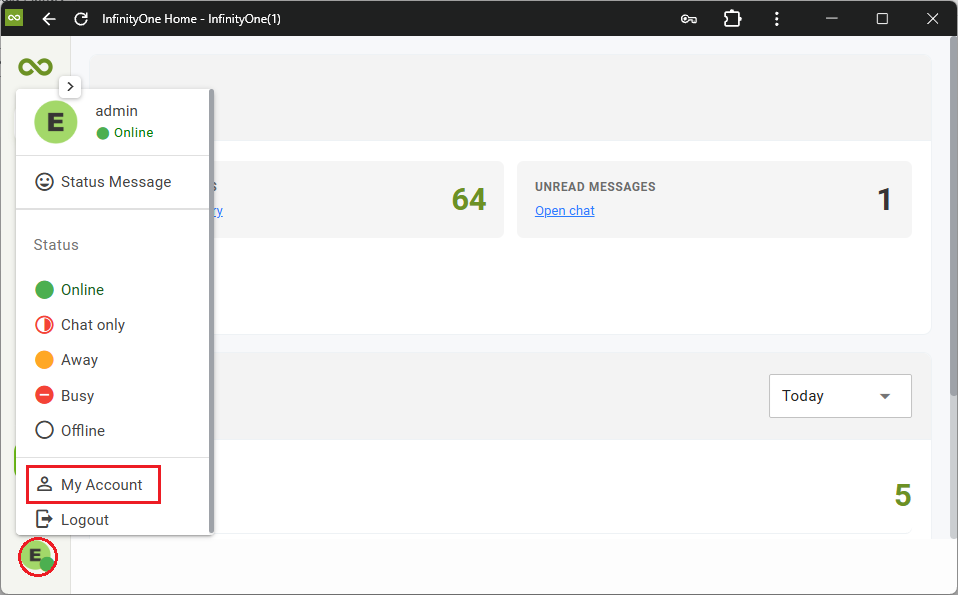
- Click on your Profile Avatar and select My Account.
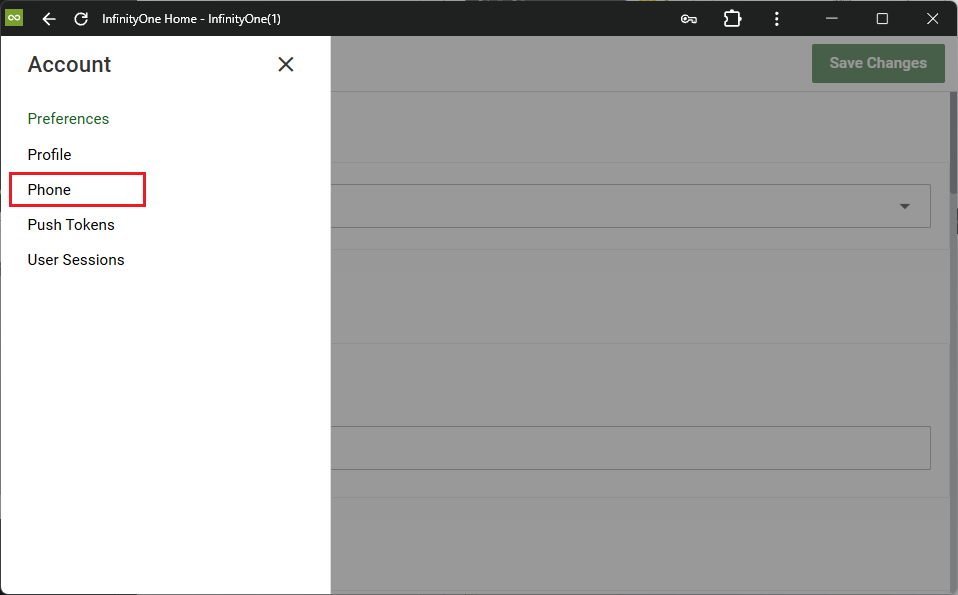
- From the Account navigation bar, select Phone.
- Under EXTENSIONS, click the + Add button, enter the extension and select the Label.
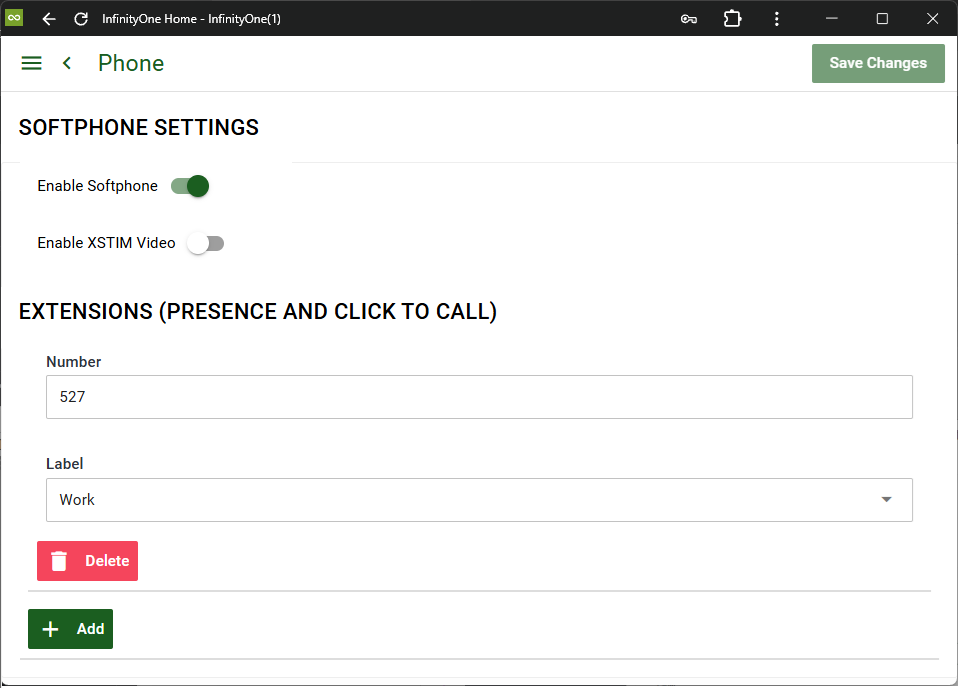
- Click Save Changes when done.
You can repeat the above steps at any time to add more extensions to your account.
Step 3 – Subscribe to Channels
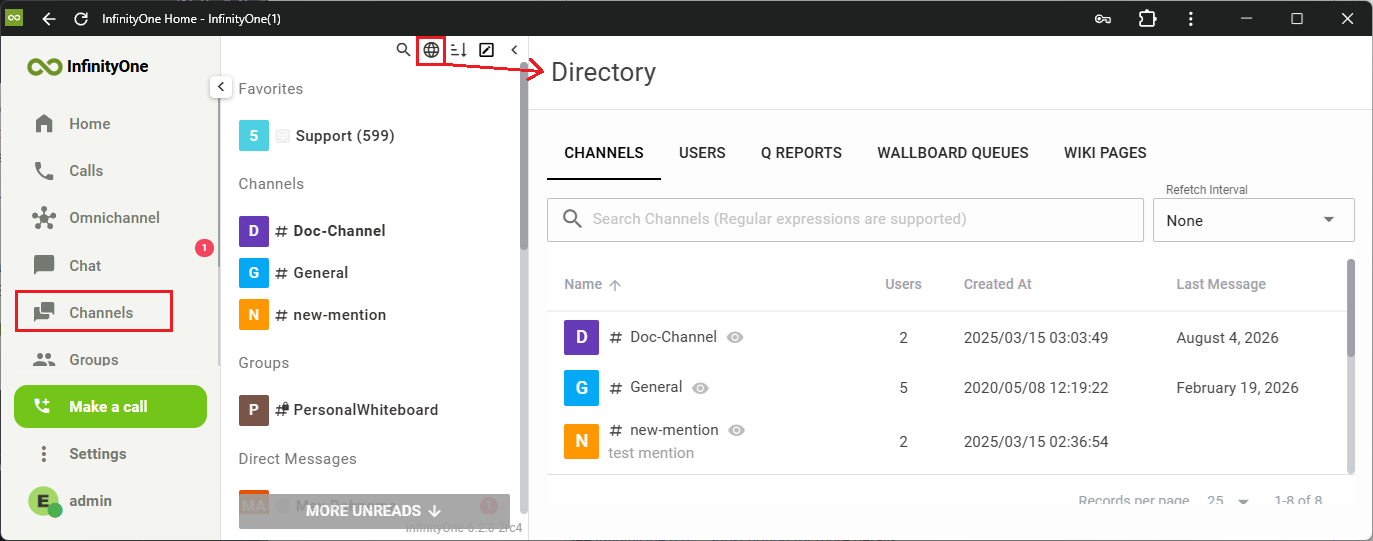
Select Channels on the left navigation panel, then click the Directory icon  .
.
Under the CHANNELS tab, it will display a list of available channels. Click the desired channel to view and then click the Join button located on the bottom right to subscribe to the channel.
Your subscribed channels will now be listed on the left menu list under the Channels subgroup.
You can repeat the same steps to subscribe to USERS, QUEUE REPORTS, WALLBOARD QUEUES and WIKI PAGES.
See Infinity Web Client – Subscription for more details.
Step 4 – Message Users
To start sending chat messages to users, first find the user in the Directory.
Select Chat from the left navigation panel, then click the Directory icon .
Under the USERS tab, click the desired user and you will be immediately placed into the direct messaging page with the user.
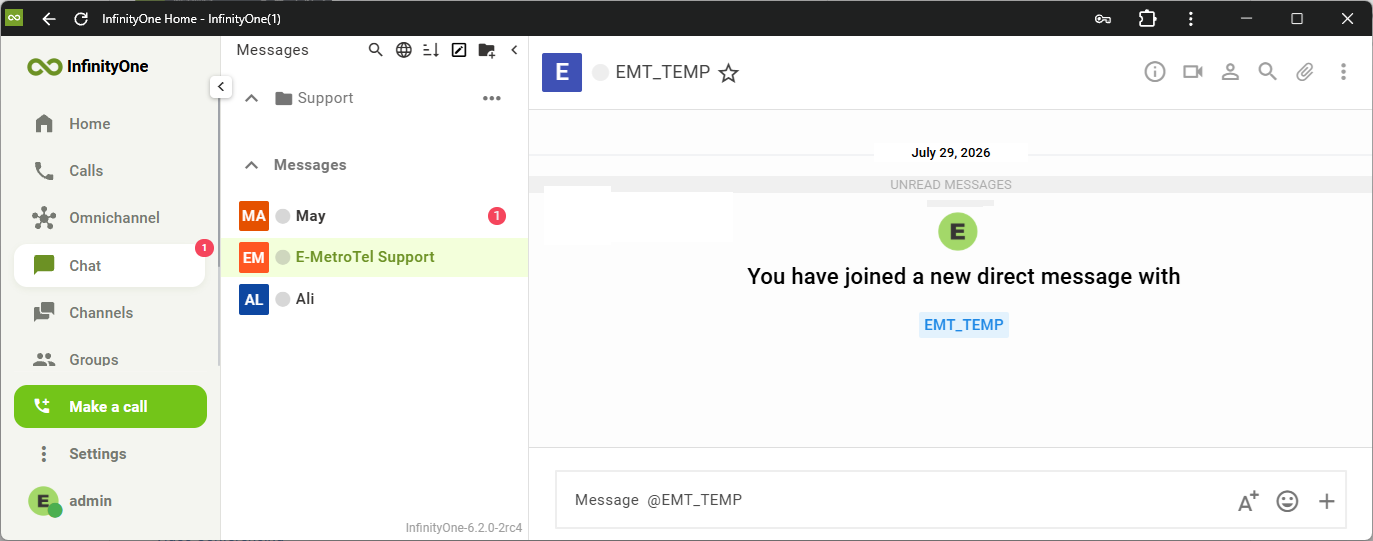
This only has to be done once for each user, after that the user will appear in the left menu list.
See Infinity Web Client – Chat for more details.
Next Steps
