
Infinity Web Client allows users to send and manage Virtual Faxes directly from the Soft Phone interface. This guide explains how to send faxes, review fax transmission history, and delete fax records using Infinity Web Client.
This guide focuses on sending and managing fax transmissions. Receiving faxes is not covered in this document.
Sending a Fax
Step 1 – Open Soft Phone
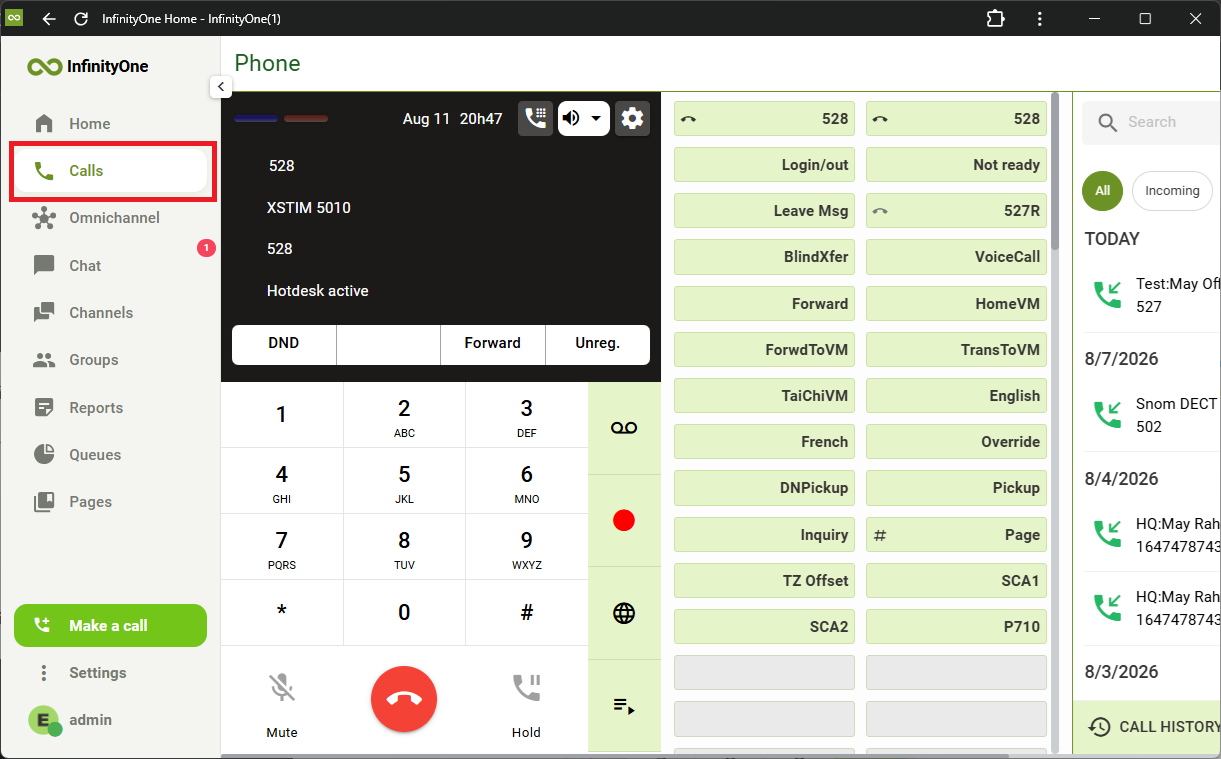
From Infinity Web Client, click on the Calls tab to access the Soft Phone.
You must have an active registered extension.
Device Group Users
If your extension is configured as a Device Group, you must be the active member before sending a fax.
If the phone screen indicates your extension is in standby mode, press the Switch softkey to activate your device.
Step 2 – Open Fax
Under the History and AI section, select the FAX tab.
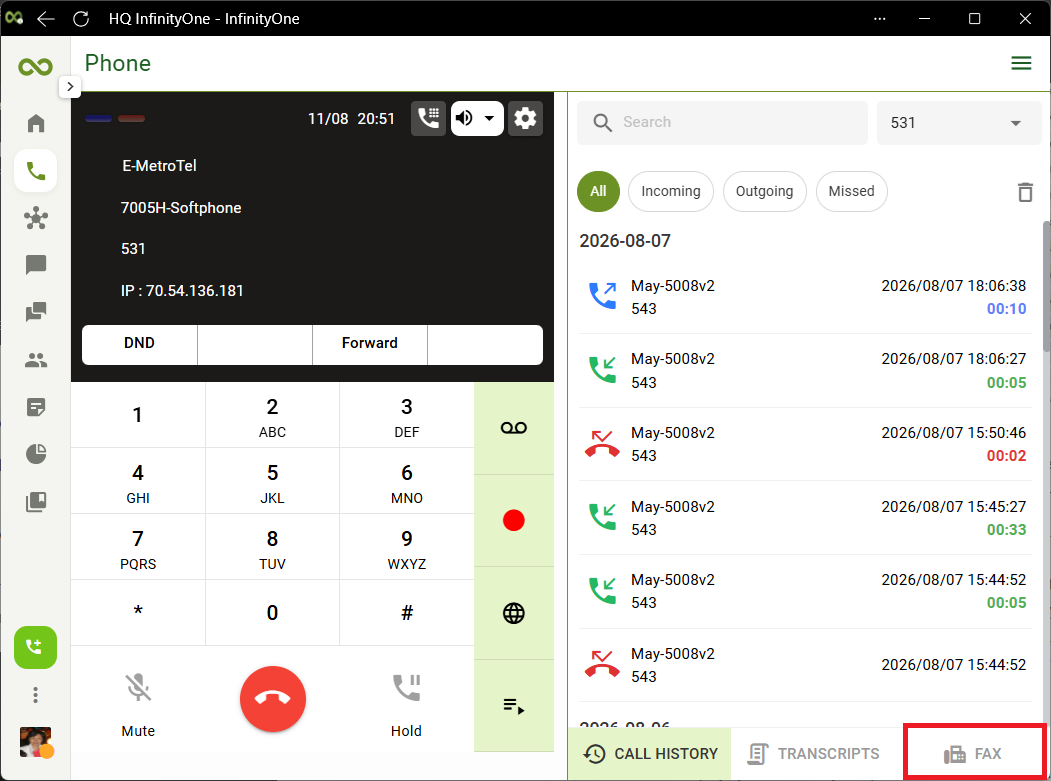
The FAX screen displays your fax history and provides access to create a new fax.
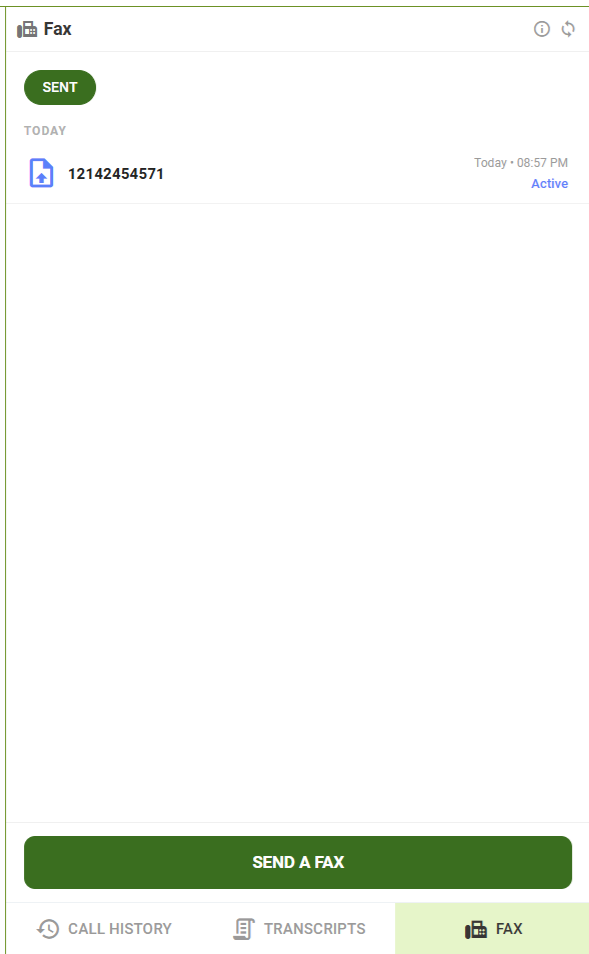
Select SEND A FAX to create a new fax.
Step 3 – Enter Fax details
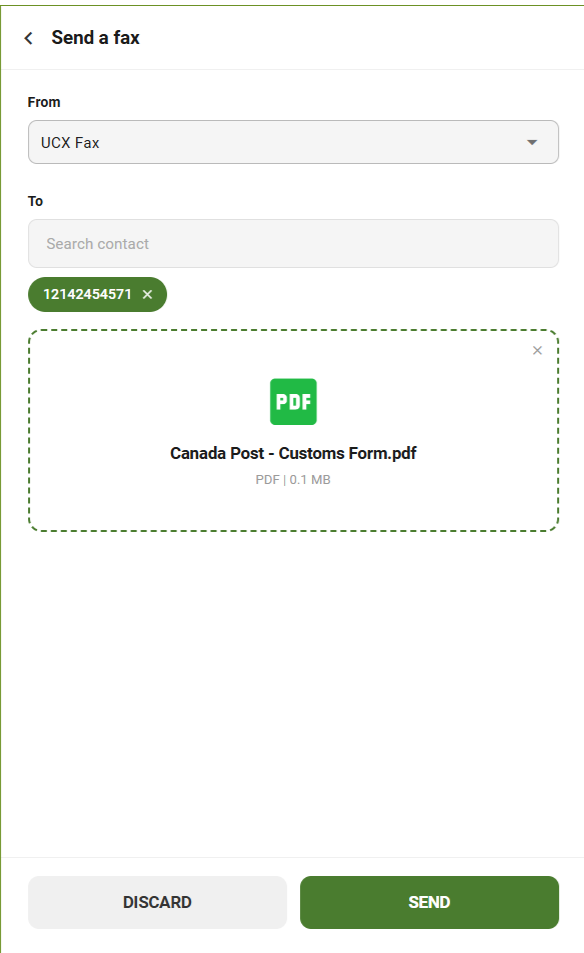
The Send Fax window will open.
Select the From value from the drop-down list.
Enter the destination fax number in the To field. Press ENTER to validate the number.
Select Add image or document and browse for the file you want to fax.
Supported file formats include:
- DOC / DOCX
- PPT / PPTX
- WEBP
When all the fields are entered, the Send button becomes available.
Viewing Fax Status and History
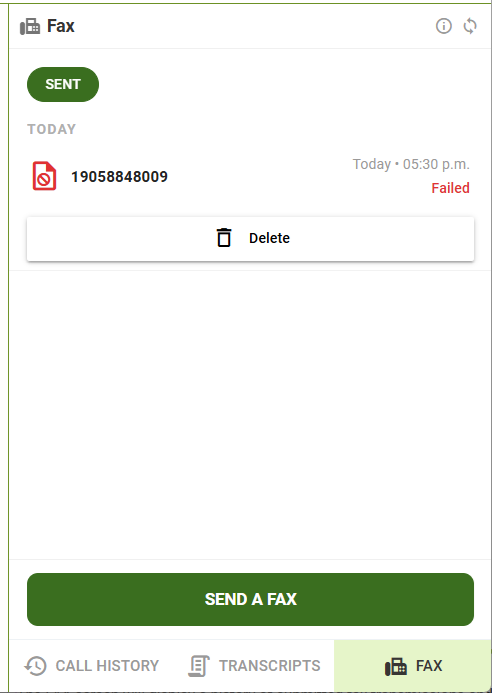
The FAX screen will display a history of submitted fax transmissions and their status.
To delete the entry from the list:
- Select the fax entry.
- Click the Delete button
Fax Retry and Failed Deliveries
- If a fax transmission is unsuccessful, the UCX system will automatically retry delivery based on the configured retry policy.
- If the maximum retry attempts are reached, the fax status will be marked as Failed and the fax must be manually resent.
- You can review failed transmissions in FAX tab.
