Overview
The Zoho CRM integration embeds the InfinityOne CRM Workspace directly inside Zoho CRM, allowing users to place and receive calls without leaving the Zoho interface.
Once configured, users can:
- Receive inbound call pop-ups for matching CRM records
- Click-to-dial phone numbers directly from Zoho CRM
- Manage active calls using the embedded InfinityOne workspace
- Automatically log call activity to Zoho CRM
A valid InfinityOne CRM Integration license is required to use this feature.
Prerequisites
- InfinityOne with CRM Integration licensing enabled
- A supported Zoho CRM account
- A publicly accessible InfinityOne server using HTTPS
- A supported web browser with WebRTC enabled
- User permissions in Zoho CRM to create and manage Canvas applications
- InfinityOne users should have corresponding Zoho CRM user accounts configured
Supported browsers include:
- Google Chrome
- Microsoft Edge
- Mozilla Firefox
The InfinityOne CRM Workspace is delivered as an embedded web application within Zoho CRM. Ensure that browser pop-ups, cookies, and microphone permissions are allowed for both the InfinityOne and Zoho CRM domains.
Configuring Zoho CRM in InfinityOne
Enabling CRM Integration
- In InfinityOne, navigate to:
Administration > CRM Integration
- Enable the CRM enabled toggle if it is not already enabled.
- Click New to create a new CRM integration.
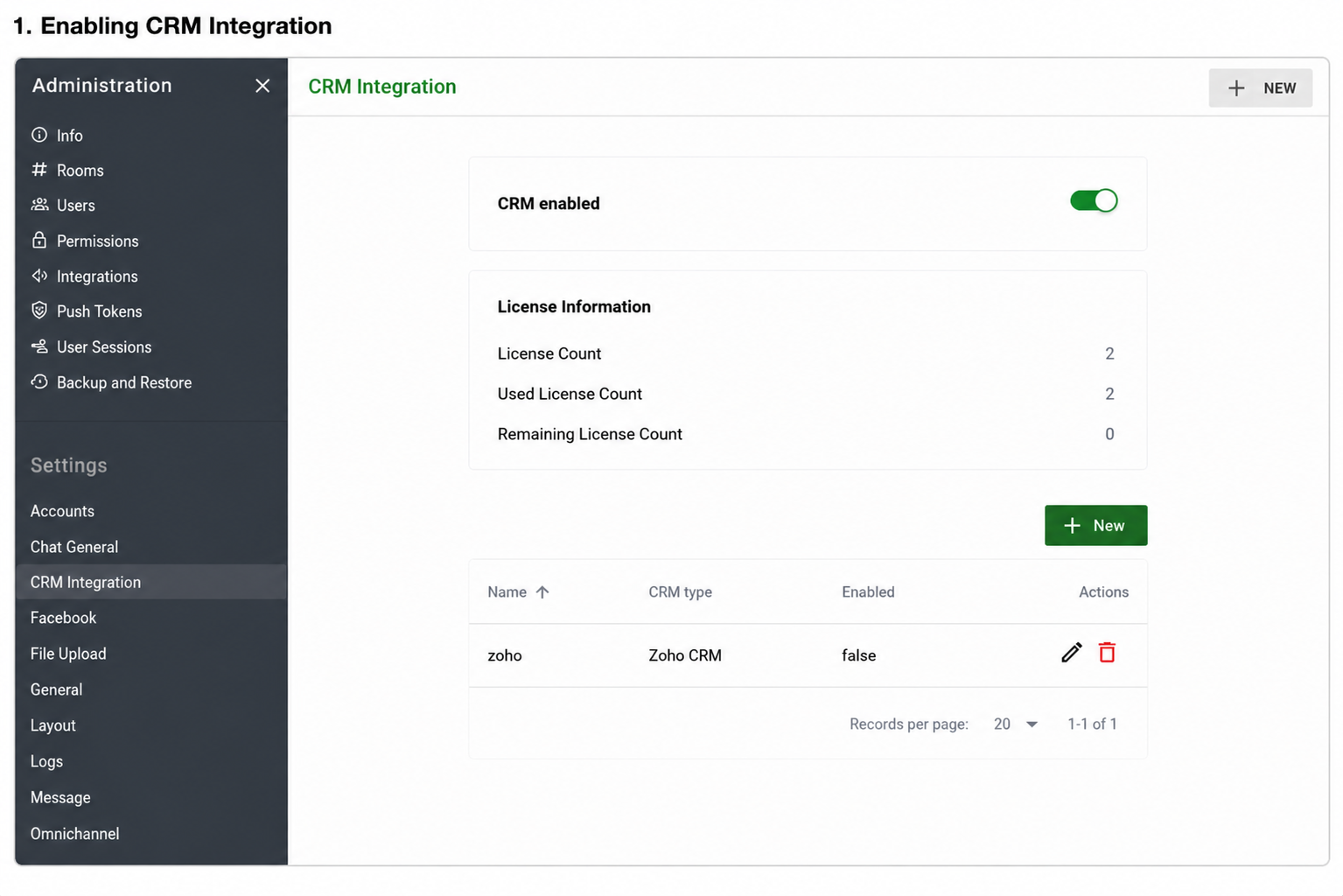
Enabling the Zoho CRM Workspace
- Open the Zoho CRM integration you created.
- Enable the integration using the Enabled toggle.
- Once enabled, the CRM widget URL will be generated automatically.
- Copy the CRM widget URL. This URL will be used when configuring the embedded InfinityOne workspace inside Zoho CRM.
Creating a Zoho CRM Integration
The CRM type dropdown supports:
- Salesforce
- Zoho CRM
- Custom
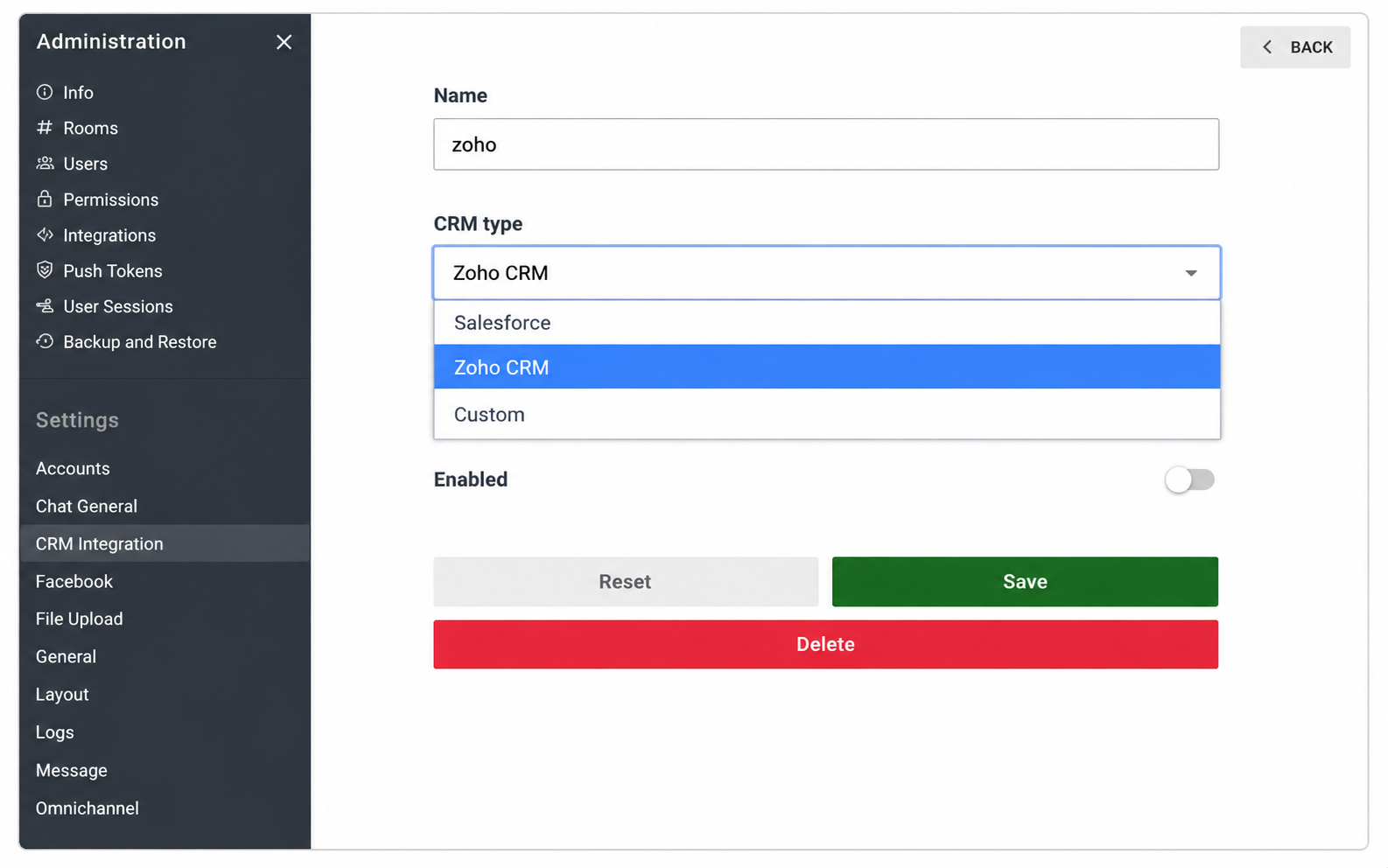
- Enter a descriptive name for the integration.
- From the CRM type dropdown, select:Zoho CRM
- Click Save.
Editing a Zoho CRM Integration
After a Zoho CRM integration has been created, the integration can be edited to enable or disable the CRM Workspace, retrieve the CRM widget URL, or update integration settings.
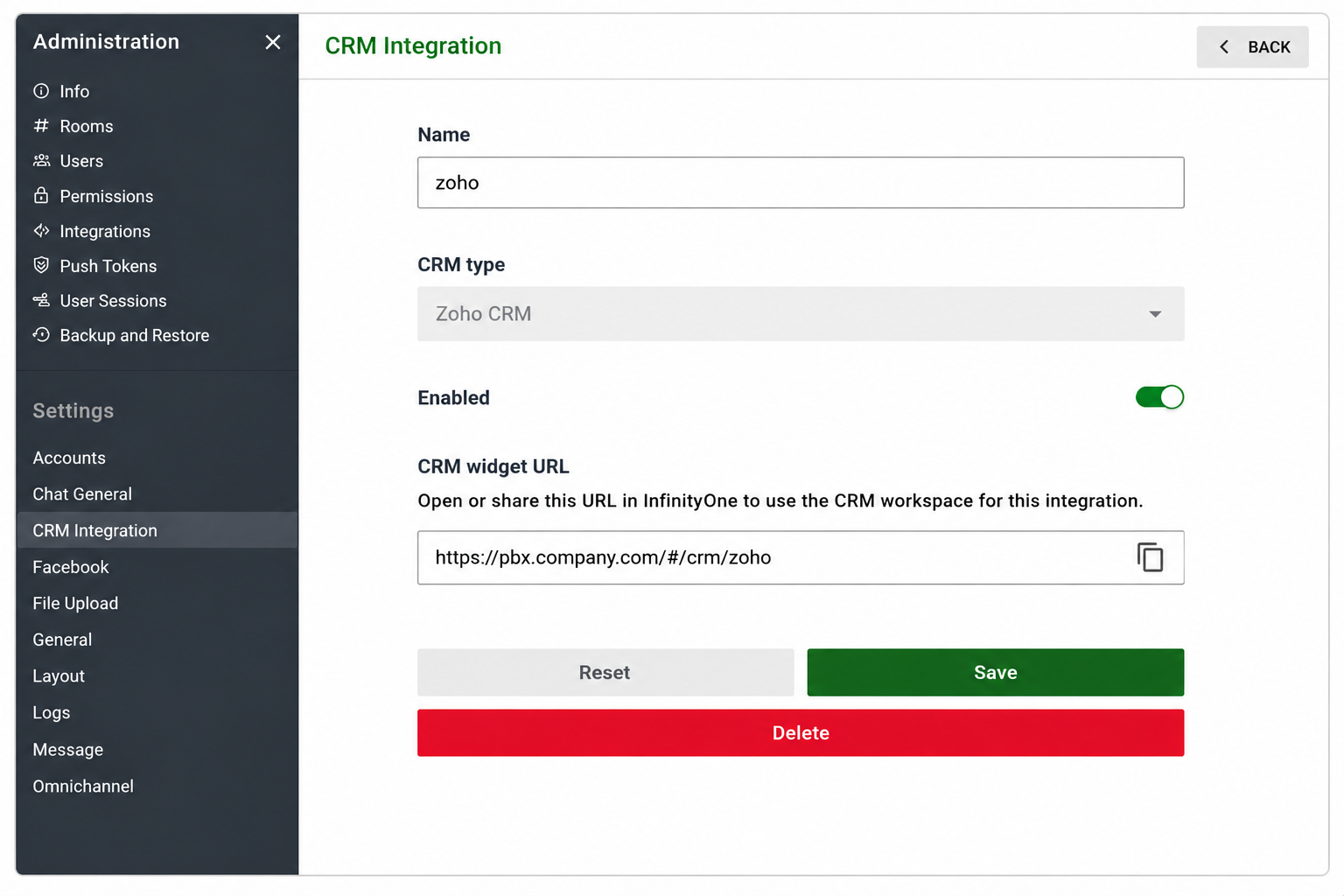
- In InfinityOne, navigate to: Administration > CRM Integration
- Locate the Zoho CRM integration you want to modify.
- Click the Edit icon beside the integration entry.
- Update the required settings as needed.
- Enable or disable the integration using the Enabled toggle.
- When enabled, the CRM widget URL is displayed automatically.
- Copy the CRM widget URL for use within Zoho CRM.
- Click Save to apply the changes.
The CRM widget URL is used to launch the embedded InfinityOne CRM Workspace within Zoho CRM.

Using the CRM Widget URL in Zoho CRM
The CRM widget URL generated by InfinityOne is used to embed the InfinityOne CRM Workspace within Zoho CRM using Zoho Canvas functionality.
Use the generated CRM widget URL when configuring the InfinityOne embedded workspace within Zoho CRM. After logging in to Zoho CRM as an administrator, use the generated CRM widget URL when configuring the InfinityOne embedded workspace within Zoho CRM. The exact Zoho CRM configuration steps may vary depending on the Zoho CRM edition and deployment model being used.
Once completed, the InfinityOne CRM Workspace will appear inside Zoho CRM for users assigned to the selected modules.
Testing the Integration
After configuration is complete, verify the integration using the following steps:
- Log in to Zoho CRM and confirm that the InfinityOne CRM Workspace loads successfully.
- Place an outbound call using click-to-dial from a CRM contact record.
- Verify that the InfinityOne workspace displays active call controls.
- Place a test inbound call and verify that matching CRM records generate a screen pop.
- Confirm that completed call activity is logged correctly within Zoho CRM.
Troubleshooting
| Issue | Possible Resolution |
| CRM Workspace does not load | Verify the CRM Integration is enabled and confirm the CRM widget URL is correct. |
| Microphone access denied | Allow microphone permissions in the web browser. |
| Inbound screen pop not working | Verify the caller number matches a Zoho CRM contact or lead record. |
| Click-to-dial not functioning | Confirm the InfinityOne workspace is loaded and the user is logged in. |
| Call activity not logging | Verify Zoho CRM permissions and integration settings. |
| CRM Workspace login prompt appears repeatedly | Verify browser cookie and third-party cookie settings are enabled. |
Next Steps
Once the Zoho CRM integration is operational, users can begin using the embedded InfinityOne workspace for:
- Inbound and outbound calling
- Click-to-dial
- Screen pop functionality
- Call activity logging
- Embedded call control
Refer to the InfinityOne Zoho CRM User Guide for end-user operating instructions.