
Accessing Infinity Web Client
Connect with SSL Certificate
To access the Infinity Web Client, launch a web browser (Chrome is recommended), enter ‘ https:// ‘ followed by the hostname of the InfinityOne Server, then suffix with ‘ :21326/ ‘.
For example: https://ucx.infinityone.app:21326/
Connect without SSL Certificate
For systems configured without an SSL Certificate, the Infinity Web Client can be accessed via the IP address by entering ‘ http:// ‘ followed by the IP address of the InfinityOne Server, then suffix with ‘ :21327/ ‘.
For example: http://192.168.1.200/infinityone/
First Time Login
Login using the UCX admin account.
Once you have entered your credentials and logged in, your browser may ask if you want the InfinityOne website to show notifications. Select Allow.
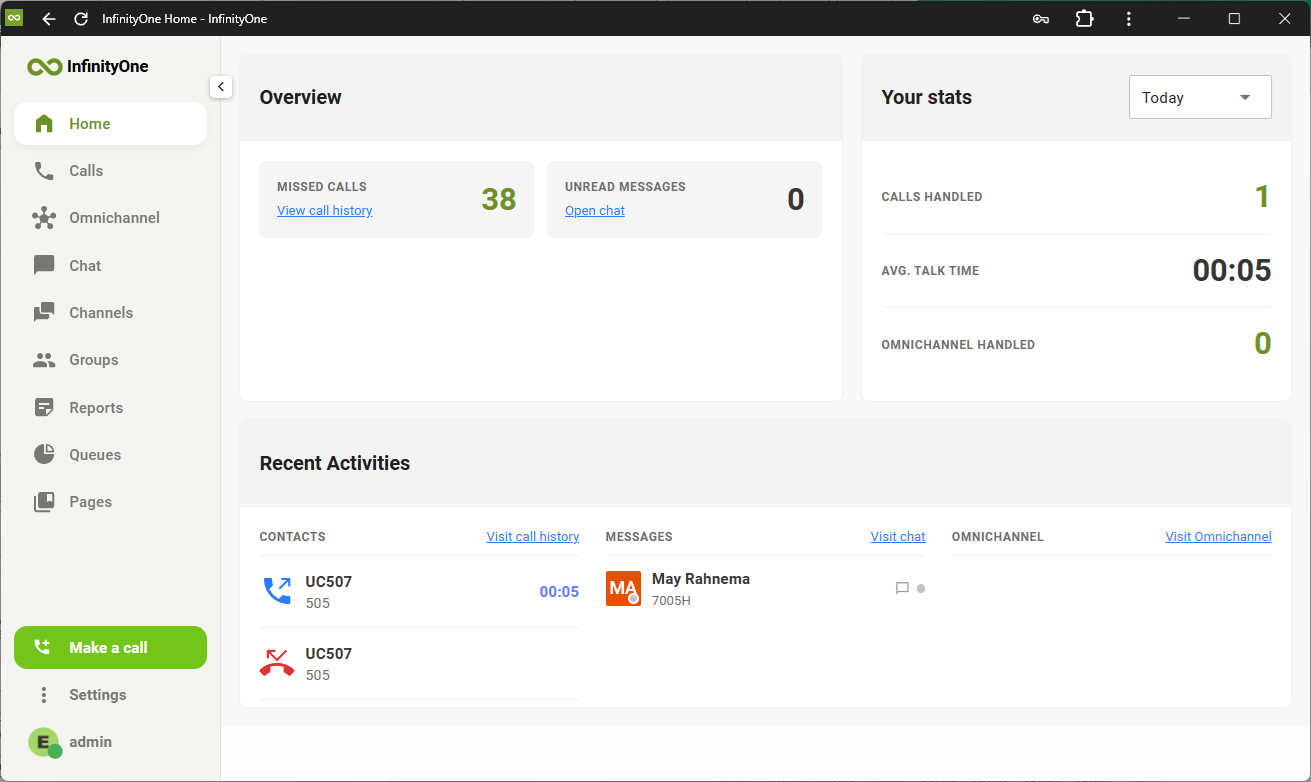
After logging in, you will be presented with the Home page.
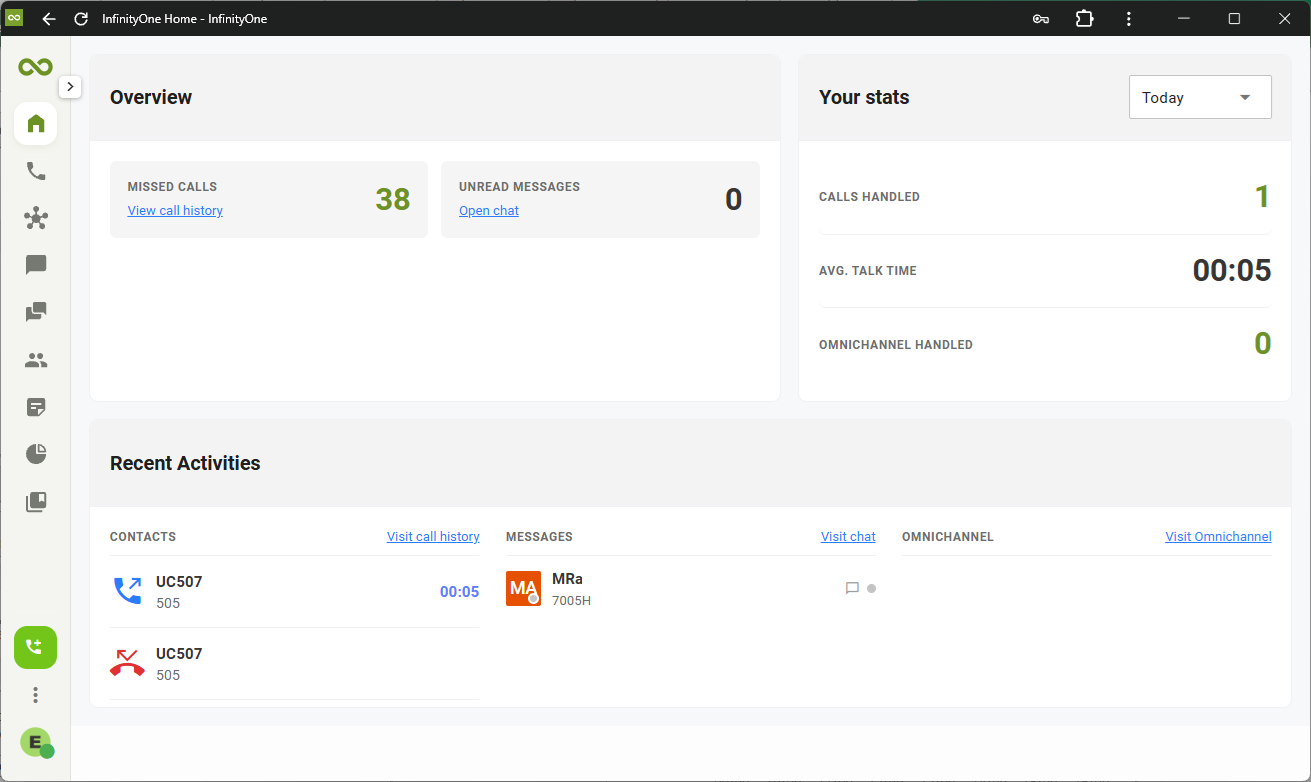
Click on the expand/collapse icon
 to increase/decrease the left navigation panel size.
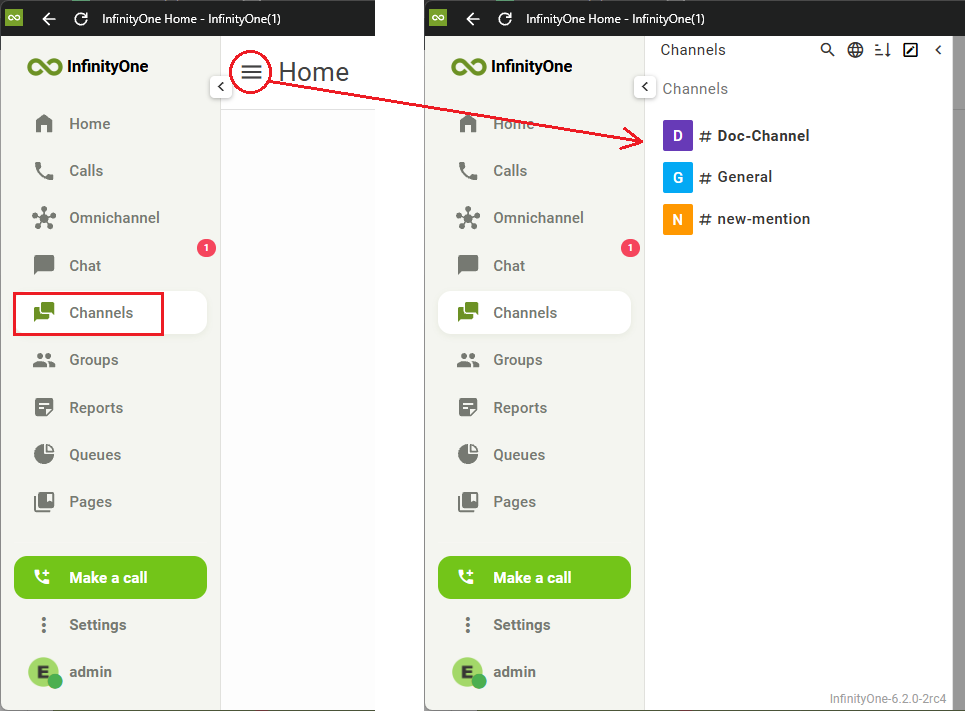
After selecting a tab on the left navigation pane, click on the hamburger menu icon  to show the menu list.
Administration
To access the administration pages, click on the settings icon  on the bottom left corner and select Administration.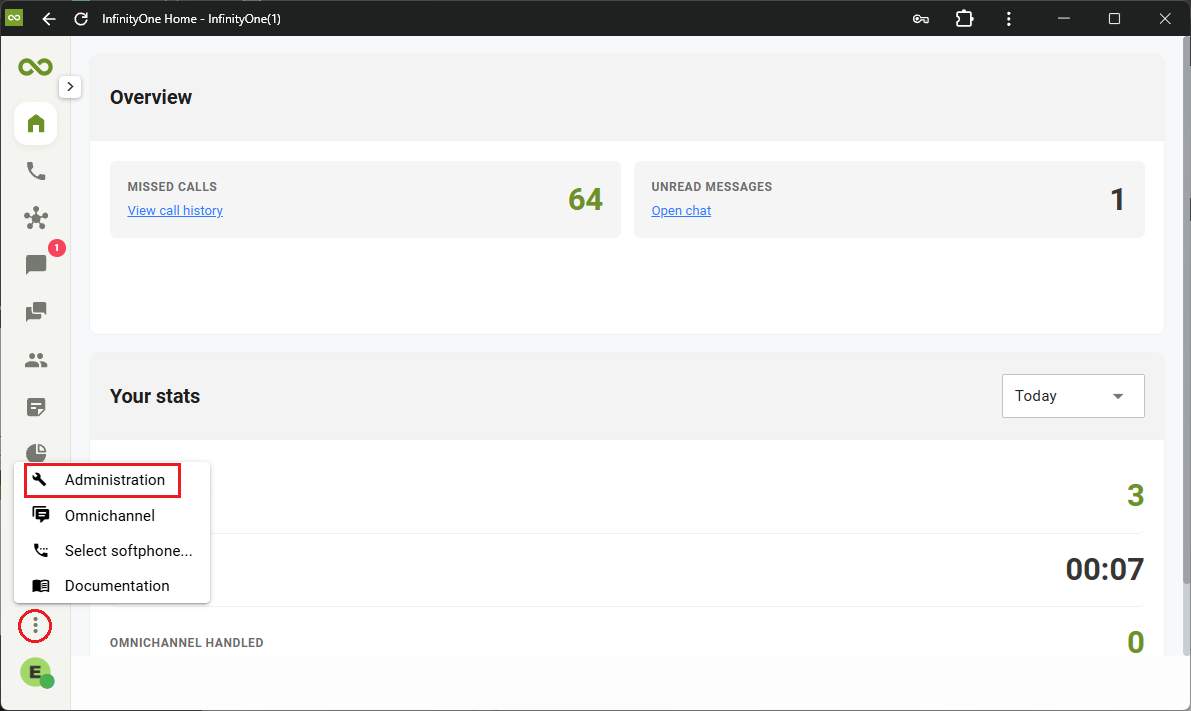
Review and make changes to the administrative settings if needed.
Install Infinity Web Client as an App
- Login to InfinityOne using the Chrome browser
- Click on the Chrome menu icon (3 dots on the top right of the browser)
- Move the mouse down to Cast, save and share, then select Install page as app…


- You will be prompted to add the app to Taskbar. Select Yes and a shortcut to Infinity Web Client will be created. You can now use this shortcut on the taskbar or desktop to launch the client as an independent browser app.
