Omnichannel Settings
- Login to Infinity Web Client using an administrator account.
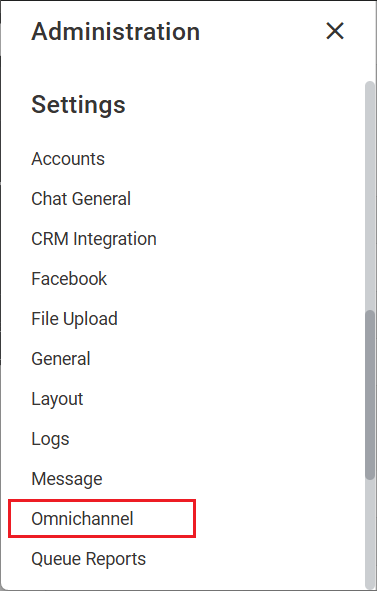
- Navigate to the Administration menu.
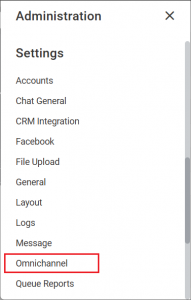
- Select Omnichannel under Settings.
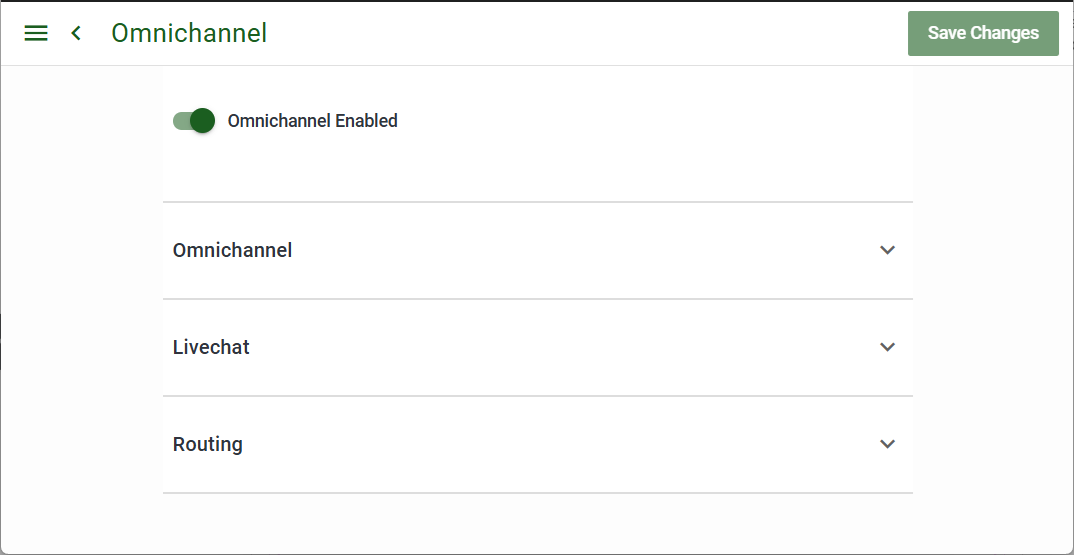
- The Omnichannel Enabled toggle controls whether any of the Omnichannel capabilities can be used. Default = Enabled.
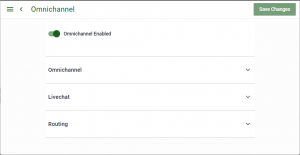
Click to expand the Omnichannel section.
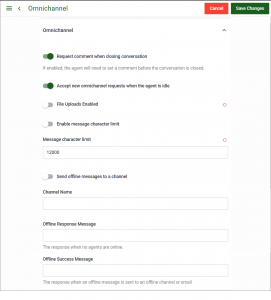
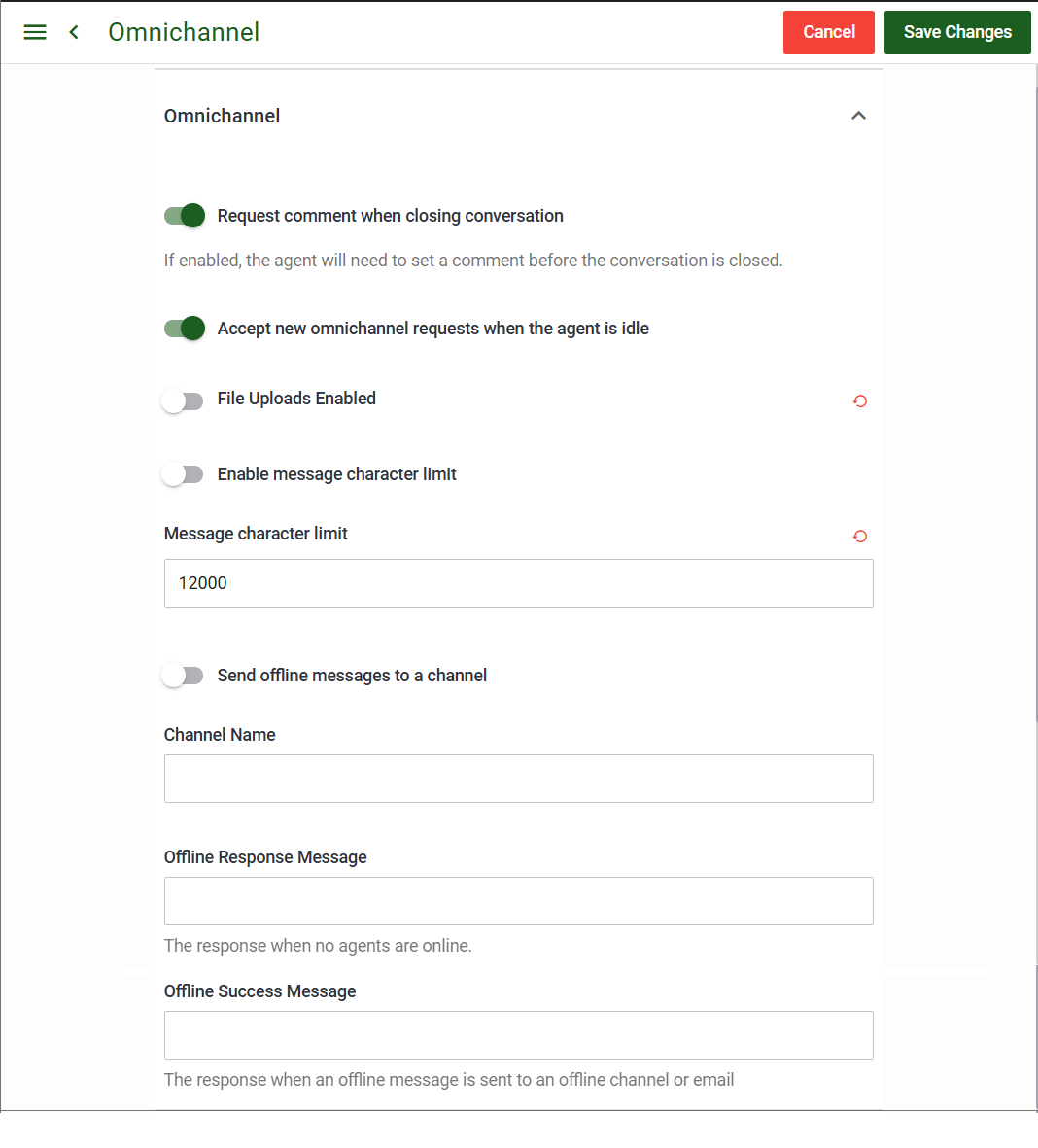
- The following settings are grouped under Omnichannel:
- Request comment when closing conversation: Forces the Agent to include a comment for internal use prior to being able to close the session with the Guest. Default = Enabled.
- Accept new omnichannel requests when the agent is idle: Controls when Guests can initiate a new conversation request. Default = Enabled.
- File Uploads Enabled: Controls whether or not files can be shared over a conversation between an Agent and a Guest. Default = Enabled.
- Enable message character limit: Sets a maximum message size in the Livechat window. Default = Disabled.
- Send offline messages to a channel: Specify the target channel to send offline messages. Default = Disabled.
- Offline Response Message: A message that can be displayed to website Guests when no Agents are online.
- Offline Success Message: The message displayed to the Guest when an offline message has been sent.
Livechat settings
- Click to expand Livechat section:
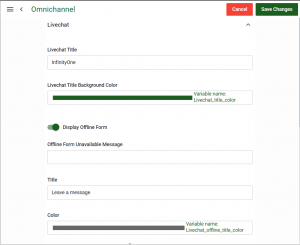
The following settings are grouped under Livechat:
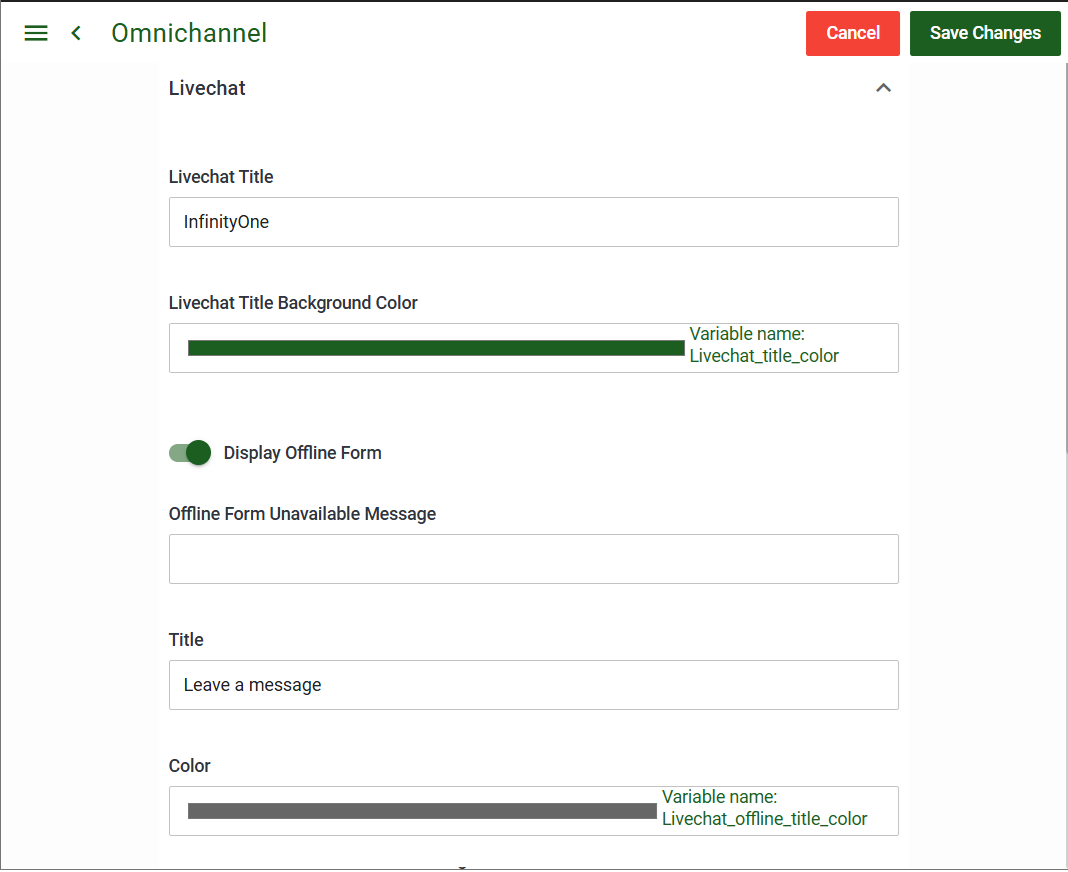
- Livechat Title: The name of the Livechat browser window that shows up on the Guest’s webpage.
- Livechat Title Background Color: Sets the color of the Livechat browser window.
- Display Offline Form: Change this setting if you wish to allow the form to display even when no Agents are online.
- Offline Form Unavailable Message: A message that can be displayed to website Guests when no Agents are online.
- Title: The title of the offline form window when displayed on the website.
- Color: Set the color of the offline form. This allows the Guest to be aware that the Livechat service is offered, but discern that it is currently offline.
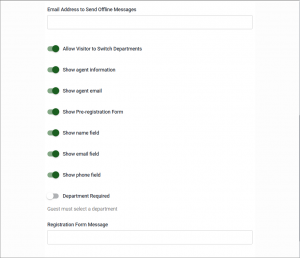
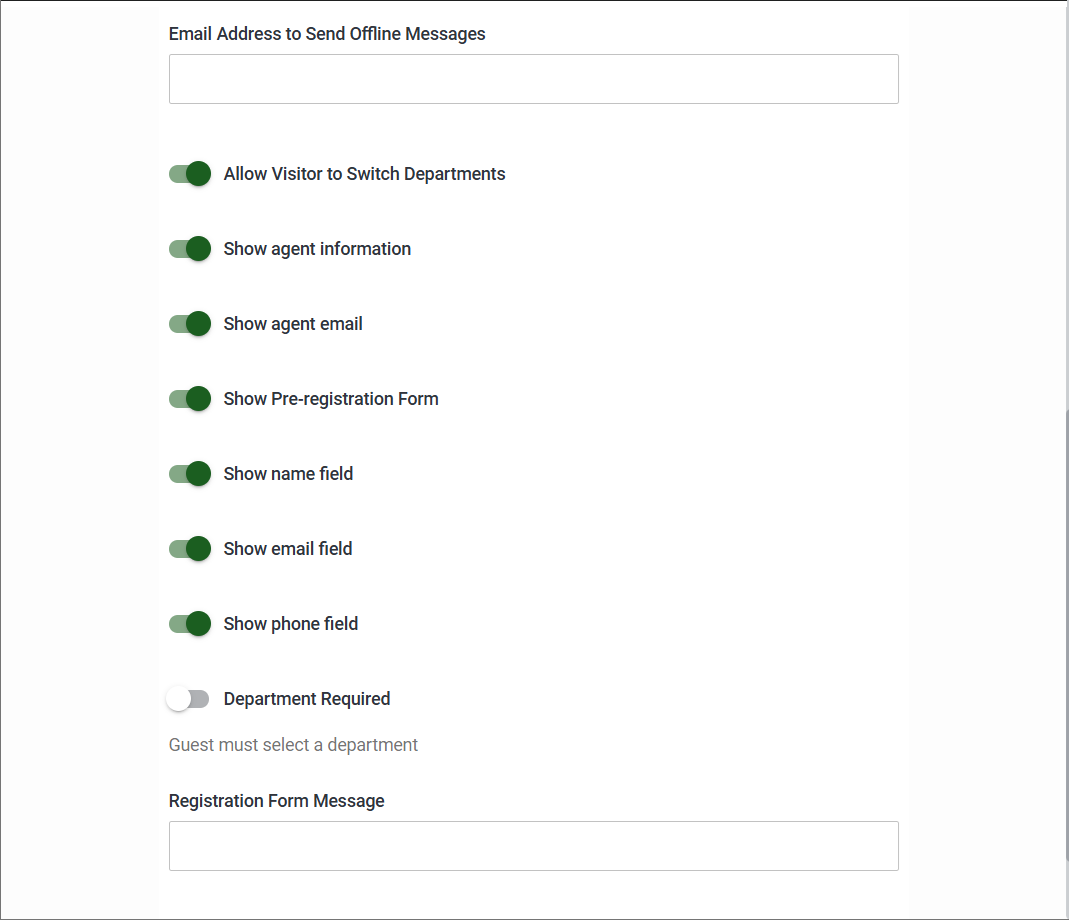
- Email Address to Send Offline Messages: The target email address to send offline messages.
- Allow Visitor to Switch Departments : Guests are able to switch to different departments for help.
- Show agent information: Displays the name of the Agent that has accepted the communication request to the Guest.
- Show agent email: Displays the email address of the Agent that has accepted the communication request to the Guest.
- Show Pre-registration Form: Forces the Guest to provide items such as name and email address and the desired department prior to being able to send a message.
- Show name field: Include the Name field in the pre-registration form.
- Show email field: Include the Email field in the pre-registration form.
- Show phone field: Include Phone field in the pre-registration form.
- Department Required: Forces the Guest to select a Department.
- Registration Form Message: Provide the message sent post registration.
Routing settings
- Click to expand the Routing section:
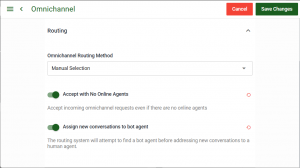
The following settings are grouped under Routing:
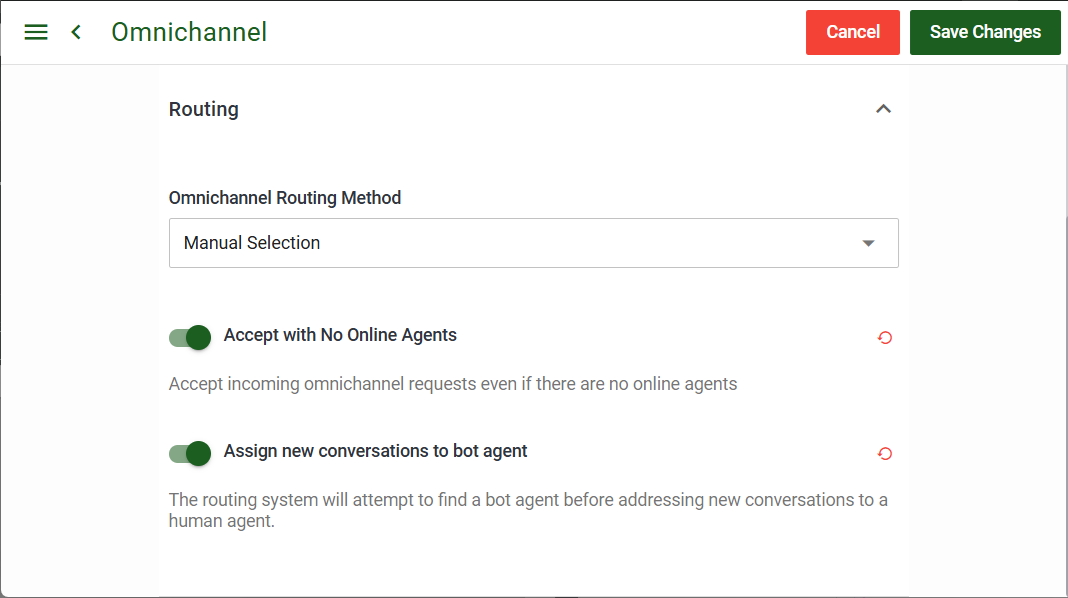
- Omnichannel Routing Method: Currently, Manual Selection is the only available option.
- Accept with No Online Agents: Change this setting if you wish to allow Guest connections even when no Agents are online.
- Assign new conversations to bot agent: Enable this setting if you want to route new conversations to a bot agent first.